---
title: Human in the Loop
description: Add human review and approval steps to Cloudflare Agents for compliance, safety, and quality control.
image: https://developers.cloudflare.com/dev-products-preview.png
---
> Documentation Index
> Fetch the complete documentation index at: https://developers.cloudflare.com/agents/llms.txt
> Use this file to discover all available pages before exploring further.
[Skip to content](#%5Ftop)
# Human in the Loop
Human-in-the-Loop (HITL) workflows integrate human judgment and oversight into automated processes. These workflows pause at critical points for human review, validation, or decision-making before proceeding.
## Why human-in-the-loop?
* **Compliance**: Regulatory requirements may mandate human approval for certain actions.
* **Safety**: High-stakes operations (payments, deletions, external communications) need oversight.
* **Quality**: Human review catches errors AI might miss.
* **Trust**: Users feel more confident when they can approve critical actions.
### Common use cases
| Use Case | Example |
| ------------------- | ------------------------------------ |
| Financial approvals | Expense reports, payment processing |
| Content moderation | Publishing, email sending |
| Data operations | Bulk deletions, exports |
| AI tool execution | Confirming tool calls before running |
| Access control | Granting permissions, role changes |
## Choosing an approach
The Agents SDK provides five patterns for human-in-the-loop. Choose based on your architecture:
| Use Case | Pattern | Best For |
| ---------------------- | ----------------- | ------------------------------------------------------------------------- |
| Long-running workflows | Workflow Approval | Multi-step processes, durable approval gates that can wait hours or weeks |
| AIChatAgent tools | needsApproval | Chat-based tool calls with server-side approval before execution |
| Client-side tools | onToolCall | Tools that need browser APIs or user interaction before execution |
| MCP servers | Elicitation | MCP tools requesting structured user input during execution |
| Simple confirmations | State + WebSocket | Lightweight approval flows without AI chat or workflows |
### Decision tree
```
Is this part of a multi-step workflow?
├── Yes → Use Workflow Approval (waitForApproval)
└── No → Are you building an MCP server?
├── Yes → Use MCP Elicitation (elicitInput)
└── No → Is this an AI chat interaction?
├── Yes → Does the tool need browser APIs?
│ ├── Yes → Use onToolCall (client-side execution)
│ └── No → Use needsApproval (server-side with approval)
└── No → Use State + WebSocket for simple confirmations
```
## Pattern 1: Workflow approval
For durable, multi-step processes with approval gates that can wait hours, days, or weeks. Use [Cloudflare Workflows](https://developers.cloudflare.com/workflows/) with the `waitForApproval()` method.
**Key APIs:**
* `waitForApproval(step, { timeout })` — Pause workflow until approved
* `approveWorkflow(workflowId, { reason?, metadata? })` — Approve a waiting workflow
* `rejectWorkflow(workflowId, { reason? })` — Reject a waiting workflow
**Best for:** Expense approvals, content publishing pipelines, data export requests
## Pattern 2: `needsApproval` (AI chat tools)
For `AIChatAgent` tools that should pause for user confirmation before executing. Define `needsApproval` on the tool — it can be a boolean or an async predicate based on the tool arguments:
* [ JavaScript ](#tab-panel-4094)
* [ TypeScript ](#tab-panel-4095)
JavaScript
```
tools: {
processPayment: tool({
description: "Process a payment",
inputSchema: z.object({
amount: z.number(),
recipient: z.string(),
}),
needsApproval: async ({ amount }) => amount > 100,
execute: async ({ amount, recipient }) => charge(amount, recipient),
});
}
```
TypeScript
```
tools: {
processPayment: tool({
description: "Process a payment",
inputSchema: z.object({
amount: z.number(),
recipient: z.string(),
}),
needsApproval: async ({ amount }) => amount > 100,
execute: async ({ amount, recipient }) => charge(amount, recipient),
});
}
```
On the client, render pending approvals from message parts and call `addToolApprovalResponse`:
* [ JavaScript ](#tab-panel-4104)
* [ TypeScript ](#tab-panel-4105)
JavaScript
```
const { messages, addToolApprovalResponse } = useAgentChat({ agent });
{
messages.map((msg) =>
msg.parts
.filter(
(part) => part.type === "tool" && part.state === "approval-required",
)
.map((part) => (
)),
);
}
```
For custom denial messages, use `addToolOutput` with `state: "output-error"` instead of `addToolApprovalResponse`:
* [ JavaScript ](#tab-panel-4092)
* [ TypeScript ](#tab-panel-4093)
JavaScript
```
addToolOutput({
toolCallId: part.toolCallId,
state: "output-error",
errorText: "User declined: insufficient budget for this quarter",
});
```
TypeScript
```
addToolOutput({
toolCallId: part.toolCallId,
state: "output-error",
errorText: "User declined: insufficient budget for this quarter",
});
```
## Pattern 3: `onToolCall` (client-side execution)
For tools that need browser APIs (geolocation, clipboard, camera) or user interaction before returning a result. Define the tool on the server without `execute`, then handle it on the client:
* [ JavaScript ](#tab-panel-4100)
* [ TypeScript ](#tab-panel-4101)
JavaScript
```
const { messages, sendMessage } = useAgentChat({
agent,
onToolCall: async ({ toolCall, addToolOutput }) => {
if (toolCall.toolName === "getLocation") {
const pos = await new Promise((resolve, reject) =>
navigator.geolocation.getCurrentPosition(resolve, reject),
);
addToolOutput({
toolCallId: toolCall.toolCallId,
output: { lat: pos.coords.latitude, lng: pos.coords.longitude },
});
}
},
});
```
TypeScript
```
const { messages, sendMessage } = useAgentChat({
agent,
onToolCall: async ({ toolCall, addToolOutput }) => {
if (toolCall.toolName === "getLocation") {
const pos = await new Promise((resolve, reject) =>
navigator.geolocation.getCurrentPosition(resolve, reject),
);
addToolOutput({
toolCallId: toolCall.toolCallId,
output: { lat: pos.coords.latitude, lng: pos.coords.longitude },
});
}
},
});
```
When `autoContinueAfterToolResult` is `true` (the default), the conversation automatically continues after the client provides the tool output.
## Pattern 4: MCP elicitation
For MCP servers that need to request additional structured input from users during tool execution. The MCP client renders a form based on your JSON Schema:
* [ JavaScript ](#tab-panel-4102)
* [ TypeScript ](#tab-panel-4103)
JavaScript
```
export class MyMcpAgent extends McpAgent {
async init() {
this.server.server.setRequestHandler(
CallToolRequestSchema,
async (request, extra) => {
const result = await this.server.server.elicitInput({
message: "Please confirm the transfer details",
requestedSchema: {
type: "object",
properties: {
confirmed: { type: "boolean", description: "Confirm transfer?" },
notes: { type: "string", description: "Optional notes" },
},
required: ["confirmed"],
},
});
if (result.action === "accept" && result.content?.confirmed) {
return { content: [{ type: "text", text: "Transfer confirmed" }] };
}
return { content: [{ type: "text", text: "Transfer cancelled" }] };
},
);
}
}
```
TypeScript
```
export class MyMcpAgent extends McpAgent {
async init() {
this.server.server.setRequestHandler(
CallToolRequestSchema,
async (request, extra) => {
const result = await this.server.server.elicitInput({
message: "Please confirm the transfer details",
requestedSchema: {
type: "object",
properties: {
confirmed: { type: "boolean", description: "Confirm transfer?" },
notes: { type: "string", description: "Optional notes" },
},
required: ["confirmed"],
},
});
if (result.action === "accept" && result.content?.confirmed) {
return { content: [{ type: "text", text: "Transfer confirmed" }] };
}
return { content: [{ type: "text", text: "Transfer cancelled" }] };
},
);
}
}
```
**Best for:** Interactive tool confirmations, gathering additional parameters mid-execution
## How workflows handle approvals
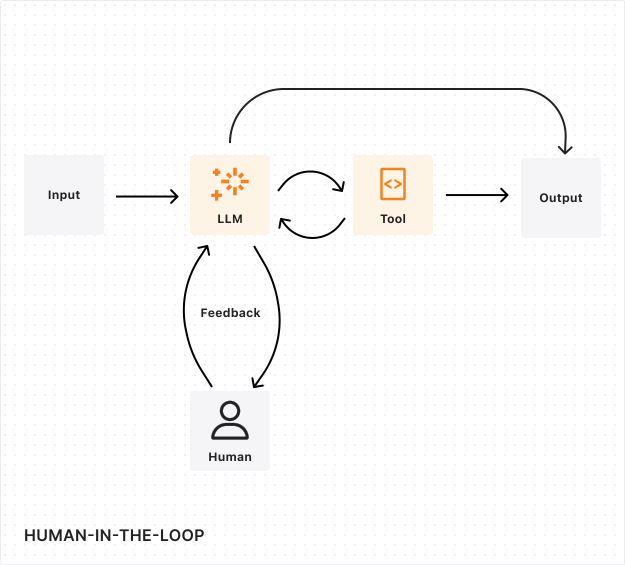
In a workflow-based approval:
1. The workflow reaches an approval step and calls `waitForApproval()`
2. The workflow pauses and reports progress to the agent
3. The agent updates its state with the pending approval
4. Connected clients see the pending approval and can approve or reject
5. When approved, the workflow resumes with the approval metadata
6. If rejected or timed out, the workflow handles the rejection appropriately
## Timeouts and escalation
Set timeouts to prevent workflows from waiting indefinitely:
* [ JavaScript ](#tab-panel-4096)
* [ TypeScript ](#tab-panel-4097)
JavaScript
```
const approval = await this.waitForApproval(step, {
timeout: "7 days",
});
```
TypeScript
```
const approval = await this.waitForApproval(step, {
timeout: "7 days",
});
```
Use [scheduling](https://developers.cloudflare.com/agents/api-reference/schedule-tasks/) for escalation:
* [ JavaScript ](#tab-panel-4098)
* [ TypeScript ](#tab-panel-4099)
JavaScript
```
await this.schedule(86400, "sendApprovalReminder", { workflowId });
await this.schedule(604800, "escalateToManager", { workflowId });
```
TypeScript
```
await this.schedule(86400, "sendApprovalReminder", { workflowId });
await this.schedule(604800, "escalateToManager", { workflowId });
```
## Best practices
### Audit trails
Maintain immutable audit logs of all approval decisions using the [SQL API](https://developers.cloudflare.com/agents/api-reference/store-and-sync-state/). Record:
* Who made the decision
* When the decision was made
* The reason or justification
* Any relevant metadata
### Long-term state persistence
Human review processes do not operate on predictable timelines. A reviewer might need days or weeks to make a decision. Your system needs to maintain state consistency throughout this period — the original request, intermediate decisions, partial progress, and review history.
Tip
[Durable Objects](https://developers.cloudflare.com/durable-objects/) provide persistent compute instances that maintain state for hours, weeks, or months — ideal for long-lived approval flows.
### Continuous improvement
Human reviewers play a crucial role in evaluating and improving LLM performance:
* **Decision quality assessment**: Have reviewers evaluate the LLM's reasoning process and decision points.
* **Edge case identification**: Use human expertise to identify scenarios where performance could be improved.
* **Feedback collection**: Gather structured feedback that can be used to fine-tune the LLM. [AI Gateway](https://developers.cloudflare.com/ai-gateway/evaluations/add-human-feedback/) can help set up an LLM feedback loop.
### Error handling and recovery
Your system should gracefully handle reviewer unavailability, system outages, conflicting reviews, and timeout expiration. Implement clear escalation paths for exceptional cases and automatic checkpointing that allows workflows to resume from the last stable state after any interruption.
## Next steps
[ Human-in-the-loop patterns ](https://developers.cloudflare.com/agents/guides/human-in-the-loop/) Full implementation examples with workflows and chat tools.
[ Chat agents — Tool approval ](https://developers.cloudflare.com/agents/api-reference/chat-agents/#tool-approval-human-in-the-loop) needsApproval and addToolApprovalResponse reference.
[ Run Workflows ](https://developers.cloudflare.com/agents/api-reference/run-workflows/) Complete API for workflow approvals.
[ MCP elicitation ](https://developers.cloudflare.com/agents/api-reference/mcp-agent-api/#elicitation-human-in-the-loop) Interactive input from MCP clients.
```json
{"@context":"https://schema.org","@type":"BreadcrumbList","itemListElement":[{"@type":"ListItem","position":1,"item":{"@id":"/directory/","name":"Directory"}},{"@type":"ListItem","position":2,"item":{"@id":"/agents/","name":"Agents"}},{"@type":"ListItem","position":3,"item":{"@id":"/agents/concepts/","name":"Concepts"}},{"@type":"ListItem","position":4,"item":{"@id":"/agents/concepts/human-in-the-loop/","name":"Human in the Loop"}}]}
```