
Host selectors
Feature availability
| WARP modes | Zero Trust plans ↗ |
|---|---|
| Gateway with WARP | Enterprise |
| System | Availability | Minimum WARP version |
|---|---|---|
| Windows | ✅ | 2025.4.929.0 |
| macOS | ✅ | 2025.4.929.0 |
| Linux | ✅ | 2025.4.929.0 |
| iOS | ❌ | |
| Android | ❌ | |
| ChromeOS | ❌ |
When Gateway receives a DNS query for hostname covered by the Application, Content Categories, Domain, and Host selectors in an Egress policy, Gateway initially resolves DNS to an IP in the 100.80.0.0/16 or 2606:4700:0cf1:4000::/64 range. This process allows Gateway to map a destination IP with a hostname at layer 4 ↗ (where Gateway evaluates Egress policies). The destination IP for a hostname is not usually known at layer 4. Prior to evaluating Egress policies, the initially resolved IP is overwritten with the correct destination IP.
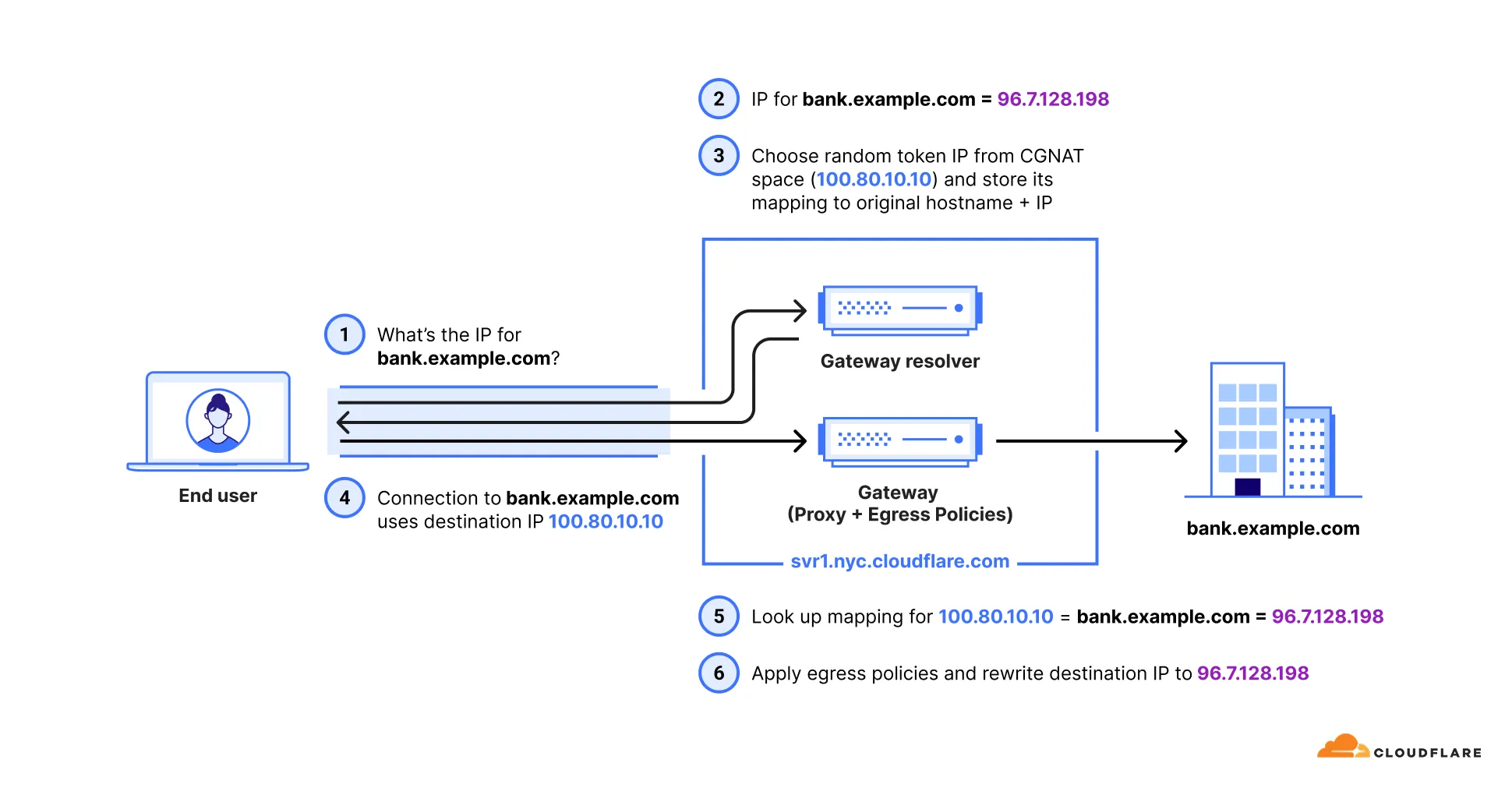
Additional configuration is required when using policies with these selectors.
To turn on the selectors for your account:
- In Cloudflare One ↗, go to Traffic policies > Traffic settings.
- In Policy settings, turn on Allow egress policy host selectors.
Use the Patch Zero Trust account configuration endpoint to update your Zero Trust configuration. For example:
curl "https://api.cloudflare.com/client/v4/accounts/$ACCOUNT_ID/gateway/configuration" \ --request PATCH \ --header "Authorization: Bearer $CLOUDFLARE_API_TOKEN" \ --json '{ "settings": { "host_selector": { "enabled": true } } }'Traffic must be on-ramped to Gateway with the following methods:
| On-ramp method | Compatibility |
|---|---|
| WARP | ✅ |
| PAC files | ✅ |
| Browser Isolation | ✅ |
| WARP Connector | ❌ |
| Magic WAN | ✅ |
Unsupported traffic will be resolved with your default Gateway settings. If you use DNS locations to send a DNS query to Gateway with IPv4, IPv6, DoT, or DoH, Gateway will not return the initial resolved IP for supported traffic nor resolve unsupported traffic.
To configure your Zero Trust organization to use Host selectors with Egress policies:
-
Ensure you have deployed WARP version 2025.4.929.0 or later on your users' desktop devices. If you need to apply your policies to mobile devices or devices running a version of WARP prior to 2025.4.929.0, add and deploy the following key-value pair to your devices' WARP configuration file (
mdm.xmlon Windows and Linux orcom.cloudflare.warp.pliston macOS):<array><dict><key>doh_in_tunnel</key><true/></dict></array>
-
In your WARP device profile, configure Split Tunnels such that the initial resolved IPs route through the WARP tunnel. Refer to the steps below for your Split Tunnels mode:
-
Remove the route to the IP address
100.64.0.0/10from your Split Tunnel exclude list. -
We recommend adding back the IPs that are not being used for Zero Trust services. For example, if you are using initial resolved IPs alongside WARP-to-WARP connectivity, add routes to exclude the following IP addresses:
100.64.0.0/12100.81.0.0/16100.82.0.0/15100.84.0.0/14100.88.0.0/13100.112.0.0/12
- Add the required Zero Trust domains or IP addresses to your Split Tunnel include list.
- Add routes to include the following IP addresses:
- IPv4:
100.80.0.0/16 - IPv6:
2606:4700:0cf1:4000::/64
- IPv4:
-
The WARP client must be set to Gateway with WARP mode for traffic affected by these selectors to route correctly.
Starting with Chrome 142 ↗, the browser restricts requests from websites to local IP addresses, including the Gateway initial resolved IP CGNAT range (100.80.0.0/16). When a website attempts to access a domain resolved through an initial resolved IP, the browser will display a prompt from the website asking to look for and connect to devices on the local network. Chrome will block requests to these domains until the user accepts this prompt.
To avoid this issue, choose one of the following options:
- Disable the Chrome feature flag: Go to
chrome://flagsand set the Local Network Access Checks flag to Disabled. - Configure Chrome Enterprise policy: Use the LocalNetworkAccessAllowedForUrls policy to allow specific websites to make requests to these domains. For more information, refer to the Chrome Enterprise documentation ↗.
Was this helpful?
- Resources
- API
- New to Cloudflare?
- Directory
- Sponsorships
- Open Source
- Support
- Help Center
- System Status
- Compliance
- GDPR
- Company
- cloudflare.com
- Our team
- Careers
- © 2026 Cloudflare, Inc.
- Privacy Policy
- Terms of Use
- Report Security Issues
- Trademark
-
