---
title: Speed
description: Optimize your website performance with Cloudflare Speed tools and settings.
image: https://developers.cloudflare.com/core-services-preview.png
---
> Documentation Index
> Fetch the complete documentation index at: https://developers.cloudflare.com/speed/llms.txt
> Use this file to discover all available pages before exploring further.
[Skip to content](#%5Ftop)
# Speed
Improve the performance of your website or web application.
Available on all plans
Speed allows you to assess the performance of your website and get recommendations of Cloudflare products to enhance the website performance.
---
## Features
### Observatory
Use Observatory to conduct tests with both synthetic and real user data to identify potential website performance enhancements.
[ Use Observatory ](https://developers.cloudflare.com/speed/observatory/)
### Settings
Get recommendations of Cloudflare products and settings to improve your website’s performance.
[ Use Settings ](https://developers.cloudflare.com/speed/optimization/)
### Aggregated Internet Measurement
Understand your Internet quality to identify scenarios that your Internet connection is good or bad for.
[ Use Aggregated Internet Measurement ](https://developers.cloudflare.com/speed/aim/)
---
## Related products
**[Cache rules](https://developers.cloudflare.com/cache/how-to/cache-rules/)**
Customize the cache properties of your HTTP requests.
**[Cloudflare Web Analytics](https://developers.cloudflare.com/web-analytics/)**
Understand the performance of your webpages as experienced by your site visitors.
**[Cloudflare Image Resizing](https://developers.cloudflare.com/images/optimization/transformations/overview/)**
Transform images on Cloudflare's edge platform: resize, adjust quality, and convert images to WebP or AVIF format on demand.
**[Early Hints](https://developers.cloudflare.com/cache/advanced-configuration/early-hints/)**
Take advantage of "server think time" to asynchronously send instructions to the browser to begin loading resources while the origin server is compiling the full response.
---
## More resources
[Quotas](https://developers.cloudflare.com/speed/observatory/run-speed-test/#quotas)
Learn about the quota limits for the number of tests you can run per month.
[Community Forum](https://community.cloudflare.com/c/website-application-performance/88)
Engage with other users and explore more resources on Cloudflare support forum.
```json
{"@context":"https://schema.org","@type":"BreadcrumbList","itemListElement":[{"@type":"ListItem","position":1,"item":{"@id":"/directory/","name":"Directory"}},{"@type":"ListItem","position":2,"item":{"@id":"/speed/","name":"Speed"}}]}
```
---
---
title: Observatory (beta)
description: Test and monitor your website performance with Cloudflare Observatory.
image: https://developers.cloudflare.com/core-services-preview.png
---
> Documentation Index
> Fetch the complete documentation index at: https://developers.cloudflare.com/speed/llms.txt
> Use this file to discover all available pages before exploring further.
[Skip to content](#%5Ftop)
# Observatory (beta)
Observatory uses synthetic tests and real user data from browsers to assess the performance of your website. These data sources produce metrics that provide different types of insights into your website’s performance. Cloudflare then uses the analysis run by Observatory to recommend optimizations with the tools that best suit your performance issues.
## Synthetic tests
As its name suggests, synthetic testing uses servers to simulate the conditions that a user might encounter when accessing your website. This has the advantage of being consistent, as the conditions are easily replicated each time the test is run. It also allows you to have an analysis of how a code change might affect the overall performance of your website, as well as test any URL you want. However, due to its synthetic nature, it cannot replicate the breadth and diversity of different conditions that real users will experience.
Observatory provides two different types of synthetic tests:
### Browser test
The browser test loads the requested page in a headless browser and runs Google Lighthouse on it. This reports key performance metrics and provides light suggestions for improvement.
### Network test
The network test is focused on giving a detailed breakdown of the network and back-end performance of an endpoint. For more information on metrics collected, refer to [Network monitoring metrics](https://developers.cloudflare.com/speed/observatory/test-results/#network-monitoring-metrics).
### Network comparison test
You can also compare network tests in Observatory by selecting any two completed tests. The results for each test are displayed side by side as histograms, allowing you to easily visualize and compare the full distribution of data points across both tests.
## Real user monitoring (RUM)
Real user monitoring (also known as RUM), on the other hand, captures real metrics from real users accessing a website. This provides information that synthetic tests cannot capture, as users might access your website from different parts of the world, with different network conditions, ISPs, browsers and computer hardware. However, RUM data is only applied to your own website. Real user data also includes two user interaction metrics that synthetic tests do not offer - [First Input Delay (FID) ↗](https://web.dev/fid/) and [Interaction to Next Paint (INP) ↗](https://web.dev/inp/).
Free customers have RUM enabled automatically, with EU traffic excluded, and can switch it off if they prefer. Customers on other plans may enable RUM as needed.
[ Run test ](https://developers.cloudflare.com/speed/observatory/run-speed-test/)
```json
{"@context":"https://schema.org","@type":"BreadcrumbList","itemListElement":[{"@type":"ListItem","position":1,"item":{"@id":"/directory/","name":"Directory"}},{"@type":"ListItem","position":2,"item":{"@id":"/speed/","name":"Speed"}},{"@type":"ListItem","position":3,"item":{"@id":"/speed/observatory/","name":"Observatory (beta)"}}]}
```
---
---
title: Observatory dashboard
description: View speed test history and performance trends in the Observatory dashboard.
image: https://developers.cloudflare.com/core-services-preview.png
---
> Documentation Index
> Fetch the complete documentation index at: https://developers.cloudflare.com/speed/llms.txt
> Use this file to discover all available pages before exploring further.
[Skip to content](#%5Ftop)
# Observatory dashboard
The Observatory overview dashboard provides a single view of your zone's performance over the past seven days. It combines synthetic monitoring, real user data, and Cloudflare's analysis to help you quickly identify performance bottlenecks and receive actionable recommendations.
## Suggestions
The **Suggestions** panel highlights tailored optimizations you can make to improve performance. Examples include:
* Reduce Largest Contentful Paint (LCP) with Polish.
* Reduce Time to First Byte (TTFB) with Argo Smart Routing.
These recommendations will vary based on your site's observed performance.
Selecting a suggestion expands it to show more detail:
* **Why you're seeing this**: Explains the performance issue detected.
* **What you can do**: Lists recommended actions you can take.
## Core Web Vitals
The dashboard integrates **Core Web Vitals**, showing values at the 75th percentile (p75). These metrics reflect real user experiences:
* **Largest Contentful Paint (LCP)**: How quickly the main content of a page becomes visible.
* **Interaction to Next Paint (INP)**: How responsive the site is to user interactions.
* **Cumulative Layout Shift (CLS)**: How visually stable the page layout is.
If insufficient real user data is available, metrics may show as **No data**.
## Network Performance
The **Network Performance** section shows timing data that can help pinpoint where latency occurs.
* **Time to First Byte (TTFB)**: Measures the time between the initial request and the first byte of the response.
* **Time to Last Byte (TTLB) Breakdown**: Provides a breakdown of response phases:
* DNS resolution time
* TCP connection time
* Request processing time at the server
* Response transfer time
This breakdown helps identify whether delays are caused by DNS, connection setup, server processing, or response delivery.
## HTTP Traffic
The **HTTP Traffic** section shows how traffic is handled between Cloudflare and your origin server:
* **Served by**: Percentage of requests served from Cloudflare versus from your origin.
* **4xx errors**: Client errors, broken down by Cloudflare edge versus origin.
* **5xx errors**: Server errors, broken down by Cloudflare edge versus origin.
This view helps distinguish between Cloudflare-side issues and origin-side issues.
## Synthetic Monitoring
The **Synthetic Monitoring** table shows automated test results for your site. Each row includes:
* **URL tested**
* **Last test run**
* **Repeats** (if scheduled multiple times)
* **Score** (Pass/Fail)
Synthetic monitoring allows you to proactively test site availability and performance under consistent conditions, complementing real user monitoring (RUM).
## Using the dashboard
Use the Speed Overview dashboard to:
* Review **Suggestions** for actionable optimizations.
* Track **Core Web Vitals** to ensure a good user experience.
* Analyze **Network Performance** to identify latency bottlenecks.
* Diagnose errors with **HTTP Traffic** insights.
* Confirm site reliability using **Synthetic Monitoring** results.
```json
{"@context":"https://schema.org","@type":"BreadcrumbList","itemListElement":[{"@type":"ListItem","position":1,"item":{"@id":"/directory/","name":"Directory"}},{"@type":"ListItem","position":2,"item":{"@id":"/speed/","name":"Speed"}},{"@type":"ListItem","position":3,"item":{"@id":"/speed/observatory/","name":"Observatory (beta)"}},{"@type":"ListItem","position":4,"item":{"@id":"/speed/observatory/dashboard/","name":"Observatory dashboard"}}]}
```
---
---
title: FAQ
description: Find answers to common questions about Cloudflare Observatory.
image: https://developers.cloudflare.com/core-services-preview.png
---
> Documentation Index
> Fetch the complete documentation index at: https://developers.cloudflare.com/speed/llms.txt
> Use this file to discover all available pages before exploring further.
[Skip to content](#%5Ftop)
# FAQ
Below you will find answers to our most commonly asked questions. If you cannot find the answer you are looking for, refer to the [community page ↗](https://community.cloudflare.com/c/website-application-performance/88) to explore more resources.
## How long does it take for a test to load?
It can vary from about 25 seconds to over a minute. If you leave your speed tab open, your test is still going to run. You can leave and return and still see your test results.
## Are query parameters or anchors supported in tested URLs?
No. At the moment, any query parameter or anchor appended to the tested URL are dropped.
For example, using the `https://example.com/blog/?utm_medium=social#title` URL, the Observatory will discard the `?utm_medium=social` query parameter as well as the `#title` anchor. The tested URL will actually be `https://example.com/blog/`.
## I get a `403` response when rerunning the website analysis?
Check your WAF custom rules to make sure that you are not blocking traffic from Observatory to request your site.
Note
For **IPv6** Cloudflare Observatory tests originate from **ASN 15169** or **ASN 132892** and are generated with the following user agents:
* Mozilla/5.0 (Linux; Android 11; Moto G Power (2022)) AppleWebKit/537.36 (KHTML, like Gecko) Chrome/109.0.0.0 Mobile Safari/537.36
* Mozilla/5.0 (Macintosh; Intel Mac OS X 10\_15\_7) AppleWebKit/537.36 (KHTML, like Gecko) Chrome/109.0.0.0 Safari/537.36
For **IPv4** Cloudflare Observatory tests originate from **ASN 396982** and are generated with the following user agents:
* Mozilla/5.0 (Linux; Android 11; moto g power (2022)) AppleWebKit/537.36 (KHTML, like Gecko) Chrome/109.0.0.0 Mobile Safari/537.36 CloudflareObservatory/1.0
* Mozilla/5.0 (Macintosh; Intel Mac OS X 10\_15\_7) AppleWebKit/537.36 (KHTML, like Gecko) Chrome/109.0.0.0 Safari/537.36 CloudflareObservatory/1.0
## Why might users not see any Real User Monitoring (RUM) data on the map in Observatory?
There are several reasons why users might not see any Real User Monitoring (RUM) data on the map in Observatory:
* Time Required for RUM Data Population: Populating the RUM database takes some time. It means that newly enabled RUM might not have immediate data available, and users may need to wait for some time before RUM data starts appearing on the map.
* Progressive Sampling: RUM data is progressively sampled, which means that not all requests are captured. Some requests may pass through the sampling period, resulting in incomplete or missing data points on the map.
* Adblockers Impact on RUM Data: RUM data collection relies on third-party JavaScript executing on the real-user browser. However, adblockers or similar browser extensions can block this script, preventing the collection of RUM data, and thereby affecting the completeness of the analytics presented on the map.
* The RUM feature needs to be enabled and configured in your environment. If it has not been turned on, or if configuration is incomplete, RUM data may not appear.
## What are the potential reasons for discrepancies between RUM analytics and traffic analytics in Observatory?
Differences between Real User Monitoring (RUM) analytics and traffic analytics in Observatory can occur due to the following reasons:
* Adblockers Impact on RUM Data: Similar to the previous point, RUM data collection can be thwarted by adblockers, leading to missed data. Since traffic analytics typically rely on server-side data collection, they may not be as affected by adblockers as RUM.
* Progressive Sampling in RUM: RUM data is collected through progressive sampling, which means that not all user requests are captured. This sampling method could result in slight variations in analytics when compared to traditional traffic analytics that record every server request.
## How do I disable Real User Monitoring (RUM) if it has been enabled from the Observatory test result page?
Enabling RUM creates a Web Analytics configuration entry for the hostname at the account level.
If you wish to disable RUM, follow these steps:
1. In the Cloudflare dashboard, go to the **Web Analytics** page.
[ Go to **Web analytics** ](https://dash.cloudflare.com/?to=/:account/web-analytics)
2. Select **Manage Site** for the hostname for which you wish to disable RUM.
3. Select **Delete**.
```json
{"@context":"https://schema.org","@type":"BreadcrumbList","itemListElement":[{"@type":"ListItem","position":1,"item":{"@id":"/directory/","name":"Directory"}},{"@type":"ListItem","position":2,"item":{"@id":"/speed/","name":"Speed"}},{"@type":"ListItem","position":3,"item":{"@id":"/speed/observatory/","name":"Observatory (beta)"}},{"@type":"ListItem","position":4,"item":{"@id":"/speed/observatory/faq/","name":"FAQ"}}]}
```
---
---
title: RUM beacon for Web Analytics
description: Collect real user performance metrics with the RUM beacon.
image: https://developers.cloudflare.com/core-services-preview.png
---
> Documentation Index
> Fetch the complete documentation index at: https://developers.cloudflare.com/speed/llms.txt
> Use this file to discover all available pages before exploring further.
[Skip to content](#%5Ftop)
### Tags
[ Privacy ](https://developers.cloudflare.com/search/?tags=Privacy)
# RUM beacon for Web Analytics
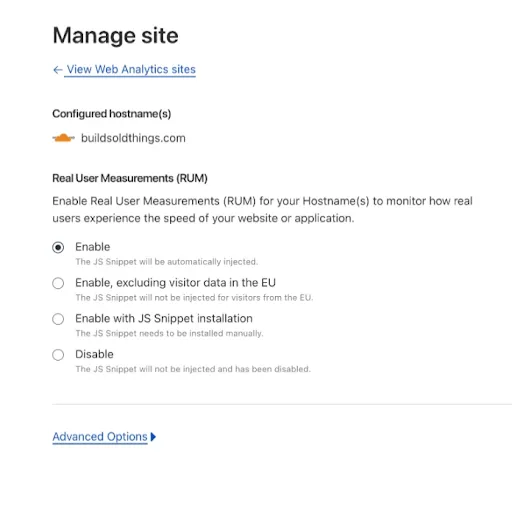
The RUM beacon is a JavaScript snippet that runs when a Cloudflare customer enables RUM through [Web Analytics](https://developers.cloudflare.com/web-analytics/) or [Observatory](https://developers.cloudflare.com/speed/observatory/). This script runs in users' browsers when they visit the customer's site, and its purpose is to collect performance-related data, for example, page load time, and send it to Cloudflare's systems for processing. This [data](https://developers.cloudflare.com/web-analytics/data-metrics/) is then presented to the customer, providing valuable insights into the website's performance and usage.
The RUM beacon script can be enabled into a webpage in two ways:
* **One-click setup**: For [sites proxied through Cloudflare](https://developers.cloudflare.com/web-analytics/get-started/#sites-proxied-through-cloudflare) that have Web Analytics enabled, the snippet can be _automatically_ injected into pages as the HTML response passes through Cloudflare's edge network to the browser by simply enabling the automatic injection option.
* **Manual setup**: Websites can _manually_ add the script by embedding a code snippet into their pages. Refer to the [Sites not proxied through Cloudflare section](https://developers.cloudflare.com/web-analytics/get-started/#sites-not-proxied-through-cloudflare), for more information about how to manually insert the snippet into your HTML.
## Data collection
Once downloaded to the browser, the RUM beacon script runs as JavaScript in the browser. It collects performance data from browser [APIs ↗](https://developer.mozilla.org/en-US/docs/Web/API/Performance%5FAPI) and sends this data to Cloudflare for processing.
The data collected from the browser is summarized in the table below:
| Field | Example | Description | How it is collected |
| -------------------- | ---------------------------------------------------------------------------------------------------------------------- | -------------------------------------------- | ----------------------------------------------------------------------------------------------------------------------------------------------------------------------------------------------------------------------------------------------------------------------------------------------------------- |
| pageloadId | 0c698922-8d60-40bf-85ac-7982b5f8034d | The unique ID for the page. | Generated in the browser code. |
| referrer | [https://cfrumtest.com/ ↗](https://cfrumtest.com/) | The referring page URL. | If it is a multi-page application (MPA), then it is generated from [document.referrer ↗](https://developer.mozilla.org/en-US/docs/Web/API/Document/referrer). If it is a single-page application (SPA), then it is generated from a local in-memory variable in the beacon code which stores previous URLs. |
| startTime | 1693488419352 | Baseline for performance-related timestamps. | [performance.timeOrigin ↗](https://developer.mozilla.org/en-US/docs/Web/API/Performance/timeOrigin) |
| memory | { totalJSHeapSize: 39973671, usedJSHeapSize: 39127515, jsHeapSizeLimit: 4294705152 } | Measures memory heap size. | [performance.memory ↗](https://developer.mozilla.org/en-US/docs/Web/API/Performance/memory) (deprecated) |
| timings | Object of [PerformanceTiming ↗](https://developer.mozilla.org/en-US/docs/Web/API/PerformanceTiming) | Timing data. | [performance.timing ↗](https://developer.mozilla.org/en-US/docs/Web/API/Performance/timing) (deprecated, fallback when timingV2 is unavailable) |
| timingV2 | Array of [PerformanceNavigationTiming ↗](https://developer.mozilla.org/en-US/docs/Web/API/PerformanceNavigationTiming) | Navigation timing data. | [performance.getEntriesByType("navigation") ↗](https://developer.mozilla.org/en-US/docs/Web/API/Performance/getEntriesByType) |
| resources | Array of [PerformanceResourceTiming ↗](https://developer.mozilla.org/en-US/docs/Web/API/PerformanceResourceTiming) | Resource timing data. | [performance.getEntriesByType("resource") ↗](https://developer.mozilla.org/en-US/docs/Web/API/PerformanceResourceTiming) |
| firstPaint | Array of [PerformancePaintTiming ↗](https://developer.mozilla.org/en-US/docs/Web/API/PerformancePaintTiming) | Paint timing data. | [performance.getEntriesByType("paint") ↗](https://developer.mozilla.org/en-US/docs/Web/API/PerformancePaintTiming) |
| firstContentfulPaint | 209 | First Contentful Paint metric. | [web-vitals module ↗](https://www.npmjs.com/package/web-vitals) [1](#user-content-fn-1) |
| FCP | 209 | First Contentful Paint metric. | [web-vitals module ↗](https://www.npmjs.com/package/web-vitals) [1](#user-content-fn-1) |
| LCP | 209 | Largest Contentful Paint metric. | [web-vitals module ↗](https://www.npmjs.com/package/web-vitals) [1](#user-content-fn-1) |
| CLS | 0.001 | Cumulative Layout Shift metric. | [web-vitals module ↗](https://www.npmjs.com/package/web-vitals) [1](#user-content-fn-1) |
| TTFB | 0.03 | Time to First Byte metric. | [web-vitals module ↗](https://www.npmjs.com/package/web-vitals) [1](#user-content-fn-1) |
| INP | 1.23 | Interaction to Next Paint metric. | [web-vitals module ↗](https://www.npmjs.com/package/web-vitals) [1](#user-content-fn-1) |
| landingPath | [https://cfrumtest.com/ ↗](https://cfrumtest.com/) | The landing page URL. | [performance.getEntriesByType("navigation") ↗](https://developer.mozilla.org/en-US/docs/Web/API/Performance/getEntriesByType) |
## Data processing
RUM data is generally processed at the nearest Cloudflare data center based on how the incoming request is routed. This is determined by a number of factors including [Anycast ↗](https://www.cloudflare.com/en-gb/learning/cdn/glossary/anycast-network/) and [Unimog ↗](https://blog.cloudflare.com/unimog-cloudflares-edge-load-balancer/). Since RUM data does not use location services, it may be processed in a different country or region from where it originated. Although the RUM service receives the client/source IP address from the beacon as part of normal HTTP request handling process, it discards the IP address at the nearest Cloudflare data center and does not store it in core databases or logs.
## Privacy information
The RUM beacon script does not store any data in the browser or access any storage data, such as [cookies ↗](https://developer.mozilla.org/en-US/docs/Web/API/Document/cookie), [localStorage ↗](https://developer.mozilla.org/en-US/docs/Web/API/Window/localStorage), [sessionStorage ↗](https://developer.mozilla.org/en-US/docs/Web/API/Window/sessionStorage), IP address, or [IndexedDB ↗](https://developer.mozilla.org/en-US/docs/Web/API/IndexedDB%5FAPI/Using%5FIndexedDB). The data we collect is performance data from the browser performance [APIs ↗](https://developer.mozilla.org/en-US/docs/Web/API/Performance%5FAPI). This performance data is ephemeral and only relates to the current webpage that is being viewed. If the user refreshes their browser, all the previous performance data is gone and new performance data starts being available. This data is not stored or accessed from anywhere on the device, it is only available as in-memory data.
## RUM excluding EEA/EU
Customers have the option to enable RUM globally or to limit its application to exclude users connecting to Cloudflare data centers in the EEA/EU. If the latter option is selected, the RUM beacon does not process performance data for users connecting to a Cloudflare data center located in the following countries (ISO codes): AT, BE, BG, HR, CY, CZ, DK, EE, FI, FR, DE, GR, HU, IS, IE, IT, LV, LI, LT, LU, MT, NL, NO, PL, PT, RO, SK, SI, ES, SE, CH, GB.
Free customers have RUM enabled automatically, with EU traffic excluded, and can switch it off if they prefer. Customers on other plans may enable RUM as needed.
## Footnotes
1. The web-vitals module is an open-source module written by Google. It does not access any type of storage on the browser. [↩](#user-content-fnref-1) [↩2](#user-content-fnref-1-2) [↩3](#user-content-fnref-1-3) [↩4](#user-content-fnref-1-4) [↩5](#user-content-fnref-1-5) [↩6](#user-content-fnref-1-6)
```json
{"@context":"https://schema.org","@type":"BreadcrumbList","itemListElement":[{"@type":"ListItem","position":1,"item":{"@id":"/directory/","name":"Directory"}},{"@type":"ListItem","position":2,"item":{"@id":"/speed/","name":"Speed"}},{"@type":"ListItem","position":3,"item":{"@id":"/speed/observatory/","name":"Observatory (beta)"}},{"@type":"ListItem","position":4,"item":{"@id":"/speed/observatory/rum-beacon/","name":"RUM beacon for Web Analytics"}}]}
```
---
---
title: Run test
description: Learn how to use Cloudflare's Observatory to assess the performance of your website.
image: https://developers.cloudflare.com/core-services-preview.png
---
> Documentation Index
> Fetch the complete documentation index at: https://developers.cloudflare.com/speed/llms.txt
> Use this file to discover all available pages before exploring further.
[Skip to content](#%5Ftop)
# Run test
## Run Synthetic test
1. In the Cloudflare dashboard, go to the **Synthetic Monitoring** page.
[ Go to **Synthetic monitoring** ](https://dash.cloudflare.com/?to=/:account/:zone/speed/test)
2. Enter the URL you want to test. The URL must belong to the zone you are testing from.
3. Select the test type you want to use: **Browser** or **Network tests**.
4. Select the **Region** the automated browser will use.
5. Depending on your plan you can select to run the test **once**, **daily** or **weekly**. Refer to the [Quotas](https://developers.cloudflare.com/speed/observatory/run-speed-test/#quotas) section for information on the test frequency available for your plan. Note that these limits may change over time.
6. After the test finishes running, you will get a Lighthouse score and you will have access to the list of the tests run. The test result page will give you details regarding the performance of your website, both for the desktop and mobile versions. Refer to [Understand test results](https://developers.cloudflare.com/speed/observatory/test-results/) for more information.
Note
For **IPv6** Cloudflare Observatory tests originate from **ASN 15169** or **ASN 132892** and are generated with the following user agents:
* Mozilla/5.0 (Linux; Android 11; Moto G Power (2022)) AppleWebKit/537.36 (KHTML, like Gecko) Chrome/109.0.0.0 Mobile Safari/537.36
* Mozilla/5.0 (Macintosh; Intel Mac OS X 10\_15\_7) AppleWebKit/537.36 (KHTML, like Gecko) Chrome/109.0.0.0 Safari/537.36
For **IPv4** Cloudflare Observatory tests originate from **ASN 396982** and are generated with the following user agents:
* Mozilla/5.0 (Linux; Android 11; moto g power (2022)) AppleWebKit/537.36 (KHTML, like Gecko) Chrome/109.0.0.0 Mobile Safari/537.36 CloudflareObservatory/1.0
* Mozilla/5.0 (Macintosh; Intel Mac OS X 10\_15\_7) AppleWebKit/537.36 (KHTML, like Gecko) Chrome/109.0.0.0 Safari/537.36 CloudflareObservatory/1.0
### Recommendations
Observatory shows you a **Recommendations** tab, depending on the results from testing your website. The **Recommendations** section shows you the opportunities to improve your website that were identified based on the Lighthouse audits and recommends Cloudflare features or products that will help you improve those metrics. We also show you the potential savings you will get by enabling the recommended features or products.
### Trend and History report
In the Tested URLs table, in the last column, you can select the three dots > **View history report**, and you will have access to the **Trend** table that will show your website’s performance metrics over time and a **History report** of all the tests you run on your website.
## Enable real user monitoring (RUM)
Once a test has been run, you can enable [RUM](https://developers.cloudflare.com/speed/observatory/#real-user-monitoring-rum) data in the test results page:
1. Go to **Observatory** and select **Enable RUM**. You can choose to enable globally or enable everywhere except the EU.
2. Once RUM data is running on your site, you can access **Real user measurements** on your test results page. Usually it takes less than five minutes to see the data coming in, but it will depend on traffic.
Refer to [Understand test results](https://developers.cloudflare.com/speed/observatory/test-results/) for more information about the results provided by real user data.
### Information collected
RUM uses a lightweight JavaScript beacon to collect the information Observatory uses. It does not use any client-side state, such as cookies or `localStorage`, to collect usage metrics.
## Quotas
Quota limits for the number of tests you can run per month are currently the following:
| Plan | One-off tests | Recurring tests | Frequency of recurring tests |
| ---------- | ------------- | --------------- | ---------------------------- |
| Pro | 50 | 5 | Daily |
| Business | 100 | 10 | Daily |
| Enterprise | 150 | 15 | Daily |
**Available Regions (all plans):**
| Region | Region | Region |
| ------------------- | ---------------------- | ----------------------- |
| Iowa, USA | Hamina, Finland | Changhua County, Taiwan |
| South Carolina, USA | Madrid, Spain | Tokyo, Japan |
| North Virginia, USA | St. Ghislain, Belgium | Osaka, Japan |
| Dallas, USA | Eemshaven, Netherlands | Jurong West, Singapore |
| Oregon, USA | Milan, Italy | Sydney, Australia |
| London, England | Paris, France | Mumbai, India |
| Frankfurt, Germany | Tel Aviv, Israel | São Paulo, Brazil |
```json
{"@context":"https://schema.org","@type":"BreadcrumbList","itemListElement":[{"@type":"ListItem","position":1,"item":{"@id":"/directory/","name":"Directory"}},{"@type":"ListItem","position":2,"item":{"@id":"/speed/","name":"Speed"}},{"@type":"ListItem","position":3,"item":{"@id":"/speed/observatory/","name":"Observatory (beta)"}},{"@type":"ListItem","position":4,"item":{"@id":"/speed/observatory/run-speed-test/","name":"Run test"}}]}
```
---
---
title: Understand test results
description: Interpret Lighthouse scores and Core Web Vitals from Observatory tests.
image: https://developers.cloudflare.com/core-services-preview.png
---
> Documentation Index
> Fetch the complete documentation index at: https://developers.cloudflare.com/speed/llms.txt
> Use this file to discover all available pages before exploring further.
[Skip to content](#%5Ftop)
# Understand test results
The test result page shows you how your website performed regarding several key industry metrics. Some of these metrics are presented for synthetic tests and the real user monitoring, and others only apply to synthetic tests or only to real user monitoring.
## Synthetic tests and real user monitoring metrics
These metrics are presented for the synthetic tests and they are also collected as part of the real user data.
| Metric | Definition |
| ------------------------------------------------------------------------- | ------------------------------------------------------------------------------------------------------------------------------------- |
| Time to First Byte ([TTFB ↗](https://web.dev/ttfb/)) | Measures the time between the request for a resource and when the first byte of a response begins to arrive. |
| First Contentful Paint ([FCP ↗](https://web.dev/first-contentful-paint/)) | Measures the time from when the page starts loading to when any part of the page's content is rendered on the screen. |
| Largest Contentful Paint ([LCP ↗](https://web.dev/lcp/)) | CP reports the render time of the largest image or text block visible within the viewport. |
| Cumulative Layout Shift ([CLS ↗](https://web.dev/cls/)) | Measures the largest burst of layout shift scores for every unexpected layout shift that occurs during the entire lifespan of a page. |
## Synthetic tests metrics
These metrics result from the synthetic tests.
| Metric | Definition |
| --------------------------------------------------- | --------------------------------------------------------------------------------------------------------------------------------------------------------------------------------------- |
| Time to Interactive ([TTI ↗](https://web.dev/tti/)) | Measures the time from when the page starts loading to when its main sub-resources have loaded and it is capable of reliably responding to user input quickly. |
| Total Blocking Time ([TBT ↗](https://web.dev/tbt/)) | Measures the total amount of time between First Contentful Paint (FCP) and Time to Interactive (TTI) where the main thread was blocked for long enough to prevent input responsiveness. |
| [Speed index ↗](https://web.dev/speed-index/) | Measures how quickly content is visually displayed during page load. |
## Real user monitoring metrics
These metrics are collected as part of the real user data, as they require real user interaction with a page.
| Metric | Definition |
| --------------------------------------------------------- | -------------------------------------------------------------------------------------------------------------------------- |
| Interaction to Next Paint ([INP ↗](https://web.dev/inp/)) | Aims to represent a page's overall responsiveness by measuring all click, tap, and keyboard interactions made with a page. |
Refer to [Data and metrics](https://developers.cloudflare.com/web-analytics/data-metrics/) for more information about the metrics you can find in the Real User Monitoring dashboard. You can find details about [Core Web Vitals](https://developers.cloudflare.com/web-analytics/data-metrics/core-web-vitals/), the debug view and the data collected.
## Network monitoring metrics
| Metric | Definition |
| ------------------------------------------------------------ | ----------------------------------------------------------------------------------------------------------------- |
| Wait Time | Measures the time spent waiting for the server to send back the first byte of a response after a request is made. |
| Load Time | Measures the total time it takes for a web page to fully load in a user’s browser from the network. |
| Time to First Byte ([TTFB ↗](https://web.dev/articles/ttfb)) | Measures the duration between initiating a web page request and receiving the first byte from the server. |
| Server Response Time | Measures the time it takes for a server to respond to a request from a user's browser. |
| Connect Time | Measures the time taken to establish a connection between the user's browser and the web server. |
| TLS Time | Measures the time required to complete the TLS/SSL handshake between the user's browser and the web server. |
```json
{"@context":"https://schema.org","@type":"BreadcrumbList","itemListElement":[{"@type":"ListItem","position":1,"item":{"@id":"/directory/","name":"Directory"}},{"@type":"ListItem","position":2,"item":{"@id":"/speed/","name":"Speed"}},{"@type":"ListItem","position":3,"item":{"@id":"/speed/observatory/","name":"Observatory (beta)"}},{"@type":"ListItem","position":4,"item":{"@id":"/speed/observatory/test-results/","name":"Understand test results"}}]}
```
---
---
title: Cloudflare Smart Shield
description: Use Smart Shield to protect your origin server, improve content availability, and reduce network latency.
image: https://developers.cloudflare.com/core-services-preview.png
---
> Documentation Index
> Fetch the complete documentation index at: https://developers.cloudflare.com/smart-shield/llms.txt
> Use this file to discover all available pages before exploring further.
[Skip to content](#%5Ftop)
# Cloudflare Smart Shield
Protect your origin server, reduce load, and improve content delivery performance.
Every request that reaches your origin server costs resources — bandwidth, compute, and connections. When traffic spikes or your content is requested from many locations simultaneously, your origin can become a bottleneck. Smart Shield is a bundle of origin protection and performance features that reduce the number of requests and connections between Cloudflare's network and your origin server.
Smart Shield includes [Smart Tiered Cache](https://developers.cloudflare.com/smart-shield/configuration/smart-tiered-cache/), which organizes Cloudflare data centers into upper-tier and lower-tier groups so that only upper-tier data centers contact your origin for uncached content. Combined with [connection reuse](https://developers.cloudflare.com/smart-shield/concepts/connection-reuse/), which packages multiple requests into a single connection to your origin, Smart Shield reduces both the volume of origin requests and the number of open connections.
Depending on your [package tier](https://developers.cloudflare.com/smart-shield/get-started/#packages-and-availability), Smart Shield can also include:
* [Argo Smart Routing](https://developers.cloudflare.com/smart-shield/configuration/argo/) — routes traffic through the fastest network paths to reduce latency.
* [Regional Tiered Cache](https://developers.cloudflare.com/smart-shield/configuration/regional-tiered-cache/) — adds a regional cache layer between lower-tier and upper-tier data centers for geographic data locality.
* [Cache Reserve](https://developers.cloudflare.com/smart-shield/configuration/cache-reserve/) — persistent cache storage that reduces cache misses for infrequently accessed content.
* [Health Checks](https://developers.cloudflare.com/smart-shield/configuration/health-checks/) — monitors your origin server availability (Pro plans and above).
* [Dedicated CDN Egress IPs](https://developers.cloudflare.com/smart-shield/configuration/dedicated-egress-ips/) — reserved IP addresses for origin allowlisting (Enterprise).
For a visual overview of how these features work together, refer to the [network diagram](https://developers.cloudflare.com/smart-shield/concepts/network-diagram/).
Learn how to [get started](https://developers.cloudflare.com/smart-shield/get-started/).
---
## Related products
**[Cache](https://developers.cloudflare.com/cache/)**
Cache stores copies of frequently accessed content (such as images, videos, or webpages) in geographically distributed data centers that are located closer to end users than origin servers, improving website performance.
**[Observatory](https://developers.cloudflare.com/speed/observatory/)**
Observatory uses synthetic tests and real user data to assess the performance of your website, producing different metrics and insights. Cloudflare then uses this analysis to recommend optimizations that best address your performance issues.
```json
{"@context":"https://schema.org","@type":"BreadcrumbList","itemListElement":[{"@type":"ListItem","position":1,"item":{"@id":"/directory/","name":"Directory"}},{"@type":"ListItem","position":2,"item":{"@id":"/smart-shield/","name":"Smart Shield"}}]}
```
---
---
title: Troubleshooting
description: Troubleshoot common speed and performance optimization issues.
image: https://developers.cloudflare.com/core-services-preview.png
---
> Documentation Index
> Fetch the complete documentation index at: https://developers.cloudflare.com/speed/llms.txt
> Use this file to discover all available pages before exploring further.
[Skip to content](#%5Ftop)
# Troubleshooting
The following topics are useful for troubleshooting Speed issues.
Filter resources...
[FAQ](https://developers.cloudflare.com/speed/observatory/faq/)[FAQ | Cloudflare Fonts](https://developers.cloudflare.com/speed/optimization/content/fonts/faq/)[Cloudflare Fonts troubleshooting](https://developers.cloudflare.com/speed/optimization/content/fonts/troubleshooting/)[Content encoding issues](https://developers.cloudflare.com/speed/optimization/content/troubleshooting/content-encoding-issues/)[Turn off Auto Minify via API](https://developers.cloudflare.com/speed/optimization/content/troubleshooting/disable-auto-minify/)[Image optimization on optimized images](https://developers.cloudflare.com/speed/optimization/images/troubleshooting/multiple-optimizations/)[Troubleshoot missing images](https://developers.cloudflare.com/speed/optimization/images/troubleshooting/troubleshooting-missing-images/)[Enhanced HTTP/2 Prioritization negatively affects iOS/Safari devices](https://developers.cloudflare.com/speed/optimization/protocol/troubleshooting/enhanced-http2-prioritization-ios-safari/)[Troubleshoot protocol issues](https://developers.cloudflare.com/speed/optimization/protocol/troubleshooting/protocol-troubleshooting/)
```json
{"@context":"https://schema.org","@type":"BreadcrumbList","itemListElement":[{"@type":"ListItem","position":1,"item":{"@id":"/directory/","name":"Directory"}},{"@type":"ListItem","position":2,"item":{"@id":"/speed/","name":"Speed"}},{"@type":"ListItem","position":3,"item":{"@id":"/speed/troubleshooting/","name":"Troubleshooting"}}]}
```
---
---
title: Aggregated Internet Measurement
description: Measure real-world internet quality metrics for your visitors.
image: https://developers.cloudflare.com/core-services-preview.png
---
> Documentation Index
> Fetch the complete documentation index at: https://developers.cloudflare.com/speed/llms.txt
> Use this file to discover all available pages before exploring further.
[Skip to content](#%5Ftop)
# Aggregated Internet Measurement
Aggregated Internet Measurement (AIM) helps you understand your Internet quality to identify scenarios that your Internet connection is good or bad for. Typically, an Internet speed test provides you with upload and download speeds, which may not always provide a holistic view of your Internet quality.
AIM uses a scoring rubric that assigns point values based on speed tests to help you understand how your Internet quality will perform for streaming, gaming, and webchat/real-time communication (RTC).
## Scoring Rubric
AIM analyzes the following metrics to generate your score:
* Latency
* Packet Loss
* Download
* Upload
* Loaded Latency
* Jitter
After the test is run and a point value is assigned to each metric, the points are translated to a network score for streaming, gaming, and webchat/RTC. These scores will indicate how good your Internet is in each of these scenarios.
The possible network scores are:
* Bad
* Poor
* Average
* Good
* Great
## Improve your network score
You have a few options to help improve network scores.
* **Switch to a wired connection.** When possible, switch to a wired connection instead of wireless to avoid performance issues due to radio interference and signal strength.
* **Move closer to your router.** If you are unable to use a wired connection, try to move closer to your wireless router. Signal strength drops as you move away from your wireless router and a weaker signal means poorer connectivity. Keep in mind that any objects or materials between you and your wireless router can also have a negative impact on signal strength.
* **Upgrade your router.** Ensure you are using a router capable of handling smarter queueing with hardware that will not fall over under load.
* **Contact your ISP.** If you’re using a wired connection or have a good connection to your wireless router and are still seeing issues, you may have issues with your Internet connection and should reach out to your ISP.
```json
{"@context":"https://schema.org","@type":"BreadcrumbList","itemListElement":[{"@type":"ListItem","position":1,"item":{"@id":"/directory/","name":"Directory"}},{"@type":"ListItem","position":2,"item":{"@id":"/speed/","name":"Speed"}},{"@type":"ListItem","position":3,"item":{"@id":"/speed/aim/","name":"Aggregated Internet Measurement"}}]}
```
---
---
title: Glossary
description: Definitions for terms used across Cloudflare Speed documentation.
image: https://developers.cloudflare.com/core-services-preview.png
---
> Documentation Index
> Fetch the complete documentation index at: https://developers.cloudflare.com/speed/llms.txt
> Use this file to discover all available pages before exploring further.
[Skip to content](#%5Ftop)
# Glossary
Review the definitions for terms used across Cloudflare's Speed documentation.
| Term | Definition |
| -------------------------------- | ----------------------------------------------------------------------------------------------------------------------------------------------------------------------------------------------------------------------------------------------------------------------------- |
| bandwidth | The maximum rate of data transfer across a network. |
| brotli compression | Brotli compression is a data compression algorithm developed by Google, optimized for web content, and designed to achieve higher compression ratios than traditional algorithms like Gzip. |
| compression | The process of reducing the size of files or data to speed up their transfer over the network. |
| core web vitals | Core web vitals are a set of user-centric performance metrics, including Largest Contentful Paint (LCP), Cumulative Layout Shift (CLS), and First Input Delay (FID), used by Google to assess the overall user experience of a webpage. |
| cumulative layout shift (CLS) | Cumulative layout shift (CLS) is a web performance metric that quantifies the visual stability of a webpage by measuring the sum of unexpected layout shifts of elements during the page's loading and rendering process. |
| first contentful paint (FCP) | First contentful paint (FCP) is a web performance metric that measures the time it takes for the first piece of content to be rendered on the screen during the loading of a web page. |
| first input delay (FID) | First input delay (FID) is a web performance metric that measures the delay between a user's first interaction with a page (for example, clicking a button) and the moment the browser responds, indicating the page's interactivity and responsiveness. |
| interaction to next paint (INP) | Interaction to next paint (INP) is a web performance metric that measures the time it takes for a web page to become interactive and respond to user input after the initial paint, providing insights into the user experience during the interaction phase of page loading. |
| largest contentful paint (LCP) | Largest contentful paint (LCP) is a web performance metric that measures the time it takes for the largest content element to be fully rendered and visible to the user during the loading of a web page. |
| latency | The delay between a user action and the corresponding response from the system. |
| lazy loading | Loading images or other resources only when they are about to be displayed, rather than loading everything at once. |
| minification | The process of removing unnecessary characters from code (such as whitespace or comments) to reduce file size and improve loading times. |
| page load time | The time it takes for a web page to fully load in a user's browser. |
| real user monitoring (RUM) | Real user monitoring (RUM) is a web performance monitoring technique that collects and analyzes data based on actual user interactions and experiences, providing insights into how users interact with a website or application in real-time. |
| render time | The time it takes for a browser to display a fully rendered web page after receiving the necessary resources. |
| search engine optimization (SEO) | SEO, or search engine optimization, is the practice of optimizing online content to improve its visibility and ranking in search engine results, thereby increasing organic traffic and relevance. |
| server response time | The time it takes for a server to respond to a request from a user's browser. |
| speed index | Speed index is a web performance metric that quantifies how quickly a user perceives a webpage to load by measuring the visual progression of content rendering over time, providing a comprehensive assessment of the overall user experience during page loading. |
| synthetic test | A synthetic test is an artificial simulation of user interactions and system behaviors designed to evaluate and measure the performance, responsiveness, and functionality of a website or application under controlled conditions. |
| time to first byte (TTFB) | Time to first byte (TTFB) is the duration measured from the initiation of a web page request to the moment the first byte of data is received by the user's browser from the web server, indicating the server's initial response time. |
| time to interactive (TTI) | Time to interactive (TTI) is a web performance metric that measures the time it takes for a web page to become fully interactive and responsive to user input, indicating when users can effectively engage with and use the page. |
| total blocking time (TBT) | Total blocking time (TBT) is a web performance metric that measures the total amount of time between First Contentful Paint (FCP) and Time to Interactive (TTI) where the main thread was blocked for long enough to prevent input responsiveness. |
View more terms
```json
{"@context":"https://schema.org","@type":"BreadcrumbList","itemListElement":[{"@type":"ListItem","position":1,"item":{"@id":"/directory/","name":"Directory"}},{"@type":"ListItem","position":2,"item":{"@id":"/speed/","name":"Speed"}},{"@type":"ListItem","position":3,"item":{"@id":"/speed/glossary/","name":"Glossary"}}]}
```
---
---
title: Automatic Platform Optimization
description: Cache and serve your entire WordPress site from the Cloudflare edge network.
image: https://developers.cloudflare.com/core-services-preview.png
---
> Documentation Index
> Fetch the complete documentation index at: https://developers.cloudflare.com/automatic-platform-optimization/llms.txt
> Use this file to discover all available pages before exploring further.
[Skip to content](#%5Ftop)
# Automatic Platform Optimization
Take your WordPress site’s performance to the next level with Automatic Platform Optimizations (APO). APO allows Cloudflare to serve your entire WordPress site from its edge network ensuring consistent, fast performance for visitors no matter where they are.
Automatic Platform Optimization is the result of using the power of [Cloudflare Workers](https://developers.cloudflare.com/workers/) to intelligently cache dynamic content. By caching dynamic content, Cloudflare can serve the entire website from our edge network to make a site's time to first byte (TTFB) both fast and consistent.
To read more about the benefits of using APO with your site, see [The Benefits of Automatic Platform Optimization blog ↗](https://blog.cloudflare.com/automatic-platform-optimizations-starting-with-wordpress/#the-benefits-of-automatic-platform-optimization). You must use the Cloudflare for WordPress plugin to begin using APO.
```json
{"@context":"https://schema.org","@type":"BreadcrumbList","itemListElement":[{"@type":"ListItem","position":1,"item":{"@id":"/directory/","name":"Directory"}},{"@type":"ListItem","position":2,"item":{"@id":"/automatic-platform-optimization/","name":"Automatic Platform Optimization"}}]}
```
---
---
title: Content compression
description: Learn how Cloudflare compresses content for faster web performance.
image: https://developers.cloudflare.com/core-services-preview.png
---
> Documentation Index
> Fetch the complete documentation index at: https://developers.cloudflare.com/speed/llms.txt
> Use this file to discover all available pages before exploring further.
[Skip to content](#%5Ftop)
### Tags
[ Headers ](https://developers.cloudflare.com/search/?tags=Headers)
# Content compression
Cloudflare compresses content in two ways: between Cloudflare and your website visitors and between Cloudflare and your origin server.
## Compression between Cloudflare and website visitors
In addition to Cloudflare's [default caching behavior](https://developers.cloudflare.com/cache/concepts/default-cache-behavior/), Cloudflare supports Gzip, Brotli, and Zstandard compression when delivering content to website visitors.
Note
Customers can enable Zstandard compression through [Compression Rules](https://developers.cloudflare.com/rules/compression-rules/).
If supported by visitors' web browsers, Cloudflare will return Gzip, Brotli, or Zstandard-encoded responses for the following content types:
```
text/html
text/richtext
text/plain
text/css
text/x-script
text/x-component
text/x-java-source
text/x-markdown
application/javascript
application/x-javascript
text/javascript
text/js
image/x-icon
image/vnd.microsoft.icon
application/x-perl
application/x-httpd-cgi
text/xml
application/xml
application/rss+xml
application/vnd.api+json
application/x-protobuf
application/json
multipart/bag
multipart/mixed
application/xhtml+xml
font/ttf
font/otf
font/x-woff
image/svg+xml
application/vnd.ms-fontobject
application/ttf
application/x-ttf
application/otf
application/x-otf
application/truetype
application/opentype
application/x-opentype
application/font-woff
application/eot
application/font
application/font-sfnt
application/wasm
application/javascript-binast
application/manifest+json
application/ld+json
application/graphql+json
application/geo+json
```
Cloudflare's global network can deliver content to website visitors using Gzip compression, Brotli compression, Zstandard compression, or no compression, depending on:
* The values visitors provide in the `accept-encoding` request header.
* Your [Cloudflare plan](#between-visitors-and-cloudflare).
* Any configured [compression rule](https://developers.cloudflare.com/rules/compression-rules/) that matches incoming requests.
For responses with error status codes, Cloudflare will only compress responses if their error status code is `403` or `404`. For successful response status codes, Cloudflare will only compress responses if their status code is `200`. Responses with other status codes will not be compressed.
You can override Cloudflare's default compression behavior using [Compression Rules](https://developers.cloudflare.com/rules/compression-rules/).
Minimum response size for compression
Cloudflare will only apply compression to responses with a minimum size when sending them to website visitors:
* For Gzip, responses must have a minimum size of 48 bytes.
* For Brotli and Zstandard, responses must have a minimum size of 50 bytes.
Smaller responses will not be compressed, regardless of their content type.
### Content-Length header handling
When Cloudflare compresses a response sent to the website visitor, it may omit the `Content-Length` HTTP header to avoid delivering incorrect length information caused by dynamic transformations. To preserve the `Content-Length` header set by the origin server, add `cache-control: no-transform` to the origin server's response. This directive prevents Cloudflare from altering compression on responses, allowing the `Content-Length` header to pass through as-is. The `cache-control: no-transform` header must be set by the origin — it cannot be added in client requests.
---
## Content compression from origin servers to the Cloudflare network
When requesting content from your origin server, Cloudflare supports Brotli compression, Gzip compression, or no compression.
flowchart LR
accTitle: Compressed responses sent from the origin server
accDescr: Cloudflare accepts responses from origin server using Brotli compression, Gzip compression, or no compression.
A[Visitor browser]
B((Cloudflare))
C[(Origin server)]
A -.-> B == "Request Accept-Encoding: br, gzip" ==> C
C == "Response (Brotli / Gzip / No compression)" ==> B -.-> A
style A stroke-dasharray: 5 5
style B stroke: orange,fill: orange,color: black
style C stroke-width: 2px
linkStyle 1,2 stroke-width: 2px
linkStyle 0,3 stroke-width: 1px
If your origin server responds to a Cloudflare request using Brotli/Gzip compression, we will keep the same compression in the response sent to the website visitor if:
* You include a `content-encoding` header in your server response mentioning the compression being used (`br` or `gzip`).
* The visitor browser (or client) supports the compression algorithm.
* You do not enable Cloudflare features that change the response content (refer to [Notes about end-to-end compression](#notes-about-end-to-end-compression) for details).
Cloudflare's reverse proxy can also convert between compressed formats and uncompressed formats. Cloudflare can receive content from your origin server with Brotli or Gzip compression and serve it to visitors uncompressed (or vice versa), independently of caching.
If you do not want a particular response from your origin to be encoded with Brotli/Gzip when delivered to website visitors, you can disable this by including a `cache-control: no-transform` HTTP header in the response from your origin web server.
Warning
Cloudflare will take into consideration the `accept-encoding` header value in website visitors' requests when sending responses to those visitors. However, when requesting content from your origin server, Cloudflare will send a different `Accept-Encoding` header, supporting Brotli and Gzip compression.
---
## Notes about end-to-end compression
### Content recompression due to dynamic transformations
Even when using the same compression algorithm end to end (between your origin server and Cloudflare, and between the Cloudflare global network and your website visitor), Cloudflare will need to decompress the response and compress it again if you enable any of the following settings for the request:
* [Automatic HTTPS Rewrites](https://developers.cloudflare.com/ssl/edge-certificates/additional-options/automatic-https-rewrites/)
* [Cloudflare Fonts](https://developers.cloudflare.com/speed/optimization/content/fonts/)
* [Email Address Obfuscation](https://developers.cloudflare.com/waf/tools/scrape-shield/email-address-obfuscation/)
* [Polish](https://developers.cloudflare.com/images/polish/)
* [Rocket Loader](https://developers.cloudflare.com/speed/optimization/content/rocket-loader/)
* [JavaScript detections](https://developers.cloudflare.com/bots/additional-configurations/javascript-detections/)
* [RUM](https://developers.cloudflare.com/speed/observatory/run-speed-test/#enable-real-user-monitoring-rum)
To disable these settings for specific URI paths, create a [configuration rule](https://developers.cloudflare.com/rules/configuration-rules/).
Note
Additionally, the [Replace insecure JS libraries](https://developers.cloudflare.com/waf/tools/replace-insecure-js-libraries/) setting also requires Cloudflare to decompress the response and compress it again. At this time, you cannot turn it off using Configuration Rules.
### Content-Length header
Cloudflare may remove the `Content-Length` HTTP header of responses delivered to website visitors. To ensure that the header is preserved, add a `cache-control: no-transform` HTTP header to the response at the origin server.
## Compression methods by plan
### Between visitors and Cloudflare
By default, Cloudflare uses the following compression methods for content delivery, depending on the zone plan. However, the actual compression applied may also depend on what the visitor's browser requests via the `accept-encoding` header.
* Free Plan: Content is compressed by default using Zstandard.
* Pro and Business Plans: Content is compressed by default using Brotli.
* Enterprise Plan: Content is compressed by default using Gzip.
### Between Cloudflare and the origin server
On all plans, Cloudflare requests content from the origin server using the `accept-encoding: br, gzip` header. This means that Cloudflare asks the origin to send the content compressed using Brotli or Gzip, depending on which method the origin server supports.
```json
{"@context":"https://schema.org","@type":"BreadcrumbList","itemListElement":[{"@type":"ListItem","position":1,"item":{"@id":"/directory/","name":"Directory"}},{"@type":"ListItem","position":2,"item":{"@id":"/speed/","name":"Speed"}},{"@type":"ListItem","position":3,"item":{"@id":"/speed/optimization/","name":"Settings"}},{"@type":"ListItem","position":4,"item":{"@id":"/speed/optimization/content/","name":"Content optimizations"}},{"@type":"ListItem","position":5,"item":{"@id":"/speed/optimization/content/compression/","name":"Content compression"}}]}
```
---
---
title: Early Hints
description: Preload assets with 103 Early Hints to speed up page loads.
image: https://developers.cloudflare.com/core-services-preview.png
---
> Documentation Index
> Fetch the complete documentation index at: https://developers.cloudflare.com/cache/llms.txt
> Use this file to discover all available pages before exploring further.
[Skip to content](#%5Ftop)
# Early Hints
When a browser requests a page, the origin server takes time to prepare the full response. Early Hints uses this wait time to send the browser a preliminary `103` response containing `Link` headers that tell the browser which assets it will need. The browser can start loading those assets before the full response arrives, which speeds up page loads.
Early Hints is defined in [RFC 8297 ↗](https://httpwg.org/specs/rfc8297.html) as a new HTTP status code (`103 Early Hints`). Cloudflare caches and serves these `103` responses with `Link` headers from your HTML pages, reducing user-perceived latency.
Note
Early Hints is currently only supported over HTTP/2 and HTTP/3.
For more information about Early Hints, refer to the [Cloudflare ↗](https://blog.cloudflare.com/early-hints) and [Google Chrome ↗](https://developer.chrome.com/en/blog/early-hints/) blogs.
## Availability
| Free | Pro | Business | Enterprise | |
| ------------ | --- | -------- | ---------- | --- |
| Availability | Yes | Yes | Yes | Yes |
## Enable Early Hints
1. In the Cloudflare dashboard, go to the **Speed** \> **Settings** page.
[ Go to **Settings** ](https://dash.cloudflare.com/?to=/:account/:zone/speed/optimization)
2. Go to the **Content Optimization** tab.
3. For **Early Hints**, toggle the switch to **On**.
## Generate Early Hints
Early Hints are only generated and cached:
* For URIs with `.html`, `.htm`, or `.php` file extensions, or no file extension
* On 200, 301, or 302 response return codes
* When the response contains [link headers ↗](https://developer.mozilla.org/en-US/docs/Web/HTTP/Reference/Headers/Link) with preconnect or preload rel types, such as `Link: ; rel=preload`
Note
Early Hints cache entries are keyed by request URI and ignore query strings.
## Emit Early Hints
Cloudflare will asynchronously look up and emit a cached 103 Early Hints response ahead of a main response.
Currently, only certain browser versions will take action to preload or preconnect on receiving Early Hints, such as Google Chrome M94 and higher. Instructions for running WebPageTest to experiment with compatible client browsers can be found in the [blog post ↗](https://blog.cloudflare.com/early-hints/#testing-early-hints-with-web-page-test).
Additionally, keep the following in mind:
* Early Hints responses may be emitted before reaching the origin server or Worker. When Early Hints is enabled and pages on your site require authentication, unauthenticated visitors may receive a 103 response. The 103 response would contain cached Link headers and be sent before a 403 Forbidden response from your origin.
* Early Hints may be emitted less frequently on requests where the content is cacheable. Cloudflare CDN is more likely to retrieve a response header before the asynchronous Early Hints lookup finishes if the response has been cached. Cloudflare will not send a 103 response if the main response header is already available.
* Cloudflare currently disables Early Hints on some User-Agents, for example, select search crawler bots that show incompatibility with 1xx responses.
* You may see an influx of `504` responses with the `RequestSource` of `earlyHintsCache` in Cloudflare Logs when Early Hints is enabled, which is expected and benign. Requests from `earlyHintsCache` are internal subrequests for cached Early Hints, and they are neither end user requests, nor do they go to your origin. Their response status only indicates whether there are cached Early Hints for the request URI (`200` on cache HIT, `504` on cache MISS). These requests are already filtered out in other views, such as Cache Analytics. To filter out these requests or to filter requests by end users of your website only, please refer to [Filter end users](https://developers.cloudflare.com/analytics/graphql-api/features/filtering/#filter-end-users).
```json
{"@context":"https://schema.org","@type":"BreadcrumbList","itemListElement":[{"@type":"ListItem","position":1,"item":{"@id":"/directory/","name":"Directory"}},{"@type":"ListItem","position":2,"item":{"@id":"/cache/","name":"Cache / CDN"}},{"@type":"ListItem","position":3,"item":{"@id":"/cache/advanced-configuration/","name":"Advanced configuration"}},{"@type":"ListItem","position":4,"item":{"@id":"/cache/advanced-configuration/early-hints/","name":"Early Hints"}}]}
```
---
---
title: Cloudflare Fonts
description: Serve Google Fonts from your domain to improve privacy and performance.
image: https://developers.cloudflare.com/core-services-preview.png
---
> Documentation Index
> Fetch the complete documentation index at: https://developers.cloudflare.com/speed/llms.txt
> Use this file to discover all available pages before exploring further.
[Skip to content](#%5Ftop)
### Tags
[ Google ](https://developers.cloudflare.com/search/?tags=Google)
# Cloudflare Fonts
Cloudflare Fonts is a feature designed for websites that use [Google Fonts ↗](https://fonts.google.com/). It rewrites Google Fonts to be delivered from a website’s own origin, eliminating the need to rely on third-party font providers. Cloudflare Fonts is tailored to improve website performance and user privacy without the need for any code changes or self-hosting of fonts.
## How Cloudflare Fonts works
Cloudflare Fonts works by rewriting your webpage’s HTML. It removes Google Fonts links and replaces them with inline CSS. This CSS includes links to fonts from your own Cloudflare zone rather than from Google servers. This ensures that font files are served from your domain through Cloudflare's infrastructure, optimizing performance and enhancing user privacy.
### Browser support
Cloudflare Fonts is compatible with browsers that support Unicode-range subsetting and WOFF or WOFF2 formats, including:
```
Chrome 36+
Edge 16+
Safari 10+
Firefox 44+
Opera 22+
IE 9+
Chrome for Android 115+
Safari on iOS 10+
Samsung Internet 5+
```
## Get started
To enable Cloudflare Fonts for your entire domain:
1. In the Cloudflare dashboard, go to the **Speed** \> **Settings** page.
[ Go to **Settings** ](https://dash.cloudflare.com/?to=/:account/:zone/speed/optimization)
2. Go to **Content Optimization**.
3. For **Cloudflare Fonts**, switch the toggle to **On**.
Note
To use this feature on specific hostnames - instead of across your entire zone - use a [configuration rule](https://developers.cloudflare.com/rules/configuration-rules/).
## Limitations
While Cloudflare Fonts offers powerful font optimization capabilities, it is important to be aware of its limitations:
* **Font transformation**: Currently, Cloudflare Fonts exclusively supports Google Fonts transformation.
* **APO compatibility**: Cloudflare Fonts does not operate when [Automatic Platform Optimization](https://developers.cloudflare.com/automatic-platform-optimization/) (APO) is enabled. Cloudflare APO automatically optimizes Google Fonts in a similar way.
* **CSS import**: Cloudflare Fonts is compatible only with the `` setup for Google Fonts and does not support the CSS `@import` method.
* **CSP headers**: Cloudflare Fonts does not modify [Content Security Policy (CSP)](https://developer.mozilla.org/en-US/docs/Web/HTTP/Reference/Headers/Content-Security-Policy) headers. Certain CSP configurations may make Cloudflare Fonts stop working, such as restrictions on inline styles through [style-src ↗](https://developer.mozilla.org/en-US/docs/Web/HTTP/Reference/Headers/Content-Security-Policy/style-src), or restriction of fonts originating from the site's own origin via [font-src ↗](https://developer.mozilla.org/en-US/docs/Web/HTTP/Reference/Headers/Content-Security-Policy/font-src).
* **Fallback mechanism**: In cases where Cloudflare Fonts does not support a specific page, it will gracefully fallback to using Google Fonts.
```json
{"@context":"https://schema.org","@type":"BreadcrumbList","itemListElement":[{"@type":"ListItem","position":1,"item":{"@id":"/directory/","name":"Directory"}},{"@type":"ListItem","position":2,"item":{"@id":"/speed/","name":"Speed"}},{"@type":"ListItem","position":3,"item":{"@id":"/speed/optimization/","name":"Settings"}},{"@type":"ListItem","position":4,"item":{"@id":"/speed/optimization/content/","name":"Content optimizations"}},{"@type":"ListItem","position":5,"item":{"@id":"/speed/optimization/content/fonts/","name":"Cloudflare Fonts"}}]}
```
---
---
title: FAQ
description: Read FAQs about Cloudflare Fonts
image: https://developers.cloudflare.com/core-services-preview.png
---
> Documentation Index
> Fetch the complete documentation index at: https://developers.cloudflare.com/speed/llms.txt
> Use this file to discover all available pages before exploring further.
[Skip to content](#%5Ftop)
# FAQ
In the following sections, you can find frequently asked questions about performance, privacy, security, implementation and integration.
## Performance
### How does Cloudflare Fonts improve website performance?
By serving fonts from your own domain through Cloudflare's optimized infrastructure, Cloudflare Fonts reduces DNS lookups, TLS connection setups and latency. This leads to faster page load times, enhancing the overall performance of your website.
## Privacy and security
### Does Cloudflare Fonts collect or log user data?
No, Cloudflare Fonts does not collect or log user data during the font delivery process. Cloudflare is committed to a [privacy-first ↗](https://www.cloudflare.com/privacypolicy/) approach, ensuring that your users' data remains confidential.
## Implementation and integration
### Do I need to host my font files separately when using Cloudflare Fonts?
No, Cloudflare Fonts simplifies the font delivery process. You do not need to host font files separately. The service works by rewriting the webpage’s HTML. It removes Google Fonts links and replaces them with inline CSS.
### Are there any code changes required to use Cloudflare Fonts?
No, you do not need any code changes to use Cloudflare Fonts.
### Can I see analytics of font files served via Cloudflare Fonts?
Yes, as Cloudflare will be serving these fonts via your zone, analytics will appear within your Cloudflare dashboard. This allows you to analyze requests for font files that you would not have otherwise known about without Cloudflare Fonts.
### Which path are Cloudflare Fonts requests made to?
Font requests will be made to your origin with the `/cf-fonts/` path prefix.
### What other transformations are made?
Cloudflare will strip any preconnect headers for Google Fonts domains from the HTML response body. This will improve performance by removing unnecessary connections.
```json
{"@context":"https://schema.org","@type":"BreadcrumbList","itemListElement":[{"@type":"ListItem","position":1,"item":{"@id":"/directory/","name":"Directory"}},{"@type":"ListItem","position":2,"item":{"@id":"/speed/","name":"Speed"}},{"@type":"ListItem","position":3,"item":{"@id":"/speed/optimization/","name":"Settings"}},{"@type":"ListItem","position":4,"item":{"@id":"/speed/optimization/content/","name":"Content optimizations"}},{"@type":"ListItem","position":5,"item":{"@id":"/speed/optimization/content/fonts/","name":"Cloudflare Fonts"}},{"@type":"ListItem","position":6,"item":{"@id":"/speed/optimization/content/fonts/faq/","name":"FAQ"}}]}
```
---
---
title: Troubleshooting
description: Troubleshoot issues with Cloudflare Fonts
image: https://developers.cloudflare.com/core-services-preview.png
---
> Documentation Index
> Fetch the complete documentation index at: https://developers.cloudflare.com/speed/llms.txt
> Use this file to discover all available pages before exploring further.
[Skip to content](#%5Ftop)
### Tags
[ Debugging ](https://developers.cloudflare.com/search/?tags=Debugging)
# Troubleshooting
## Validate the Fonts feature is working
To test that the Fonts feature is working correctly, follow these steps:
1. With the Fonts feature disabled, navigate to your webpage and open the network panel in your browser's developer tools. For Chrome, right click on the webpage and select **Inspect**, which open the developer tools. Next, navigate to the **Network** tab within the console.
2. Reload the page.
3. In the Network tab, you should have a request to `fonts.googleapis.com`, and a request to `fonts.gstatic.com`. This means that Google Fonts are being downloaded for this page. If you do not have these requests in the list, either your webpage is not using Google Fonts, or your hosting provider might be optimizing the Google Fonts in some other way.
4. [Enable Cloudflare Fonts](https://developers.cloudflare.com/speed/optimization/content/fonts/#get-started) and wait for a few seconds.
5. In the inspect window, toggle **Disable cache** on and reload the page.
6. In the network panel, you should now have a request to your zone on the `/cf-fonts/` path prefix. The requests to `fonts.googleapis.com` and `fonts.gstatic.com` should have disappeared. This means the feature is working correctly.
## Feature is not working
For the feature to work, the response HTML (when the feature is disabled) must include a link tag with `href` pointing to `fonts.googleapis.com`. You can check this on the browser by viewing the source code of the webpage. As an example of what to look for, the following link tag is for the Roboto Google Font:
```
```
If the tag does not exist in the HTML, but you are still sure that your page is using Google Fonts, it might be that your hosting provider is optimizing your Google Fonts on the server. This can prevent Cloudflare Fonts from working properly.
## Other issues with Cloudflare Fonts
If you experience any issues or have questions while using Cloudflare Fonts, refer to the [Cloudflare Community ↗](https://community.cloudflare.com/) pages or contact [Cloudflare Support](https://developers.cloudflare.com/support/contacting-cloudflare-support/) for assistance.
```json
{"@context":"https://schema.org","@type":"BreadcrumbList","itemListElement":[{"@type":"ListItem","position":1,"item":{"@id":"/directory/","name":"Directory"}},{"@type":"ListItem","position":2,"item":{"@id":"/speed/","name":"Speed"}},{"@type":"ListItem","position":3,"item":{"@id":"/speed/optimization/","name":"Settings"}},{"@type":"ListItem","position":4,"item":{"@id":"/speed/optimization/content/","name":"Content optimizations"}},{"@type":"ListItem","position":5,"item":{"@id":"/speed/optimization/content/fonts/","name":"Cloudflare Fonts"}},{"@type":"ListItem","position":6,"item":{"@id":"/speed/optimization/content/fonts/troubleshooting/","name":"Troubleshooting"}}]}
```
---
---
title: Prefetch URLs
description: Prefetch URLs to load resources before visitors request them.
image: https://developers.cloudflare.com/core-services-preview.png
---
> Documentation Index
> Fetch the complete documentation index at: https://developers.cloudflare.com/speed/llms.txt
> Use this file to discover all available pages before exploring further.
[Skip to content](#%5Ftop)
### Tags
[ Caching ](https://developers.cloudflare.com/search/?tags=Caching)
# Prefetch URLs
URL prefetching means that Cloudflare pre-populates the cache with content a visitor is likely to request next. This setting — when combined with [additional setup](#setup) — leads to a higher cache hit rate and thus a faster experience for the user.
---
## Availability
| Free | Pro | Business | Enterprise | |
| ------------ | --- | -------- | ---------- | --- |
| Availability | No | No | No | Yes |
---
## Setup
For Cloudflare to start prefetching URLs, you will need to [enable the feature](#enable-prefetch-urls) and [include a list of URLs to prefetch](#choose-urls-to-prefetch).
### Enable Prefetch URLs
* [ Dashboard ](#tab-panel-8192)
* [ API ](#tab-panel-8193)
To enable **Prefetch URLs** in the dashboard:
1. In the Cloudflare dashboard, go to the **Speed** \> **Settings** page.
[ Go to **Settings** ](https://dash.cloudflare.com/?to=/:account/:zone/speed/optimization)
2. Go to **Content Optimization**.
3. For **Prefetch URLs**, switch the toggle to **On**.
To enable or disable **Prefetch URLs** with the API, send a [PATCH](https://developers.cloudflare.com/api/resources/zones/subresources/settings/methods/edit/) request with `prefetch_preload` as the setting name in the URI path, and the `value` parameter set to your desired setting (`"on"` or `"off"`).
### Choose URLs to prefetch
After you [enable the feature](#enable-prefetch-urls), you also need to indicate which URLs Cloudflare should prefetch.
To do this, include a Link HTTP response header pointing to a manifest file with the `rel="prefetch"` attribute and then serve the manifest file with `text/plain` as the Content-type response header.
Example HTTP response header:
`Link: ; rel="prefetch"`
Example `manifest.txt` file:
```
/static/fetch1
//other.example.com/fetch2
http://another.example.com/fetch3
```
The manifest file should contain URIs, protocol-relative URLs or full URLs, separated by new lines. These files must be on your websites that are on Cloudflare. If you reference HTML pages, only the HTML page itself will be pre-fetched - any sub-requests from that HTML will not be fetched unless they are also defined explicitly in your manifest.
Note
The IP address used to make the prefetch request to the manifest file is logged as `127.0.0.1` in your Cloudflare logs.
### Prefetch files limits
The prefetch files limits are the following:
* The maximum number of manifest files is 16.
* The maximum number of files per manifest file is 100.
* A manifest file has a size limit of 1 MB.
## Limitations
* Cloudflare will only prefetch files listed in the manifest file if the resources are those [cached by default](https://developers.cloudflare.com/cache/concepts/default-cache-behavior/#default-cached-file-extensions).
* Prefetch is not compatible with the custom cache key configuration. For more information, refer to [Cache Key limitations](https://developers.cloudflare.com/cache/how-to/cache-keys/#limitations).
```json
{"@context":"https://schema.org","@type":"BreadcrumbList","itemListElement":[{"@type":"ListItem","position":1,"item":{"@id":"/directory/","name":"Directory"}},{"@type":"ListItem","position":2,"item":{"@id":"/speed/","name":"Speed"}},{"@type":"ListItem","position":3,"item":{"@id":"/speed/optimization/","name":"Settings"}},{"@type":"ListItem","position":4,"item":{"@id":"/speed/optimization/content/","name":"Content optimizations"}},{"@type":"ListItem","position":5,"item":{"@id":"/speed/optimization/content/prefetch-urls/","name":"Prefetch URLs"}}]}
```
---
---
title: Rocket Loader
description: Defer JavaScript loading to improve page rendering speed.
image: https://developers.cloudflare.com/core-services-preview.png
---
> Documentation Index
> Fetch the complete documentation index at: https://developers.cloudflare.com/speed/llms.txt
> Use this file to discover all available pages before exploring further.
[Skip to content](#%5Ftop)
# Rocket Loader
Rocket Loader prioritizes your website's content (text, images, fonts, and more) by deferring the loading of all of your JavaScript until after rendering.
This type of loading (known as asynchronous loading) leads to earlier rendering of your page content. Rocket Loader handles both inline and external scripts, while maintaining order of execution. Cloudflare will detect incompatible browsers and disable Rocket Loader.
On pages with JavaScript, this results in a [much faster loading experience ↗](https://www.cloudflare.com/learning/performance/test-the-speed-of-a-website/) for your users and improves the following performance metrics:
* Time to First Paint (TTFP)
* Time to First Contentful Paint (TTFCP)
* Time to First Meaningful Paint (TTFMP)
* Document Load
## How to
* [ Enable ](https://developers.cloudflare.com/speed/optimization/content/rocket-loader/enable/)
* [ Ignore JavaScripts ](https://developers.cloudflare.com/speed/optimization/content/rocket-loader/ignore-javascripts/)
## Availability
| Free | Pro | Business | Enterprise | |
| ------------ | --- | -------- | ---------- | --- |
| Availability | Yes | Yes | Yes | Yes |
## Limitations
Some of Cloudflare's optional features, including Rocket Loader and Email Obfuscation, use non standard tags that fail strict HTML validation via tools like [w3.org ↗](https://validator.w3.org/). These failures do not correlate to issues for your site visitors.
If you observe JavaScript or jQuery issues for your website, [disable Rocket Loader](https://developers.cloudflare.com/speed/optimization/content/rocket-loader/enable/) and retest your website.
If you have a Content Security Policy (CSP) in place for your domain, you will need to [update your headers](https://developers.cloudflare.com/fundamentals/reference/policies-compliances/content-security-policies/#product-requirements) to support Rocket Loader.
```json
{"@context":"https://schema.org","@type":"BreadcrumbList","itemListElement":[{"@type":"ListItem","position":1,"item":{"@id":"/directory/","name":"Directory"}},{"@type":"ListItem","position":2,"item":{"@id":"/speed/","name":"Speed"}},{"@type":"ListItem","position":3,"item":{"@id":"/speed/optimization/","name":"Settings"}},{"@type":"ListItem","position":4,"item":{"@id":"/speed/optimization/content/","name":"Content optimizations"}},{"@type":"ListItem","position":5,"item":{"@id":"/speed/optimization/content/rocket-loader/","name":"Rocket Loader"}}]}
```
---
---
title: Enable
description: Turn on Rocket Loader for your zone.
image: https://developers.cloudflare.com/core-services-preview.png
---
> Documentation Index
> Fetch the complete documentation index at: https://developers.cloudflare.com/speed/llms.txt
> Use this file to discover all available pages before exploring further.
[Skip to content](#%5Ftop)
# Enable
To enable or disable Rocket Loader, use the following instructions.
* [ Dashboard ](#tab-panel-8194)
* [ API ](#tab-panel-8195)
To enable or disable **Rocket Loader** in the dashboard:
1. In the Cloudflare dashboard, go to the **Speed** \> **Settings** page.
[ Go to **Settings** ](https://dash.cloudflare.com/?to=/:account/:zone/speed/optimization)
2. Go to **Content Optimization**.
3. For **Rocket Loader**, switch the toggle to **On**.
If you have a Content Security Policy (CSP) in place for your domain, you will need to [update your headers](https://developers.cloudflare.com/fundamentals/reference/policies-compliances/content-security-policies/#product-requirements) to support Rocket Loader.
To enable or disable **Rocket Loader** with the API, send a [PATCH](https://developers.cloudflare.com/api/resources/zones/subresources/settings/methods/edit/) request with `rocket_loader` as the setting name in the URI path, and the `value` parameter set to `"on"` or `"off"`.
If you have a Content Security Policy (CSP) in place for your domain, you will need to [update your headers](https://developers.cloudflare.com/fundamentals/reference/policies-compliances/content-security-policies/#product-requirements) to support Rocket Loader.
Note
To use this feature on specific hostnames - instead of across your entire zone - use a [configuration rule](https://developers.cloudflare.com/rules/configuration-rules/).
```json
{"@context":"https://schema.org","@type":"BreadcrumbList","itemListElement":[{"@type":"ListItem","position":1,"item":{"@id":"/directory/","name":"Directory"}},{"@type":"ListItem","position":2,"item":{"@id":"/speed/","name":"Speed"}},{"@type":"ListItem","position":3,"item":{"@id":"/speed/optimization/","name":"Settings"}},{"@type":"ListItem","position":4,"item":{"@id":"/speed/optimization/content/","name":"Content optimizations"}},{"@type":"ListItem","position":5,"item":{"@id":"/speed/optimization/content/rocket-loader/","name":"Rocket Loader"}},{"@type":"ListItem","position":6,"item":{"@id":"/speed/optimization/content/rocket-loader/enable/","name":"Enable"}}]}
```
---
---
title: Ignore JavaScripts
description: Exclude specific scripts from Rocket Loader optimization.
image: https://developers.cloudflare.com/core-services-preview.png
---
> Documentation Index
> Fetch the complete documentation index at: https://developers.cloudflare.com/speed/llms.txt
> Use this file to discover all available pages before exploring further.
[Skip to content](#%5Ftop)
### Tags
[ JavaScript ](https://developers.cloudflare.com/search/?tags=JavaScript)
# Ignore JavaScripts
You can have Rocket Loader ignore individual scripts by adding the `data-cfasync="false"` attribute to the relevant script tag:
```
```
Rocket Loader will still optimize the loading of all other scripts on the page.
Note
If Rocket Loader is only impacting a specific page, use a [Configuration Rule](https://developers.cloudflare.com/rules/configuration-rules/) to exclude that page by URL.
## Limitations
* Adding this attribute within JavaScript will not work if you wish to exclude the script from Rocket Loader.
* If the script you want Rocket Loader to ignore has dependency on other JavaScript(s) on the page, those dependencies must also have the `data-cfasync="false"` attribute.
* The `data-cfasync` attribute must be added before the `src` attribute.
* Rocket Loader will recognize the tag when either single or double quotes are placed around the attribute value.
```json
{"@context":"https://schema.org","@type":"BreadcrumbList","itemListElement":[{"@type":"ListItem","position":1,"item":{"@id":"/directory/","name":"Directory"}},{"@type":"ListItem","position":2,"item":{"@id":"/speed/","name":"Speed"}},{"@type":"ListItem","position":3,"item":{"@id":"/speed/optimization/","name":"Settings"}},{"@type":"ListItem","position":4,"item":{"@id":"/speed/optimization/content/","name":"Content optimizations"}},{"@type":"ListItem","position":5,"item":{"@id":"/speed/optimization/content/rocket-loader/","name":"Rocket Loader"}},{"@type":"ListItem","position":6,"item":{"@id":"/speed/optimization/content/rocket-loader/ignore-javascripts/","name":"Ignore JavaScripts"}}]}
```
---
---
title: Shared dictionaries
description: Shared dictionaries reduce repeat-visitor transfer size by compressing each response against a version the browser already has cached.
image: https://developers.cloudflare.com/core-services-preview.png
---
> Documentation Index
> Fetch the complete documentation index at: https://developers.cloudflare.com/speed/llms.txt
> Use this file to discover all available pages before exploring further.
[Skip to content](#%5Ftop)
# Shared dictionaries
Shared dictionaries ([RFC 9842 ↗](https://datatracker.ietf.org/doc/rfc9842/)) let your origin compress a response against a copy of the same — or a different — resource that the visitor's browser already has cached. Only the difference between the two resources travels over the wire.
This is most effective for versioned assets that change incrementally between deploys, such as JavaScript bundles, CSS files, and framework chunks. After a deploy, returning visitors can receive the new asset as a small delta against the version they already have, instead of redownloading the full file.
Cloudflare supports shared dictionaries in **passthrough** mode: your origin manages dictionaries and produces delta-compressed responses. Cloudflare forwards the dictionary headers and `dcb`/`dcz` content encodings without modifying or recompressing them, and varies the cache so each delta-compressed variant is stored separately.
For background on the other compression algorithms Cloudflare supports, refer to [Content compression](https://developers.cloudflare.com/speed/optimization/content/compression/).
---
## Availability
| Free | Pro | Business | Enterprise | |
| ------------ | ---------- | ---------- | ---------- | ---------- |
| Availability | Yes (beta) | Yes (beta) | Yes (beta) | Yes (beta) |
---
## Requirements
Shared dictionaries work when all of the following are true:
* The visitor's browser supports [compression dictionary transport ↗](https://developer.mozilla.org/en-US/docs/Web/HTTP/Guides/Compression%5Fdictionary%5Ftransport). Today, this is Chrome 130 or later, Edge 130 or later, or another Chromium browser at the same version.
* The browser request includes `dcb` or `dcz` in `Accept-Encoding` and an `Available-Dictionary` header.
* Your origin returns a delta-compressed response with `Content-Encoding: dcb` or `dcz` and a `Vary` header that includes `Accept-Encoding, Available-Dictionary`.
* The dictionary, the delta response, and the request are served over HTTPS from the same origin. Per [RFC 9842, Section 8 ↗](https://www.rfc-editor.org/rfc/rfc9842.html#section-8), compression dictionary transport is HTTPS-only.
---
## How shared dictionaries work
The protocol uses two new request and response headers and two new content encodings:
| Header | Direction | Purpose |
| ---------------------------- | ---------------- | ------------------------------------------------------------------------------------------------- |
| Use-As-Dictionary | Origin → browser | Marks a response as usable as a dictionary for future requests matching the supplied match value. |
| Available-Dictionary | Browser → origin | Advertises the SHA-256 hash of a dictionary the browser already has for the request URL. |
| Content-Encoding: dcb or dcz | Origin → browser | Delta-compressed against the advertised dictionary, using Brotli (dcb) or Zstandard (dcz). |
The first response for a versioned asset includes `Use-As-Dictionary`, and the browser stores the response. On subsequent requests for assets matching the pattern, the browser sends `Available-Dictionary: ::` and adds `dcb, dcz` to `Accept-Encoding`. Your origin compresses the new asset against the dictionary and returns it with `Content-Encoding: dcb` or `dcz`. The browser uses its stored copy to reconstruct the full response.
The `match` value in `Use-As-Dictionary` is a [WHATWG URL Pattern ↗](https://urlpattern.spec.whatwg.org/), not a regular expression. Match patterns operate on the percent-encoded URL path and are scoped to the same origin as the dictionary.
The `Available-Dictionary` value is a [Structured Field ↗](https://www.rfc-editor.org/rfc/rfc9651) byte sequence: the base64-encoded SHA-256 hash wrapped in colons (for example, `:pZGm1Av0IEBKARczz7exkNYsZb8LzaMrV7J32a2fFG4=:`). The colons are part of the syntax.
---
## Enable shared dictionaries
Enabling shared dictionaries is a two-part task:
1. Turn on passthrough for your zone in Cloudflare. This tells Cloudflare to forward dictionary headers and vary cache entries correctly.
2. Update your origin server to mark assets as dictionaries and return delta-compressed responses against them.
The work of creating dictionaries and compressing new responses against them happens at your origin, not at Cloudflare.
### 1\. Enable passthrough in Cloudflare
* [ Dashboard ](#tab-panel-8196)
* [ API ](#tab-panel-8197)
* [ Terraform ](#tab-panel-8198)
To enable shared dictionaries in the dashboard:
1. In the Cloudflare dashboard, go to the Speed **Settings** page.
[ Go to **Settings** ](https://dash.cloudflare.com/?to=/:account/:zone/speed/optimization)
2. Go to **Content Optimization**.
3. Toggle **Shared Dictionaries** to **On**.
Use the following `PATCH` request to enable shared dictionaries:
Terminal window
```
curl "https://api.cloudflare.com/client/v4/zones/$ZONE_ID/settings/shared_dictionary_mode" \
--request PATCH \
--header "Authorization: Bearer $CLOUDFLARE_API_TOKEN" \
--json '{
"value": "passthrough"
}'
```
To turn shared dictionaries off, set `value` to `"disabled"`.
Valid values for this setting are:
| Value | Behavior |
| ----------- | ---------------------------------------------------------------------------------------------------------------------------------------- |
| passthrough | Cloudflare forwards shared dictionary request and response headers, accepts dcb/dcz responses from the origin, and varies cache entries. |
| disabled | Cloudflare strips shared dictionary headers and does not cache dcb/dcz variants. |
You can configure shared dictionaries using the `cloudflare_zone_settings_override` resource. For more details, refer to the [Terraform documentation ↗](https://registry.terraform.io/providers/cloudflare/cloudflare/latest/docs).
Note
Because `shared_dictionary_mode` is a zone setting, it is not compatible with [Cloudflare Version Management](https://developers.cloudflare.com/version-management/). You can enable passthrough in a non-production version, validate that origin responses are correct end to end, and promote to production with a single deploy on a new zone.
### 2\. Mark assets as dictionaries at your origin
For each versioned asset you want to use as a dictionary, include a `Use-As-Dictionary` header on the first response:
```
Use-As-Dictionary: match="/static/app-*.js", type="raw"
Cache-Control: public, max-age=31536000, immutable
Content-Encoding: br
```
The `match` value tells the browser which future request URLs should advertise this dictionary. It is a WHATWG URL Pattern, does not support regular expressions, and must resolve to the same origin as the dictionary.
### 3\. Compress new versions against the advertised dictionary
When a request arrives with an `Available-Dictionary` header, look up the dictionary by its SHA-256 hash. If you have it, compress the response against it and return:
```
Content-Encoding: dcz
Vary: Accept-Encoding, Available-Dictionary
Cache-Control: public, max-age=31536000, immutable
```
[RFC 9842, Section 6.2 ↗](https://www.rfc-editor.org/rfc/rfc9842.html#section-6.2) requires the `Vary: Accept-Encoding, Available-Dictionary` response header so that browser caches do not serve the wrong variant. Cloudflare's cache also varies on these headers when passthrough is on.
### 4\. Fall back when no dictionary is available
When the browser does not advertise `Available-Dictionary`, the hash does not match a dictionary you have, or the browser does not advertise `dcb`/`dcz`, return the response with normal Brotli, Zstandard, or Gzip compression.
### Implementation options
Cloudflare does not prescribe a specific origin implementation. Common starting points include:
* **A reverse proxy.** Configure NGINX, Caddy, or a similar proxy to attach `Use-As-Dictionary` headers and produce delta responses with a sidecar process.
* **Native support in your application server.** Extend your existing compression middleware to read `Available-Dictionary` and emit `dcb` or `dcz`.
---
## Test shared dictionaries
To confirm a request is using a shared dictionary, request the asset twice. The second request advertises the dictionary you received in the first response.
Terminal window
```
# Prime the dictionary.
curl -sI -H "Accept-Encoding: br, gzip, zstd, dcb, dcz" \
https://example.com/static/app.v1.js
# Request the next version, advertising the dictionary you just received.
# Replace with the base64-encoded SHA-256 of the first response.
# The surrounding colons are part of the Structured Field syntax
# and are required by RFC 9842, Section 2.2.
curl -sI -H "Accept-Encoding: br, gzip, zstd, dcb, dcz" \
-H "Available-Dictionary: ::" \
https://example.com/static/app.v2.js
```
The second response should include `Content-Encoding: dcz` (or `dcb`), `Vary: Accept-Encoding, Available-Dictionary`, and a `Content-Length` significantly smaller than a non-delta response.
You can also use [canicompress.com ↗](https://canicompress.com/) to confirm your browser supports shared dictionaries and to inspect a working delta-compressed response.
---
## Limitations
* **Origin-side work is required.** In passthrough mode, Cloudflare does not generate dictionaries or compute deltas. If your origin does not produce `dcb`/`dcz` responses, no compression savings occur.
* **Body-modifying features are incompatible.** Cloudflare features that rewrite response bodies do not work on delta-compressed responses. Turn these features off on dictionary-compressed paths, or set `cache-control: no-transform` on the origin response. For details, refer to [Content compression](https://developers.cloudflare.com/speed/optimization/content/compression/).
* **Browser support is partial.** Visitors on browsers that do not request `dcb` or `dcz` continue to receive Brotli, Zstandard, or Gzip per your existing [Compression Rules](https://developers.cloudflare.com/rules/compression-rules/) and [default compression behavior](https://developers.cloudflare.com/speed/optimization/content/compression/).
* **Same-origin only.** Per [RFC 9842, Section 9.3.1 ↗](https://www.rfc-editor.org/rfc/rfc9842.html#section-9.3.1), dictionaries are scoped to the response origin. Cross-origin dictionary use is not supported.
```json
{"@context":"https://schema.org","@type":"BreadcrumbList","itemListElement":[{"@type":"ListItem","position":1,"item":{"@id":"/directory/","name":"Directory"}},{"@type":"ListItem","position":2,"item":{"@id":"/speed/","name":"Speed"}},{"@type":"ListItem","position":3,"item":{"@id":"/speed/optimization/","name":"Settings"}},{"@type":"ListItem","position":4,"item":{"@id":"/speed/optimization/content/","name":"Content optimizations"}},{"@type":"ListItem","position":5,"item":{"@id":"/speed/optimization/content/shared-dictionaries/","name":"Shared dictionaries"}}]}
```
---
---
title: Speed Brain
description: Learn how Speed Brain enhances web performance by prefetching likely next pages, improving metrics like LCP and TTFB.
image: https://developers.cloudflare.com/core-services-preview.png
---
> Documentation Index
> Fetch the complete documentation index at: https://developers.cloudflare.com/speed/llms.txt
> Use this file to discover all available pages before exploring further.
[Skip to content](#%5Ftop)
# Speed Brain
Speed Brain is a tool for improving web page performance by prefetching the most likely next navigation.
---
## Availability
| Free | Pro | Business | Enterprise | |
| ------------ | ------------------ | -------- | ---------- | --- |
| Availability | Enabled by default | Yes | Yes | Yes |
---
## Requirements
Speed Brain works under the following conditions:
* The Speed Brain feature is enabled in Cloudflare.
* The browser of the web page visitor is using a Chromium-based browser version 121 or later.
* The web page requested by the prefetch is eligible for cache.
* The page requested by the prefetch does not invoke a Worker.
## What is Speed Brain?
The overall goal of Speed Brain is to try to download a webpage to the browser before a user navigates to it.
Cloudflare leverages the [Speculation Rules API ↗](https://developer.mozilla.org/en-US/docs/Web/API/Speculation%5FRules%5FAPI) to improve web page performance by instructing the browser to consider prefetching future navigations. Speed Brain does not improve page load time for the first page that is visited on a website, but it can improve it for subsequent web pages that are navigated to on the same site.
By prefetching pages that the browser considers likely to be navigated to, Speed Brain can enhance key metrics like [Largest Content Paint ↗](https://web.dev/articles/lcp) (LCP), [Time to First Byte ↗](https://web.dev/articles/ttfb) (TTFB) and overall page load time.
## How Speed Brain works
When Cloudflare's Speed Brain feature is enabled, an HTTP header called `Speculation-Rules` is added to web page responses. The value for this header is an URL that hosts an opinionated Speculation-Rules configuration. This configuration instructs the browser to consider prefetching any future navigations with a `conservative` [eagerness ↗](https://developer.chrome.com/docs/web-platform/prerender-pages#eagerness).
The configuration looks like this:
```
{
"prefetch": [
{
"source": "document",
"where": {
"and": [{ "href_matches": "/*", "relative_to": "document" }]
},
"eagerness": "conservative"
}
]
}
```
This configuration instructs the browser to initiate prefetch requests for future navigations. These prefetch requests will include the `sec-purpose: prefetch` HTTP request header. Prefetches that are not successful will respond with a `503` status code. Prefetches that are successful will respond with a `200` status code.
## Test Speed Brain
To test that Speed Brain is enabled, you can check that your HTTP response headers for your web pages include the `Speculation-Rules` header. However, note that during the beta phase of Speed Brain, this behavior might not be 100% consistent.
To test whether your browser is making prefetch requests, open the **Network** tab in Chrome DevTools. Then, mouse-down on a link on a webpage with Speed Brain enabled. This action should initiate a prefetch request, which will be visible in the **Network** tab. However, note that there are several reasons why the browser might choose not to initiate a prefetch. Refer to the [Chrome Limits guide ↗](https://developer.chrome.com/docs/web-platform/prerender-pages#chrome-limits) for more details. For more general information about debugging Speculation-Rules, refer to the [Chrome Speculation Debugging guide ↗](https://developer.chrome.com/docs/devtools/application/debugging-speculation-rules).
## RUM integration
Speed Brain is designed to integrate with Web Analytics & Real User Measurements (RUM). This integration allows you to understand the web performance implications of Speed Brain within the Web Analytics interface in Cloudflare's Dashboard.
While you can use Speed Brain without RUM enabled, you will not have visibility into how the feature is affecting the performance of your web pages. For further details on how to set up RUM, refer to the [Web Analytics & RUM](https://developers.cloudflare.com/web-analytics/) documentation.
## Enable and disable Speed Brain
Speed Brain is available in Cloudflare's **Speed** tab of the dashboard and also in the API.
* [ Dashboard ](#tab-panel-8199)
* [ API ](#tab-panel-8200)
* [ Terraform ](#tab-panel-8201)
To enable or disable **Speed Brain** in the dashboard:
1. In the Cloudflare dashboard, go to the **Speed** \> **Settings** page.
[ Go to **Settings** ](https://dash.cloudflare.com/?to=/:account/:zone/speed/optimization)
2. Go to **Content Optimization**.
3. Toggle **Speed Brain** to **On** or **Off**.
Use the following `PATCH` request to enable Speed Brain:
Required API token permissions
At least one of the following [token permissions](https://developers.cloudflare.com/fundamentals/api/reference/permissions/)is required:
* `Zone Settings Write`
Change Cloudflare Speed Brain setting
```
curl "https://api.cloudflare.com/client/v4/zones/$ZONE_ID/settings/speed_brain" \
--request PATCH \
--header "Authorization: Bearer $CLOUDFLARE_API_TOKEN" \
--json '{
"value": "on"
}'
```
To disable Speed Brain, set `value:` to `"off"`.
You can also configure Speed Brain using Terraform. For more details, refer to the `cloudflare_zone_settings_override` resource in the [Terraform documentation ↗](https://registry.terraform.io/providers/cloudflare/cloudflare/latest/docs).
## Caveats
* Since prefetch responses are not guaranteed to be rendered by the browser, Speed Brain includes two safeguards to minimize the risk of [unsafe prefetching ↗](https://developer.mozilla.org/en-US/docs/Web/API/Speculation%5FRules%5FAPI#unsafe%5Fprefetching):
* Speed Brain will not prefetch on routes that run Workers. Without this safeguard, prefetch requests could inadvertently run Worker logic that assumes the incoming request is a normal (that is, not a prefetch) request. An example of this could be an incrementing page view counter running in a Worker. A page view counter should not increment if the page is not actually rendered in the browser.
* Prefetch requests will never reach origin servers. Prefetch requests only serve content that is stored in Cloudflare’s Cache. If the content is not in Cache, the prefetch request will not continue to origin servers. Without this safeguard, origin server state could be modified despite the prefetch response not being rendered in the browser. An example of this could be a prefetch `GET` request to a sign-out URL inadvertently triggering a sign-out action on the server.
* If origin server responses include the `Speculation-Rules` header, it will not be overridden.
* Speed Brain will not work with restrictive [Content Security Policy ↗](https://developer.mozilla.org/en-US/docs/Web/HTTP/Reference/Headers/Content-Security-Policy/script-src) configurations using `strict-dynamic` or `nonce-{hash}` attributes.
* Currently, Speed Brain is not compatible with websites that use or rely on `pages.dev`.
```json
{"@context":"https://schema.org","@type":"BreadcrumbList","itemListElement":[{"@type":"ListItem","position":1,"item":{"@id":"/directory/","name":"Directory"}},{"@type":"ListItem","position":2,"item":{"@id":"/speed/","name":"Speed"}},{"@type":"ListItem","position":3,"item":{"@id":"/speed/optimization/","name":"Settings"}},{"@type":"ListItem","position":4,"item":{"@id":"/speed/optimization/content/","name":"Content optimizations"}},{"@type":"ListItem","position":5,"item":{"@id":"/speed/optimization/content/speed-brain/","name":"Speed Brain"}}]}
```
---
---
title: Content encoding issues
description: Fix content encoding mismatches with compression settings.
image: https://developers.cloudflare.com/core-services-preview.png
---
> Documentation Index
> Fetch the complete documentation index at: https://developers.cloudflare.com/speed/llms.txt
> Use this file to discover all available pages before exploring further.
[Skip to content](#%5Ftop)
### Tags
[ Debugging ](https://developers.cloudflare.com/search/?tags=Debugging)
# Content encoding issues
If you are noticing any encoding errors with your HTML pages, we recommend verifying that the impacted pages are explicitly setting the correct charset in the `Content-Type` header from your origin for all text/html pages, for example `Content-Type: text/html; charset=utf-8`. This is particularly important if you are not using [UTF-8 encoding standard ↗](https://en.wikipedia.org/wiki/UTF-8) for characters. Alternatively you can set the correct charset within the HTML.
If you believe these settings are correct, please inform us. You can find more information in [setting the HTTP charset parameter ↗](https://www.w3.org/International/articles/http-charset/index) and in [HTML charset attribute ↗](https://www.w3schools.com/tags/att%5Fmeta%5Fcharset.asp).
Alternatively, you can use a [Configuration Rule](https://developers.cloudflare.com/rules/configuration-rules/) to disable features that rewrite HTML. This will send the content as-is to the browser.
You also have the option to turn off these features site-wide within the dashboard:
* [Email Obfuscation](https://developers.cloudflare.com/waf/tools/scrape-shield/email-address-obfuscation/), located in the **Security** \> **Settings** section.
* [Rocket Loader](https://developers.cloudflare.com/speed/optimization/content/rocket-loader/), located in **Speed** \> **Settings** \> **Content Optimization** section.
* [Automatic HTTPS Rewrites](https://developers.cloudflare.com/ssl/edge-certificates/additional-options/automatic-https-rewrites/), located in the **SSL/TLS** \> **Edge Certificates** section.
Misconfiguring the `Content-Type` or charset within HTML, or leaving them unspecified can lead to unintended consequences. This can disrupt the intended content presentation, resulting in disorganized rendering and potentially unclear characters. Properly configuring these elements ensures consistent and accurate interpretation, correct HTML modifications, and accurate rendering for browsers. This creates a seamless user experience and aligns with best practices in web development.
```json
{"@context":"https://schema.org","@type":"BreadcrumbList","itemListElement":[{"@type":"ListItem","position":1,"item":{"@id":"/directory/","name":"Directory"}},{"@type":"ListItem","position":2,"item":{"@id":"/speed/","name":"Speed"}},{"@type":"ListItem","position":3,"item":{"@id":"/speed/optimization/","name":"Settings"}},{"@type":"ListItem","position":4,"item":{"@id":"/speed/optimization/content/","name":"Content optimizations"}},{"@type":"ListItem","position":5,"item":{"@id":"/speed/optimization/content/troubleshooting/","name":"Troubleshooting"}},{"@type":"ListItem","position":6,"item":{"@id":"/speed/optimization/content/troubleshooting/content-encoding-issues/","name":"Content encoding issues"}}]}
```
---
---
title: Turn off Auto Minify via API
description: Learn how to turn off Auto Minify via API in Cloudflare.
image: https://developers.cloudflare.com/core-services-preview.png
---
> Documentation Index
> Fetch the complete documentation index at: https://developers.cloudflare.com/speed/llms.txt
> Use this file to discover all available pages before exploring further.
[Skip to content](#%5Ftop)
# Turn off Auto Minify via API
If your site is still using deprecated features for [Auto Minify](https://developers.cloudflare.com/fundamentals/api/reference/deprecations/#2024-08-05), turn off Auto Minify via API.
## Before you begin
You will need an [API token](https://developers.cloudflare.com/fundamentals/api/get-started/create-token/) with the following permissions:
* _Zone_ \> _Zone Settings_ \> _Edit_
* _Zone_ \> _Zone Settings_ \> _Read_
## (Optional) Check zone status
To check your zone's Auto Minify status, send a `GET` request to the `/zones/{zone_id}/settings/minify` endpoint.
Terminal window
```
curl "https://api.cloudflare.com/client/v4/zones/{zone_id}/settings/minify" \
--header "Authorization: Bearer "
```
```
{
"result": {
"id": "minify",
"value": { "css": "off", "html": "off", "js": "off" },
"modified_on": null,
"editable": true
},
"success": true,
"errors": [],
"messages": []
}
```
If any of the values in the highlighted line are `"on"`, then you need to turn them off.
## Turn off Auto Minify using the API
To turn off Auto Minify for your zone, send a `PATCH` request to the `/zones/{zone_id}/settings/minify` endpoint. The value for `success` in the response should be `true`.
Terminal window
```
curl --request PATCH \
"https://api.cloudflare.com/client/v4/zones/{zone_id}/settings/minify" \
--header "Authorization: Bearer " \
--header "Content-Type: application/json" \
--data '{ "value": { "css": "off","html": "off","js": "off" } }'
```
```
{
"result": {
"id": "minify",
"value": { "js": "off", "css": "off", "html": "off" },
"modified_on": "2024-11-15T19:32:20.882640Z",
"editable": true
},
"success": true,
"errors": [],
"messages": []
}
```
```json
{"@context":"https://schema.org","@type":"BreadcrumbList","itemListElement":[{"@type":"ListItem","position":1,"item":{"@id":"/directory/","name":"Directory"}},{"@type":"ListItem","position":2,"item":{"@id":"/speed/","name":"Speed"}},{"@type":"ListItem","position":3,"item":{"@id":"/speed/optimization/","name":"Settings"}},{"@type":"ListItem","position":4,"item":{"@id":"/speed/optimization/content/","name":"Content optimizations"}},{"@type":"ListItem","position":5,"item":{"@id":"/speed/optimization/content/troubleshooting/","name":"Troubleshooting"}},{"@type":"ListItem","position":6,"item":{"@id":"/speed/optimization/content/troubleshooting/disable-auto-minify/","name":"Turn off Auto Minify via API"}}]}
```
---
---
title: Overview
description: Cloudflare Images transformations optimize and cache remote images from any origin at the edge.
image: https://developers.cloudflare.com/dev-products-preview.png
---
> Documentation Index
> Fetch the complete documentation index at: https://developers.cloudflare.com/images/llms.txt
> Use this file to discover all available pages before exploring further.
[Skip to content](#%5Ftop)
# Overview
Transformations are requests to optimize and manipulate remote images that are stored outside of Images.
When you ship applications on Cloudflare, you can use Images to automatically optimize and cache your images from any origin.
Our image optimization pipeline provides a rich set of [features](https://developers.cloudflare.com/images/optimization/features) that can be applied across entire media libraries to compress images at scale, transcode files into efficient formats for delivery, and resize and crop images for different use cases and devices.
## How it works
You can request transformations by using a specially-formatted URL to serve images on your Cloudflare zone or through Workers.
To serve transformations on your zone, you must first enable the feature:
1. In the [Cloudflare dashboard ↗](https://dash.cloudflare.com/?to=/:account/images/transformations), go to **Images** \> **Transformations**.
2. Select the zone where you want to serve transformations.
3. Enable **transformations** on your zone.
When the browser requests a transformed image, Cloudflare checks the edge cache for a previously optimized version with the same parameters:
**On a cache hit** — Cloudflare serves the optimized image directly from the edge without contacting the origin or re-applying the optimization parameters.
**On a cache miss** — Cloudflare fetches the original image from the source origin, applies the requested parameters (e.g. `format`, `width`, `quality`), caches the transformed result, and serves it to the browser. The original image is also cached to speed up future transformations of the same source.
Each unique combination of source image and parameters is cached and billed separately. The first request for each unique version within a calendar month is billed as one [unique transformation](https://developers.cloudflare.com/images/optimization/features), regardless of cache status. Subsequent requests for this transformation do not incur billable usage within the same calendar month.
## Configure your zone
After enabling transformations on your zone, you can configure how Cloudflare handles transformation requests:
* **[Define source origins](https://developers.cloudflare.com/images/optimization/transformations/sources)** — Specify which origins Cloudflare can pull source images from. By default, Cloudflare only accepts source images from the same zone where transformations are served.
* **[Control origin access](https://developers.cloudflare.com/images/optimization/transformations/control-origin-access)** — Use Workers to add custom logic for validating and controlling access to source images.
* **[Set up rewrite rules](https://developers.cloudflare.com/images/optimization/transformations/rewrite-rules)** — Use Transform Rules to rewrite image URLs and serve transformations from custom paths.
```json
{"@context":"https://schema.org","@type":"BreadcrumbList","itemListElement":[{"@type":"ListItem","position":1,"item":{"@id":"/directory/","name":"Directory"}},{"@type":"ListItem","position":2,"item":{"@id":"/images/","name":"Cloudflare Images"}},{"@type":"ListItem","position":3,"item":{"@id":"/images/optimization/","name":"Optimization"}},{"@type":"ListItem","position":4,"item":{"@id":"/images/optimization/transformations/","name":"Remote images (transformations)"}},{"@type":"ListItem","position":5,"item":{"@id":"/images/optimization/transformations/overview/","name":"Overview"}}]}
```
---
---
title: Cloudflare Mirage (deprecated)
description: Lazy-load images and reduce bandwidth on mobile connections.
image: https://developers.cloudflare.com/core-services-preview.png
---
> Documentation Index
> Fetch the complete documentation index at: https://developers.cloudflare.com/speed/llms.txt
> Use this file to discover all available pages before exploring further.
[Skip to content](#%5Ftop)
# Cloudflare Mirage (deprecated)
Deprecation notice
Mirage was deprecated on September 15, 2025 and is no longer available.
As an alternative, Cloudflare recommends using [lazy loading](https://developers.cloudflare.com/images/tutorials/optimize-mobile-viewing/) and [responsive images](https://developers.cloudflare.com/images/optimization/make-responsive-images/) to optimize image performance for all devices.
## What was Mirage?
Cloudflare Mirage was a mobile image optimization feature that reduced bandwidth usage and accelerated image loading on slow mobile connections and HTTP/1.
Mirage worked by:
* Replacing images with low-resolution thumbnails bundled together into one file.
* Acting as a lazy loader, deferring loading of higher-resolution images until they become visible.
## Why was it deprecated?
Modern web standards and browser capabilities have evolved to provide native support for many of Mirage's features:
* Native lazy loading with the `loading="lazy"` HTML attribute.
* Responsive images using `srcset` and `` elements.
* HTTP/2 and HTTP/3 providing better performance.
* Improved mobile networks reducing the need for aggressive optimization.
## Migration path
Instead of Mirage, use:
* **[Polish](https://developers.cloudflare.com/images/polish/)** \- Seamlessly optimizes images for all browsers, not only mobile, and keeps images at full resolution.
* **[Image Resizing](https://developers.cloudflare.com/images/optimization/transformations/overview/)** \- Combined with `loading="lazy"` and `srcset` HTML attributes, provides modern responsive image delivery.
* **[Lazy loading guide](https://developers.cloudflare.com/images/tutorials/optimize-mobile-viewing/)** \- Learn how to implement native lazy loading.
* **[Responsive images guide](https://developers.cloudflare.com/images/optimization/make-responsive-images/)** \- Create images that adapt to different devices.
```json
{"@context":"https://schema.org","@type":"BreadcrumbList","itemListElement":[{"@type":"ListItem","position":1,"item":{"@id":"/directory/","name":"Directory"}},{"@type":"ListItem","position":2,"item":{"@id":"/speed/","name":"Speed"}},{"@type":"ListItem","position":3,"item":{"@id":"/speed/optimization/","name":"Settings"}},{"@type":"ListItem","position":4,"item":{"@id":"/speed/optimization/images/","name":"Image optimization"}},{"@type":"ListItem","position":5,"item":{"@id":"/speed/optimization/images/mirage/","name":"Cloudflare Mirage (deprecated)"}}]}
```
---
---
title: Cloudflare Polish
description: Cloudflare Polish automatically optimizes images by stripping metadata and applying lossy or lossless compression.
image: https://developers.cloudflare.com/dev-products-preview.png
---
> Documentation Index
> Fetch the complete documentation index at: https://developers.cloudflare.com/images/llms.txt
> Use this file to discover all available pages before exploring further.
[Skip to content](#%5Ftop)
# Cloudflare Polish
Cloudflare Polish is a one-click image optimization product that automatically optimizes images in your site. Polish strips metadata from images and reduces image size through lossy or lossless compression to accelerate the speed of image downloads.
When an image is fetched from your origin, our systems automatically optimize it in Cloudflare's cache. Subsequent requests for the same image will get the smaller, faster, optimized version of the image, improving the speed of your website.
## Comparison
* **Polish** automatically optimizes all images served from your origin server. It keeps the same image URLs, and does not require changing markup of your pages.
* **Cloudflare Images** API allows you to create new images with resizing, cropping, watermarks, and other processing applied. These images get their own new URLs, and you need to embed them on your pages to take advantage of this service. Images created this way are already optimized, and there is no need to apply Polish to them.
## Availability
| Free | Pro | Business | Enterprise | |
| ------------ | --- | -------- | ---------- | --- |
| Availability | No | Yes | Yes | Yes |
```json
{"@context":"https://schema.org","@type":"BreadcrumbList","itemListElement":[{"@type":"ListItem","position":1,"item":{"@id":"/directory/","name":"Directory"}},{"@type":"ListItem","position":2,"item":{"@id":"/images/","name":"Cloudflare Images"}},{"@type":"ListItem","position":3,"item":{"@id":"/images/polish/","name":"Cloudflare Polish"}}]}
```
---
---
title: Image optimization on optimized images
description: How multiple image optimizations interact with each other.
image: https://developers.cloudflare.com/core-services-preview.png
---
> Documentation Index
> Fetch the complete documentation index at: https://developers.cloudflare.com/speed/llms.txt
> Use this file to discover all available pages before exploring further.
[Skip to content](#%5Ftop)
# Image optimization on optimized images
Cloudflare's [image optimization features](https://developers.cloudflare.com/speed/optimization/images/) will likely not help much if you are already optimizing your images in some way (Smush.it, etc.).
Cloudflare recommends not activating other services on top of Cloudflare, because this setup can lead to unexpected outcomes and potential issues.
```json
{"@context":"https://schema.org","@type":"BreadcrumbList","itemListElement":[{"@type":"ListItem","position":1,"item":{"@id":"/directory/","name":"Directory"}},{"@type":"ListItem","position":2,"item":{"@id":"/speed/","name":"Speed"}},{"@type":"ListItem","position":3,"item":{"@id":"/speed/optimization/","name":"Settings"}},{"@type":"ListItem","position":4,"item":{"@id":"/speed/optimization/images/","name":"Image optimization"}},{"@type":"ListItem","position":5,"item":{"@id":"/speed/optimization/images/troubleshooting/","name":"Troubleshooting"}},{"@type":"ListItem","position":6,"item":{"@id":"/speed/optimization/images/troubleshooting/multiple-optimizations/","name":"Image optimization on optimized images"}}]}
```
---
---
title: Cf-Polished statuses
description: Learn about Cf-Polished statuses in Cloudflare Images. Understand how to handle missing headers, optimize image formats, and troubleshoot common issues.
image: https://developers.cloudflare.com/dev-products-preview.png
---
> Documentation Index
> Fetch the complete documentation index at: https://developers.cloudflare.com/images/llms.txt
> Use this file to discover all available pages before exploring further.
[Skip to content](#%5Ftop)
# Cf-Polished statuses
If a `Cf-Polished` header is not returned, try [using single-file cache purge](https://developers.cloudflare.com/cache/how-to/purge-cache) to purge the image. The `Cf-Polished` header may also be missing if the origin is sending non-image `Content-Type`, or non-cacheable `Cache-Control`.
* `input_too_large`: The input image is too large or complex to process, and needs a lower resolution. Cloudflare recommends using PNG or JPEG images that are less than 4,000 pixels in any dimension, and smaller than 20 MB.
* `not_compressed` or `not_needed`: The image was fully optimized at the origin server and no compression was applied.
* `webp_bigger`: Polish attempted to convert to WebP, but the WebP image was not better than the original format. Because the WebP version does not exist, the status is set on the JPEG/PNG version of the response. Refer to [the reasons why Polish chooses not to use WebP](https://developers.cloudflare.com/images/polish/no-webp/).
* `cannot_optimize` or `internal_error`: The input image is corrupted or incomplete at the origin server. Upload a new version of the image to the origin server.
* `format_not_supported`: The input image format is not supported (for example, BMP or TIFF) or the origin server is using additional optimization software that is not compatible with Polish. Try converting the input image to a web-compatible format (like PNG or JPEG) and/or disabling additional optimization software at the origin server.
* `vary_header_present`: The origin web server has sent a `Vary` header with a value other than `accept-encoding`. If the origin web server is attempting to support WebP, disable WebP at the origin web server and let Polish perform the WebP conversion. Polish will still work if `accept-encoding` is the only header listed within the `Vary` header. Polish skips image URLs processed by [Cloudflare Images](https://developers.cloudflare.com/images/optimization/transformations/overview).
```json
{"@context":"https://schema.org","@type":"BreadcrumbList","itemListElement":[{"@type":"ListItem","position":1,"item":{"@id":"/directory/","name":"Directory"}},{"@type":"ListItem","position":2,"item":{"@id":"/images/","name":"Cloudflare Images"}},{"@type":"ListItem","position":3,"item":{"@id":"/images/polish/","name":"Cloudflare Polish"}},{"@type":"ListItem","position":4,"item":{"@id":"/images/polish/cf-polished-statuses/","name":"Cf-Polished statuses"}}]}
```
---
---
title: Troubleshoot missing images
description: Fix missing or broken images after enabling image optimization.
image: https://developers.cloudflare.com/core-services-preview.png
---
> Documentation Index
> Fetch the complete documentation index at: https://developers.cloudflare.com/speed/llms.txt
> Use this file to discover all available pages before exploring further.
[Skip to content](#%5Ftop)
### Tags
[ Debugging ](https://developers.cloudflare.com/search/?tags=Debugging)
# Troubleshoot missing images
If images are missing from your website, other Cloudflare features may be interfering with those images.
To troubleshoot:
1. Perform one of the following actions:
* [Purge cache](https://developers.cloudflare.com/cache/how-to/purge-cache) for the URL of the missing image file.
* [Temporarily pause Cloudflare](https://developers.cloudflare.com/fundamentals/manage-domains/pause-cloudflare/).
* Disable [Rocket Loader](https://developers.cloudflare.com/speed/optimization/content/rocket-loader/enable/).
2. Retest the image load in a private browser tab.
3. If the issue is not fixed, try another of the actions suggested in Step 1.
```json
{"@context":"https://schema.org","@type":"BreadcrumbList","itemListElement":[{"@type":"ListItem","position":1,"item":{"@id":"/directory/","name":"Directory"}},{"@type":"ListItem","position":2,"item":{"@id":"/speed/","name":"Speed"}},{"@type":"ListItem","position":3,"item":{"@id":"/speed/optimization/","name":"Settings"}},{"@type":"ListItem","position":4,"item":{"@id":"/speed/optimization/images/","name":"Image optimization"}},{"@type":"ListItem","position":5,"item":{"@id":"/speed/optimization/images/troubleshooting/","name":"Troubleshooting"}},{"@type":"ListItem","position":6,"item":{"@id":"/speed/optimization/images/troubleshooting/troubleshooting-missing-images/","name":"Troubleshoot missing images"}}]}
```
---
---
title: Measurement
description: Measure the impact of speed optimizations on your site.
image: https://developers.cloudflare.com/core-services-preview.png
---
> Documentation Index
> Fetch the complete documentation index at: https://developers.cloudflare.com/speed/llms.txt
> Use this file to discover all available pages before exploring further.
[Skip to content](#%5Ftop)
# Measurement
Enable measurement to track your traffic in a privacy-first manner, optimizing your site's speed tools. To access this feature, you need to enable [Web Analytics](https://developers.cloudflare.com/web-analytics/) on your website. This analytics tool leverages [Real User Measurement](https://developers.cloudflare.com/speed/observatory/run-speed-test/#enable-real-user-monitoring-rum) (RUM) data, providing insights based on actual user interactions to enhance site performance effectively.
```json
{"@context":"https://schema.org","@type":"BreadcrumbList","itemListElement":[{"@type":"ListItem","position":1,"item":{"@id":"/directory/","name":"Directory"}},{"@type":"ListItem","position":2,"item":{"@id":"/speed/","name":"Speed"}},{"@type":"ListItem","position":3,"item":{"@id":"/speed/optimization/","name":"Settings"}},{"@type":"ListItem","position":4,"item":{"@id":"/speed/optimization/measurement/","name":"Measurement"}}]}
```
---
---
title: 0-RTT Connection Resumption
description: Resume TLS connections faster with zero round-trip time.
image: https://developers.cloudflare.com/core-services-preview.png
---
> Documentation Index
> Fetch the complete documentation index at: https://developers.cloudflare.com/speed/llms.txt
> Use this file to discover all available pages before exploring further.
[Skip to content](#%5Ftop)
# 0-RTT Connection Resumption
Zero round trip time resumption (0-RTT) improves performance for clients who have previously connected to your website, reducing latency for returning users. This feature is especially beneficial for those who frequently visit your application or connect over mobile networks.
We support 0-RTT for GET, HEAD, and OPTIONS requests, facilitating faster responses for these types of requests. Note that 0-RTT is not supported for POST requests.
In line with 0-RTT standards, we add the `Early-Data: 1` header to 0-RTT requests, which allows origin servers to identify when a request has used 0-RTT resumption. Customers should be able to see the `Early-Data: 1` header for any 0-RTT requests connecting to their origin.
For more information on 0-RTT, including its functionality and potential limitations, refer to our [blog post ↗](https://blog.cloudflare.com/even-faster-connection-establishment-with-quic-0-rtt-resumption/).
## Availability
| Free | Pro | Business | Enterprise | |
| ------------ | --- | -------- | ---------- | --- |
| Availability | Yes | Yes | Yes | Yes |
## Enable 0-RTT Connection Resumption
By default, 0-RTT Connection Resumption is not enabled on your Cloudflare application.
* [ Dashboard ](#tab-panel-8202)
* [ API ](#tab-panel-8203)
To enable 0-RTT Connection Resumption in the dashboard:
1. In the Cloudflare dashboard, go to the **Speed** \> **Settings** page.
[ Go to **Settings** ](https://dash.cloudflare.com/?to=/:account/:zone/speed/optimization)
2. Go to the **Protocol Optimization** tab and under **0-RTT Connection Resumption**, switch the toggle to **On**.
To adjust your 0-RTT Connection Resumption settings with the API, send a [PATCH](https://developers.cloudflare.com/api/resources/zones/subresources/settings/methods/edit/) request with `0rtt` as the setting name in the URI path, and the `value` parameter set to `"on"` or `"off"`.
Note
The 0-RTT Connection Resumption is only established between the client and Cloudflare. It does not extend to the origin server.
```json
{"@context":"https://schema.org","@type":"BreadcrumbList","itemListElement":[{"@type":"ListItem","position":1,"item":{"@id":"/directory/","name":"Directory"}},{"@type":"ListItem","position":2,"item":{"@id":"/speed/","name":"Speed"}},{"@type":"ListItem","position":3,"item":{"@id":"/speed/optimization/","name":"Settings"}},{"@type":"ListItem","position":4,"item":{"@id":"/speed/optimization/protocol/","name":"Protocol optimization"}},{"@type":"ListItem","position":5,"item":{"@id":"/speed/optimization/protocol/0-rtt-connection-resumption/","name":"0-RTT Connection Resumption"}}]}
```
---
---
title: Enhanced HTTP/2 Prioritization
description: Improve page load order with Enhanced HTTP/2 Prioritization.
image: https://developers.cloudflare.com/core-services-preview.png
---
> Documentation Index
> Fetch the complete documentation index at: https://developers.cloudflare.com/speed/llms.txt
> Use this file to discover all available pages before exploring further.
[Skip to content](#%5Ftop)
# Enhanced HTTP/2 Prioritization
With Enhanced HTTP/2 Prioritization, Cloudflare delivers resources in the optimal order for the fastest experience across all browsers. It also supports control of content delivery when used in conjunction with [Workers](https://developers.cloudflare.com/workers/).
## Availability
| Free | Pro | Business | Enterprise | |
| ------------ | --- | -------- | ---------- | --- |
| Availability | No | Yes | Yes | Yes |
## How it works
The speed of loading web content, from the user’s perspective, is dependent on the order in which the resources load. With HTTP/2, by default, Cloudflare will follow the order requested by the browser. This ordering varies from browser to browser, causing a significant difference in performance.
With Enhanced HTTP/2 Prioritization, Cloudflare overrides the default browser behavior to optimize the order of resource delivery, independent of the browser. The greatest improvements will be experienced by visitors using Safari and Edge browsers.
For more details, refer to [the introductory blog post ↗](https://blog.cloudflare.com/better-http-2-prioritization-for-a-faster-web/).
## Enable Enhanced HTTP/2 Prioritization
* [ Dashboard ](#tab-panel-8204)
* [ API ](#tab-panel-8205)
To enable **Enhanced HTTP/2 Prioritization** in the Cloudflare dashboard:
1. Log into the [Cloudflare dashboard ↗](https://dash.cloudflare.com).
2. Select your account and zone.
3. Go to **Speed** \> **Settings**.
4. Go to **Protocol Optimization**.
5. For **Enhanced HTTP/2 Prioritization**, switch the toggle to **On**.
To enable **Enhanced HTTP/2 Prioritization** using the Cloudflare API, send a [PATCH request](https://developers.cloudflare.com/api/resources/zones/subresources/settings/methods/edit/) with `h2_prioritization` as the setting name in the URI path, and the `value` parameter set to `"on"`.
```json
{"@context":"https://schema.org","@type":"BreadcrumbList","itemListElement":[{"@type":"ListItem","position":1,"item":{"@id":"/directory/","name":"Directory"}},{"@type":"ListItem","position":2,"item":{"@id":"/speed/","name":"Speed"}},{"@type":"ListItem","position":3,"item":{"@id":"/speed/optimization/","name":"Settings"}},{"@type":"ListItem","position":4,"item":{"@id":"/speed/optimization/protocol/","name":"Protocol optimization"}},{"@type":"ListItem","position":5,"item":{"@id":"/speed/optimization/protocol/enhanced-http2-prioritization/","name":"Enhanced HTTP/2 Prioritization"}}]}
```
---
---
title: HTTP/2
description: Serve content over HTTP/2 for multiplexed, lower-latency connections.
image: https://developers.cloudflare.com/core-services-preview.png
---
> Documentation Index
> Fetch the complete documentation index at: https://developers.cloudflare.com/speed/llms.txt
> Use this file to discover all available pages before exploring further.
[Skip to content](#%5Ftop)
# HTTP/2
HTTP/2 uses the TCP transport protocol and TLS to secure communications and improves page load times.
Note
For more background on HTTP/2, visit the [Learning Center ↗](https://www.cloudflare.com/learning/performance/http2-vs-http1.1/).
## Availability
| Free | Pro | Business | Enterprise | |
| ------------- | --- | -------- | ---------- | --- |
| Availability | Yes | Yes | Yes | Yes |
| Can customize | No | Yes | Yes | Yes |
## Enable HTTP/2
HTTP/2 is enabled by default for all plans (though it does require an [SSL certificate at Cloudflare’s edge network](https://developers.cloudflare.com/ssl/get-started/)).
## Disable HTTP/2
Domains on Free plans cannot disable Cloudflare's HTTP/2 setting.
* [ Dashboard ](#tab-panel-8206)
* [ API ](#tab-panel-8207)
To disable **HTTP/2** in the dashboard:
1. Log into the [Cloudflare dashboard ↗](https://dash.cloudflare.com).
2. Select your account and zone.
3. Go to **Speed** \> **Settings**.
4. Go to **Protocol Optimization**.
5. For **HTTP/2**, switch the toggle to **Off**.
To disable **HTTP/2** with the API, send a [PATCH](https://developers.cloudflare.com/api/resources/zones/subresources/settings/methods/edit/) request with `http2` as the setting name in the URI path, and the `value` parameter set to `"off"`.
## ERR\_HTTP2\_PROTOCOL\_ERROR
Requests proxied by Cloudflare may result in an error for visitors with the error code `ERR_HTTP2_PROTOCOL_ERROR` visible in the Developer Tools Console. These errors are usually due to an issue on the origin web server configuration, but might only materialize when requests are proxied by Cloudflare depending on the client browser's behavior. Some possible causes are:
### Malformed HTTP response headers
The origin web server may be sending improperly formatted HTTP response headers.
#### Resolution
Make a request directly to your origin web server and inspect its HTTP response headers for anomalies. Make sure that the field values respect the following requirements:
* [RFC 9110 ↗](https://www.rfc-editor.org/rfc/rfc9110.html#section-5.5)
* [RFC 9113 ↗](https://www.rfc-editor.org/rfc/rfc9113.html#section-8.2.1)
* [RFC 5234 ↗](https://www.rfc-editor.org/rfc/rfc5234#appendix-B.1)
### Compression issues
Examples of compression issues include the origin web server serving gzip encoded compressed content but failing to update the `Content-Length` header, or the origin web server serving broken gzip compressed content.
#### Resolution
You can try to disable compression at your origin web server and rely on Cloudflare to [compress content](https://developers.cloudflare.com/speed/optimization/content/compression/).
You can also review your origin server's compression settings to make sure the compression is working as expected.
```json
{"@context":"https://schema.org","@type":"BreadcrumbList","itemListElement":[{"@type":"ListItem","position":1,"item":{"@id":"/directory/","name":"Directory"}},{"@type":"ListItem","position":2,"item":{"@id":"/speed/","name":"Speed"}},{"@type":"ListItem","position":3,"item":{"@id":"/speed/optimization/","name":"Settings"}},{"@type":"ListItem","position":4,"item":{"@id":"/speed/optimization/protocol/","name":"Protocol optimization"}},{"@type":"ListItem","position":5,"item":{"@id":"/speed/optimization/protocol/http2/","name":"HTTP/2"}}]}
```
---
---
title: HTTP/2 to Origin
description: Use HTTP/2 for connections between Cloudflare and your origin.
image: https://developers.cloudflare.com/core-services-preview.png
---
> Documentation Index
> Fetch the complete documentation index at: https://developers.cloudflare.com/speed/llms.txt
> Use this file to discover all available pages before exploring further.
[Skip to content](#%5Ftop)
### Tags
[ Terraform ](https://developers.cloudflare.com/search/?tags=Terraform)
# HTTP/2 to Origin
A protocol is a set of rules governing the exchange or transmission of data between devices. One of the most important protocols that run on the human-computer interaction layer, where applications can access the network services, is HTTP (Hypertext Transfer Protocol).
HTTP is a well established protocol that has several versions, and each version adds features that improve performance over the older one. HTTP/1.1 and HTTP/2 are widely deployed on the Internet today. HTTP/1.1 has been around for more than a decade, but in 2015 the IETF (Internet Engineering Task Force) introduced HTTP/2, which introduces several features to reduce page load times. To know more about the differences between HTTP/1.1 and HTTP/2, please refer to [HTTP/2 versus HTTP/1.1 ↗](https://www.cloudflare.com/learning/performance/http2-vs-http1.1/).
## Availability
| Free | Pro | Business | Enterprise | |
| ------------ | --- | -------- | ---------- | --- |
| Availability | Yes | Yes | Yes | Yes |
## Disable HTTP/2 to Origin
At Cloudflare, HTTP/2 connection to the origin is enabled by default.
If you wish to disable HTTP/2 to Origin, you can follow these steps:
1. In the Cloudflare dashboard, go to the **Speed** \> **Settings** page.
[ Go to **Settings** ](https://dash.cloudflare.com/?to=/:account/:zone/speed/optimization)
2. Go to the **Protocol Optimization** tab and under **HTTP/2 to Origin** set the toggle to **Off**.
## Connection multiplexing
Cloudflare supports HTTP/2 multiplexing from its global edge network to your origin servers. Instead of opening a new TCP connection for every incoming request, multiple HTTP/2 streams share a single long-lived TCP connection. This significantly reduces the cost of connection setup and teardown, improving efficiency and performance between Cloudflare and your origin.
By pooling many requests into fewer TCP connections, Cloudflare lowers the number of active connections your origin must maintain — particularly valuable for backends sensitive to connection overhead or resource limits.
### How it works
When a new request arrives, Cloudflare attempts to reuse an existing HTTP/2 connection to the origin:
* If the connection has not reached its concurrent stream limit, Cloudflare multiplexes the request over that same connection.
* If the stream limit has been reached, Cloudflare opens a new TCP connection as needed.
Connections are kept alive and reused until they become idle or hit their concurrency limit.
#### Connection lifecycle
* **Connection reuse**: Cloudflare maintains persistent (keep-alive) TCP connections to your origin. Reuse continues until the HTTP/2 stream limit is reached or the connection goes idle.
* **Idle timeout (900s)**: If a connection remains idle (no active streams) for 900 seconds, Cloudflare closes it. Attempting to reuse a closed connection may result in a `520` error.
* **Keep-alives**: Cloudflare sends periodic TCP keep-alives to detect unresponsive origins. After two unanswered probes, the connection is reset.
* First probe after \~30 seconds of inactivity
* Second probe after 15 seconds
* **Connection tear-down**: Connections may also close due to:
* Load balancing decisions
* Data center or node maintenance
* Reaching the maximum concurrency limit
* Origin or intermediary network closing idle connections
### Benefits
| Advantage | Description |
| -------------------- | ------------------------------------------------------------------------------------------------------------------------ |
| Fewer TCP handshakes | Multiple requests share a single long-lived TCP connection, minimizing connection churn. |
| Lower latency | Eliminates repeated TCP/TLS handshakes, reducing round-trip delays for new requests. |
| Reduced origin load | Fewer concurrent connections for the origin to manage, easing load on resource-constrained systems. |
| Adaptive scaling | During surges (for example, failovers), Cloudflare reuses available streams first, then opens new connections as needed. |
### Default behavior by plan
| Plan | Default State | Max concurrent streams per connection | Configurable? |
| --------------------- | --------------------------------------------- | ------------------------------------- | ------------- |
| Free / Pro / Business | Enabled by default | 200 | No |
| Enterprise | Disabled by default (1 stream per connection) | 1–200+ | Yes |
* **Free/Pro/Business**: Multiplexing is automatically enabled. Each connection supports up to 200 concurrent streams.
* **Enterprise**: Multiplexing starts effectively disabled (1 stream). You can enable and configure concurrency per zone (up to 200+ concurrent streams).
### Configuration
Connection multiplexing is enabled by default on Free, Pro and Business zones and uses up to 100 concurrent streams by default. Enterprise plans can explicitly configure the maximum number of concurrent streams (often called the “multiplexing ratio”) for a zone in the dashboard or via API.
Dashboard
1. Log in to the [Cloudflare dashboard ↗](https://dash.cloudflare.com/login) and select your account.
2. Choose the domain that will use HTTP/2 to Origin.
3. Select **Speed > Optimization**.
4. Open the **Protocol Optimization** tab.
5. Under **HTTP/2 to Origin**, select **Configure** and adjust the stream settings as needed.
API
Required API token permissions
At least one of the following [token permissions](https://developers.cloudflare.com/fundamentals/api/reference/permissions/)is required:
* `Zone Settings Write`
* `Zone Write`
Change Origin H2 Max Streams Setting
```
curl "https://api.cloudflare.com/client/v4/zones/$ZONE_ID/settings/origin_h2_max_streams" \
--request PATCH \
--header "Authorization: Bearer $CLOUDFLARE_API_TOKEN" \
--json '{
"value": 100
}'
```
Refer to the [API documentation](https://developers.cloudflare.com/api/python/resources/zones/subresources/settings/methods/edit/) for more information.
Terraform
```
resource "cloudflare_zone_setting" "example" {
zone_id = ""
setting_id = "origin_h2_max_streams"
value = 50
}
```
Note
If your origin does not support multiplexing, enabling HTTP/2 to origin may result in 5xx errors, particularly 520s.
During the HTTP/2 handshake, our edge reads the SETTINGS\_MAX\_CONCURRENT\_STREAMS that your origin advertises, and it will respect that lower limit if your origin is configured with a stricter concurrency cap than Cloudflare's setting. This allows you to control concurrency on a per-origin basis, while still benefiting from Cloudflare's multiplexing framework.
### Timeouts and error codes
| Condition | Default / Range | Error code | Description |
| ----------------------- | --------------------------------- | ---------- | ---------------------------------------------------------- |
| Proxy Read Timeout | 100s (up to 6000s for Enterprise) | 524 | Origin took too long to respond. |
| Proxy Idle Timeout | 900s (fixed) | 520 | Connection closed due to idleness. |
| TCP Keep-Alive Interval | 30s initial, 15s between probes | 520 | After two missed probes, Cloudflare resets the connection. |
| TCP Handshake Timeout | 19s | 522 | Origin did not complete the SYN handshake. |
| TCP ACK Timeout | 90s | 522 | Origin stopped acknowledging data. |
### Common scenarios
**Failover events**
When traffic shifts suddenly (for example, during origin failover), Cloudflare reuses active connections where possible. If concurrency limits are reached, it opens new ones. Active connection counts may spike temporarily, but overall total connections remain lower than without multiplexing.
**Long-Lived or idle requests**
* If your requests exceed 100 seconds (for example, streaming), increase the Proxy Read Timeout (Enterprise only).
* Origins that close connections faster than 900 seconds may experience connection churn, but Cloudflare automatically reestablishes new connections as needed.
**Potential 5xx errors**
Some 5xx errors, like `520` or `522`, may be related to idle timeouts or unreachable origins. If concurrency is set too high for an underpowered origin, bursts of simultaneous requests can overwhelm it and lead to stream resets or short spikes of 5xx errors. Enterprise customers who encounter this can ask their Cloudflare account team or support to lower the concurrency limit, which reduces how many requests are sent to the origin at the same time and helps prevent overload.
### FAQ
#### Does Cloudflare use a fixed multiplexing ratio?
Free, Pro, and Business plans use 200 concurrent streams per connection. Enterprise users can configure between 1–200+ streams.
#### How does Cloudflare scale connections during spikes or failovers?
Cloudflare first reuses existing keep-alive connections. If they reach concurrency limits, new connections are opened as needed. Even during surges, total connection count is typically lower than without multiplexing.
#### What if my backend is sensitive to parallel requests?
Enterprise users can lower the concurrency limit. Cloudflare also honors your origin's `SETTINGS_MAX_CONCURRENT_STREAMS`, allowing your server to enforce stricter limits. Cloudflare's CDN also provides Cache Locking, which helps avoid multiple parallel requests to your origin during revalidation. Refer to [Revalidation](https://developers.cloudflare.com/cache/concepts/revalidation/) for more information.
#### Can I gradually roll out higher concurrency?
Yes. You can adjust your origin's HTTP/2 settings or Cloudflare's zone setting incrementally to increase concurrency safely.
#### From where does Cloudflare connect to my origin?
Cloudflare operates a flat anycast network. Any data center may connect directly to your origin — there is no L1/L2 hierarchy. Origin connections may come from multiple data centers worldwide.
#### Does Cloudflare prewarm connections to origins?
No. Connections are created on demand and reused where possible. There is no persistent idle pool.
#### How are idle connections managed?
Idle connections are closed after 900 seconds of inactivity. They are not reopened proactively; new connections are created as traffic resumes.
#### Can Cloudflare close active TCP connections?
Only if the origin closes them, a network error occurs, or Cloudflare performs maintenance or load redistribution. There is no hard maximum lifetime for active connections.
## Protocol compatibility
Note that if the origin does not support HTTP/2, Cloudflare will initiate an HTTP/1.1 connection. We connect to servers who announce support of HTTP/2 connections via [ALPN ↗](https://blog.cloudflare.com/introducing-http2).
If you are unsure if your server supports HTTP/2, we suggest checking your origin server's documentation or using a testing tool for HTTP/2 implementation (for example, [h2spec ↗](https://github.com/summerwind/h2spec)).
```json
{"@context":"https://schema.org","@type":"BreadcrumbList","itemListElement":[{"@type":"ListItem","position":1,"item":{"@id":"/directory/","name":"Directory"}},{"@type":"ListItem","position":2,"item":{"@id":"/speed/","name":"Speed"}},{"@type":"ListItem","position":3,"item":{"@id":"/speed/optimization/","name":"Settings"}},{"@type":"ListItem","position":4,"item":{"@id":"/speed/optimization/protocol/","name":"Protocol optimization"}},{"@type":"ListItem","position":5,"item":{"@id":"/speed/optimization/protocol/http2-to-origin/","name":"HTTP/2 to Origin"}}]}
```
---
---
title: HTTP/3 (with QUIC)
description: Serve content over HTTP/3 with QUIC for faster connections.
image: https://developers.cloudflare.com/core-services-preview.png
---
> Documentation Index
> Fetch the complete documentation index at: https://developers.cloudflare.com/speed/llms.txt
> Use this file to discover all available pages before exploring further.
[Skip to content](#%5Ftop)
### Tags
[ QUIC ](https://developers.cloudflare.com/search/?tags=QUIC)
# HTTP/3 (with QUIC)
HTTP/3 uses QUIC, which is a secure-by-default transport protocol. HTTP/3 improves page load times in a similar way to HTTP/2\. However, the QUIC transport protocol solves TCP's head-of-line blocking problem, meaning that performance over lossy networks can be better.
Note
For more background on HTTP/3, visit the [Learning Center ↗](https://www.cloudflare.com/learning/performance/what-is-http3/).
Note
This setting is for connection between the user and Cloudflare. HTTP/3 connection to the origin is not yet supported.
## Availability
| Free | Pro | Business | Enterprise | |
| ------------ | --- | -------- | ---------- | --- |
| Availability | Yes | Yes | Yes | Yes |
## Enable HTTP/3
HTTP/3 is available to all plans (though it does require an [SSL certificate at Cloudflare’s edge network](https://developers.cloudflare.com/ssl/get-started/)).
* [ Dashboard ](#tab-panel-8208)
* [ API ](#tab-panel-8209)
To enable **HTTP/3** in the dashboard:
1. Log into the [Cloudflare dashboard ↗](https://dash.cloudflare.com).
2. Select your account and zone.
3. Go to **Speed** \> **Settings**.
4. Go to **Protocol Optimization**.
5. For **HTTP/3**, switch the toggle to **On**.
To enable **HTTP/3** with the API, send a [PATCH](https://developers.cloudflare.com/api/resources/zones/subresources/settings/methods/edit/) request with `http3` as the setting name in the URI path, and the `value` parameter set to `"on"`.
```json
{"@context":"https://schema.org","@type":"BreadcrumbList","itemListElement":[{"@type":"ListItem","position":1,"item":{"@id":"/directory/","name":"Directory"}},{"@type":"ListItem","position":2,"item":{"@id":"/speed/","name":"Speed"}},{"@type":"ListItem","position":3,"item":{"@id":"/speed/optimization/","name":"Settings"}},{"@type":"ListItem","position":4,"item":{"@id":"/speed/optimization/protocol/","name":"Protocol optimization"}},{"@type":"ListItem","position":5,"item":{"@id":"/speed/optimization/protocol/http3/","name":"HTTP/3 (with QUIC)"}}]}
```
---
---
title: Enhanced HTTP/2 Prioritization negatively affects iOS/Safari devices
description: Fix Enhanced HTTP/2 Prioritization issues on iOS and Safari.
image: https://developers.cloudflare.com/core-services-preview.png
---
> Documentation Index
> Fetch the complete documentation index at: https://developers.cloudflare.com/speed/llms.txt
> Use this file to discover all available pages before exploring further.
[Skip to content](#%5Ftop)
# Enhanced HTTP/2 Prioritization negatively affects iOS/Safari devices
Occasionally, [Enhanced HTTP/2 Prioritization](https://developers.cloudflare.com/speed/optimization/protocol/enhanced-http2-prioritization/) can negatively affect the experience of visitors using Safari on macOS or any browser on iOS.
These visitors may notice not being able to load the site properly, such as images not displaying or content taking too long to load.
## Solution
If visitors using using Safari on macOS or any browser on iOS are experiencing issues with your site loading properly, try [disabling Enhanced HTTP/2 Prioritization](https://developers.cloudflare.com/speed/optimization/protocol/enhanced-http2-prioritization/#enable-enhanced-http2-prioritization).
Note
Sometimes, [HTTP/2](https://developers.cloudflare.com/speed/optimization/protocol/http2/) will cause **Enhanced HTTP/2 Prioritization** to be re-enabled automatically.
If you notice this happening, also disable **HTTP/2**.
```json
{"@context":"https://schema.org","@type":"BreadcrumbList","itemListElement":[{"@type":"ListItem","position":1,"item":{"@id":"/directory/","name":"Directory"}},{"@type":"ListItem","position":2,"item":{"@id":"/speed/","name":"Speed"}},{"@type":"ListItem","position":3,"item":{"@id":"/speed/optimization/","name":"Settings"}},{"@type":"ListItem","position":4,"item":{"@id":"/speed/optimization/protocol/","name":"Protocol optimization"}},{"@type":"ListItem","position":5,"item":{"@id":"/speed/optimization/protocol/troubleshooting/","name":"Troubleshooting"}},{"@type":"ListItem","position":6,"item":{"@id":"/speed/optimization/protocol/troubleshooting/enhanced-http2-prioritization-ios-safari/","name":"Enhanced HTTP/2 Prioritization negatively affects iOS/Safari devices"}}]}
```
---
---
title: Troubleshoot protocol issues
description: Resolve common HTTP/2 and HTTP/3 connection issues.
image: https://developers.cloudflare.com/core-services-preview.png
---
> Documentation Index
> Fetch the complete documentation index at: https://developers.cloudflare.com/speed/llms.txt
> Use this file to discover all available pages before exploring further.
[Skip to content](#%5Ftop)
### Tags
[ Debugging ](https://developers.cloudflare.com/search/?tags=Debugging)
# Troubleshoot protocol issues
This guide covers common HTTP/2 and HTTP/3 issues, including origin incompatibility, multiplexing errors, and browser errors, with steps to diagnose and resolve them.
## H2 to Origin - Origin incompatibility
* The origin's `max_concurrent_streams` is negotiated during the handshake process.
* If a `GOAWAY(0)` is received, it is likely due to a server restart or another reason causing the server to refuse new streams.
* For more information, refer to [RFC 9113 - SETTINGS\_MAX\_CONCURRENT\_STREAMS ↗](https://datatracker.ietf.org/doc/html/rfc9113).
## H2 Multiplexing - Origin incompatibility/issues
* Multiplexing issues can arise due to incorrect server configurations.
* Use [netlogs ↗](https://www.chromium.org/developers/design-documents/network-stack/netlog/) to identify `SETTINGS_MAX_CONCURRENT_STREAMS` violations or unexpected `GOAWAY` frames.
* For more information, refer to [Stream Concurrency Issues ↗](https://datatracker.ietf.org/doc/html/rfc9113#name-stream-concurrency).
## Generic browser errors
Common browser errors include:
* `ERR_HTTP2_PROTOCOL_ERROR`
* `ERR_HTTP3_PROTOCOL_ERROR`
* `ERR_QUIC_PROTOCOL_ERROR`
These errors do not necessarily indicate a protocol-level issue. Follow these steps:
1. Attempt reproduction using HTTP/1.1.
2. If the issue persists in HTTP/1.1, address the underlying error before testing HTTP/2 or HTTP/3.
3. If the issue does not persist, analyze netlogs for HTTP/2 or HTTP/3-specific issues.
For more information, refer to [Chromium URL Request Header ↗](https://chromium.googlesource.com/chromium/src/+/HEAD/net/url%5Frequest/url%5Frequest.h).
## Chrome stalls or fails only on HTTP/3
If the issue reproduces only in Chrome over HTTP/3 and disappears when HTTP/3 is disabled, the problem may be related to a browser-side QUIC handling issue rather than your origin server. This is a known Chrome issue ([crbug.com/41161335 ↗](https://issues.chromium.org/issues/41161335)) — Cloudflare's QUIC implementation is not the cause.
Symptoms can include:
* Large downloads stall unexpectedly.
* Pages with many concurrent requests hang for one to three minutes and then fail.
* Chrome reports `ERR_QUIC_PROTOCOL_ERROR` or `ERR_HTTP3_PROTOCOL_ERROR` after the connection stops making progress.
* Issue does not reproduce in Firefox or Safari.
* Issue resolves after disabling QUIC in `chrome://flags`.
### How to isolate the issue
1. Temporarily disable HTTP/3 for the zone.
2. Test the same request again over HTTP/2.
3. If the issue disappears over HTTP/2, capture a NetLog for Chrome and compare the behavior.
**Test immediately:** In Chrome, go to `chrome://flags`, search for "QUIC", set it to **Disabled**, then relaunch Chrome.
### Resolution
If the issue is limited to specific hostnames, you can apply a more targeted workaround: create a Response Header Modification Transform Rule to remove the `Alt-Svc` header for the affected hostname.
1. In the Cloudflare dashboard, go to the Rules **Overview** page.
2. Select **Create rule** \> **Response Header Transform Rule**.
3. Set the matching expression to your hostname: `(http.host eq "example.com")`.
4. Under **Modify response header**, select **Remove** and enter `Alt-Svc` as the header name.
This forces Chrome to use HTTP/2 for that hostname without disabling HTTP/3 globally. However, proxied hostnames can also advertise HTTP/3 through generated HTTPS records, so disabling HTTP/3 for the zone is the most reliable way to force HTTP/2 while you troubleshoot.
After changing `Alt-Svc`, remember that browsers may cache the advertised alternative service for up to 24 hours.
```json
{"@context":"https://schema.org","@type":"BreadcrumbList","itemListElement":[{"@type":"ListItem","position":1,"item":{"@id":"/directory/","name":"Directory"}},{"@type":"ListItem","position":2,"item":{"@id":"/speed/","name":"Speed"}},{"@type":"ListItem","position":3,"item":{"@id":"/speed/optimization/","name":"Settings"}},{"@type":"ListItem","position":4,"item":{"@id":"/speed/optimization/protocol/","name":"Protocol optimization"}},{"@type":"ListItem","position":5,"item":{"@id":"/speed/optimization/protocol/troubleshooting/","name":"Troubleshooting"}},{"@type":"ListItem","position":6,"item":{"@id":"/speed/optimization/protocol/troubleshooting/protocol-troubleshooting/","name":"Troubleshoot protocol issues"}}]}
```
---
---
title: Recommendations
description: View personalized speed optimization recommendations for your site.
image: https://developers.cloudflare.com/core-services-preview.png
---
> Documentation Index
> Fetch the complete documentation index at: https://developers.cloudflare.com/speed/llms.txt
> Use this file to discover all available pages before exploring further.
[Skip to content](#%5Ftop)
# Recommendations
In the **Recommendations** tab, with one click you can enable all the recommended settings available for your plan. You can enable all the recommended settings at once or you can also just enable the ones you want.
```json
{"@context":"https://schema.org","@type":"BreadcrumbList","itemListElement":[{"@type":"ListItem","position":1,"item":{"@id":"/directory/","name":"Directory"}},{"@type":"ListItem","position":2,"item":{"@id":"/speed/","name":"Speed"}},{"@type":"ListItem","position":3,"item":{"@id":"/speed/optimization/","name":"Settings"}},{"@type":"ListItem","position":4,"item":{"@id":"/speed/optimization/recommendations/","name":"Recommendations"}}]}
```