---
title: Rate Limiting (previous version)
description: Documentation for the previous version of Rate Limiting.
image: https://developers.cloudflare.com/core-services-preview.png
---
> Documentation Index
> Fetch the complete documentation index at: https://developers.cloudflare.com/waf/llms.txt
> Use this file to discover all available pages before exploring further.
[Skip to content](#%5Ftop)
# Rate Limiting (previous version)
Cloudflare Rate Limiting automatically identifies and mitigates excessive request rates for specific URLs or for an entire domain.
Warning
The information in this page refers to the previous version of rate limiting rules, which was billed based on usage and is no longer available.
Cloudflare has upgraded all rate limiting rules to the [new version of rate limiting rules](https://developers.cloudflare.com/waf/rate-limiting-rules/). For more information on what changed in the new version, refer to [Rate limiting (previous version) upgrade](https://developers.cloudflare.com/waf/reference/legacy/old-rate-limiting/upgrade/).
Were you blocked from accessing a website?
If you are a visitor who received an error while trying to access a website, please refer to the [error 1015 documentation](https://developers.cloudflare.com/support/troubleshooting/http-status-codes/cloudflare-1xxx-errors/error-1015).
Request rates are calculated locally for individual Cloudflare data centers. The most common uses for Rate Limiting are:
* Protect against [DDoS attacks ↗](https://www.cloudflare.com/learning/ddos/glossary/denial-of-service/)
* Protect against [Brute-force attack ↗](https://www.cloudflare.com/learning/bots/brute-force-attack/)
* Limit access to forum searches, API calls, or resources that involve database-intensive operations at your origin
Once an individual IPv4 address or IPv6 `/64` IP range exceeds a rule threshold, further requests to the origin server are blocked with an `HTTP 429` response status code. The response includes a `Retry-After` header to indicate when the client can resume sending requests.
Note
Are you trying to enable Rate Limiting? [Enable Rate Limiting ↗](https://dash.cloudflare.com/?to=/:account/:zone/firewall/tools).
### Rate limiting and SEO
Cached resources and known Search Engine crawlers are exempted from your rate limiting rules (previous version only). Therefore, they do not affect your website's [SEO ranking](https://developers.cloudflare.com/fundamentals/performance/improve-seo/).
---
## Availability
Note
Cloudflare Rate Limiting (previous version) is an add-on service for all customer plans, available in **Security** \> **WAF** \> **Rate limiting rules**.
The number of allowed rate limiting rules depends on the domain's plan:
| Plan | Rules | Rules matching response headers | Actions | Action Duration | Request Period |
| ---------- | ----- | ------------------------------- | ---------------------------------------------------------------------------------- | --------------------------------------------------------------------- | --------------------------------------------------------------- |
| Free | 1 | 1 | Block | 1 minute or 1 hour | 10 seconds or 1 minute |
| Pro | 10 | 1 | Block, Non-Interactive Challenge, Managed Challenge, Interactive Challenge, or Log | 1 minute or 1 hour | 10 seconds or 1 minute |
| Business | 15 | 10 | Block, Non-Interactive Challenge, Managed Challenge, Interactive Challenge, or Log | 1 minute, 1 hour, or 24 hours | 10 seconds, 1 minute, or 10 minutes |
| Enterprise | 100 | 10 | Block, Non-Interactive Challenge, Managed Challenge, Interactive Challenge, or Log | Any duration entered between 10 seconds and 86,400 seconds (24 hours) | Any value entered between 10 seconds and 3,600 seconds (1 hour) |
Cloudflare Rate Limiting supports multiple levels of configuration control depending on the domain’s Cloudflare plan. The table below maps out what you can do based on your plan:
| Order | Task | Available in |
| ----- | ----------------------------------------------------------------------------------------------------- | ----------------------------- |
| 1 | [Configure a basic rate limiting rule](#task-1-configure-a-basic-rate-limiting-rule) | All plans |
| 2 | [Configure Advanced Criteria](#task-2-configure-advanced-criteria-only-business-and-enterprise-plans) | Business and Enterprise plans |
| 3 | [Configure Advanced Response](#task-3-configure-advanced-response-only-business-and-enterprise-plans) | Business and Enterprise plans |
| 4 | [Configure the Bypass option](#task-4-configure-the-bypass-option-enterprise-plans-only) | Enterprise plan |
---
## Components of a rate limiting rule
A rate limiting rule consists of three distinct components:
* [Request matching criteria](#request-matching-criteria)
* [Rate matching criteria](#rate-matching-criteria)
* [Rule mitigation](#rule-mitigation)
### Request matching criteria
Incoming requests are matched based on request path, request scheme, request method, and (optionally) origin response code.
#### Request path
For example:
* `http://example.com/example`
* `http://example.com/example/*`
The request path is case insensitive. Patterns cannot match content after query strings (`?`) or anchors (`#`). An asterisk (`*`) matches any sequence of characters, including an empty sequence. For example:
* `*.example.com/*` matches any path on any subdomain of `example.com`.
* `*example.com/example.html` matches `example.html` on `example.com` or any subdomain of `example.com`.
* `*` matches any page on your site.
A request for `example.com/path` is not the same as `example.com/path/`. The only exception to this rule is the homepage: `example.com` matches `example.com/`.
#### Request scheme
_HTTP_ or _HTTPS_. If none is specified, both are matched, and the rule will list \_\_ALL\_\_.
#### Request method
_POST_ or _GET_. If none is specified, all methods are matched, and the rule will list \_\_ALL\_\_.
#### (Optional) Origin response code
For example, match a rate limiting rule only when the origin server returns an `HTTP 401` or `403` status code. A triggered rule matching the response code criteria blocks subsequent requests from that client regardless of origin response code.
### Rate matching criteria
A rule can match on the number and time period of all requests coming from the same client.
#### Number of requests
Specify a minimum of two requests. For single request blocking, make the path unavailable — for example, configure your origin server to return an `HTTP 403` status code.
#### Request period
A rule triggers once a client’s requests exceed the threshold for the specified duration.
### Rule mitigation
Rule mitigations consist of mitigation action and ban duration.
#### Mitigation action
Rate limit actions are based on the domain plan as mentioned in [Availability](#availability):
* **Block**: Cloudflare issues an `HTTP 429` error when the threshold is exceeded.
* **Non-Interactive Challenge**: Visitor must pass a Cloudflare non-interactive challenge. If passed, Cloudflare allows the request.
* **Managed Challenge**: Visitor must pass a challenge dynamically chosen by Cloudflare based on the characteristics of the request. If passed, Cloudflare allows the request.
* **Interactive Challenge**: Visitor must pass an Interactive Challenge. If passed, Cloudflare allows the request.
* **Log**: Requests are logged in [Cloudflare Logs](https://developers.cloudflare.com/logs/). This helps test rules before applying to production.
For more information on challenge actions, refer to [Challenges](https://developers.cloudflare.com/cloudflare-challenges/).
#### Ban duration
Setting a timeout shorter than the threshold causes the API to automatically increase the timeout to equal the threshold.
Visitors hitting a rate limit receive a default HTML page if a custom [error page](https://developers.cloudflare.com/rules/custom-errors/) is not specified. In addition, Business and Enterprise customers can specify a response in the rule itself. Refer to [Configure Advanced Response](#task-3-configure-advanced-response-only-business-and-enterprise-plans) for details.
---
## Identify rate-limit thresholds
To identify a general threshold for Cloudflare Rate Limiting, divide 24 hours of uncached website requests by the unique visitors for the same 24 hours. Then, divide by the estimated average minutes of a visit. Finally, multiply by 4 (or larger) to establish an estimated threshold per minute for your website. A value higher than 4 is fine since most attacks are an order of magnitude above typical traffic rates.
To identify URL rate limits for specific URLs, use 24 hours of uncached requests and unique visitors for the specific URL. Adjust thresholds based on user reports and your own monitoring.
---
## Task 1: Configure a basic rate limiting rule
The following sections cover two common types of rate limiting rules.
### Enable Protect your login
Rate Limiting features a one-click **Protect your login** tool that creates a rule to block the client for 15 minutes when sending more than 5 POST requests within 5 minutes. This is sufficient to block most brute-force attempts.
1. Log in to the [Cloudflare dashboard ↗](https://dash.cloudflare.com/), and select your account and domain.
2. Go to **Security** \> **WAF** \> **Rate limiting rules**.
3. Under **Rate Limiting**, select **Protect your login**.
4. Enter **Rule Name** and **Enter your login URL** in the **Protect your login** dialog that appears.
5. Select **Save**.
6. The **Rule Name** appears in your **Rate Limiting** rules list.
### Create a custom rate limiting rule
1. Log in to the [Cloudflare dashboard ↗](https://dash.cloudflare.com/), and select your account and domain.
2. Go to **Security** \> **WAF** \> **Rate limiting rules**.
3. Select **Create rate limiting rule**. A dialog opens where you specify the details of your new rule.
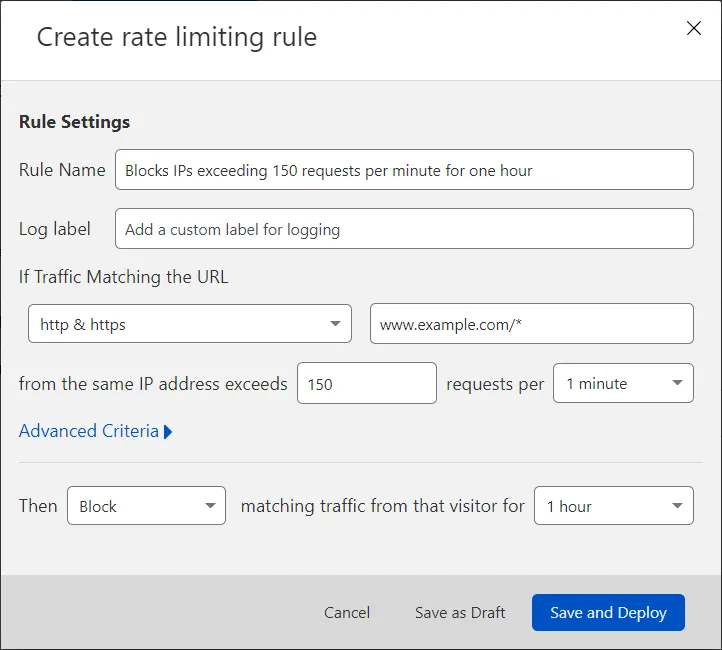
4. Enter a descriptive name for the rule in **Rule Name**.
5. For **If Traffic Matching the URL**, select an HTTP scheme from the dropdown and enter a URL.
6. In **from the same IP address exceeds**, enter an integer greater than 1 to represent the number of requests in a sampling period.
7. For **requests per**, select the sampling period (the period during which requests are counted). Domains on Enterprise plans can enter manually any duration between 10 seconds and 3,600 seconds (one hour).
8. For **Then**, pick one of the available actions based on your plan. Review the [Rule mitigation](#rule-mitigation) section for details.
9. If you selected _Block_ or _Log_, for **matching traffic from that visitor for**, select how long to apply the option once a threshold has been triggered. Domains on Enterprise plans can enter any value between 10 seconds and 86,400 seconds (24 hours).
10. To activate your new rule, select **Save and Deploy**.
The new rule appears in the rate limiting rules list.
Note
Any change to a rate limiting rule clears that rule's currently triggered actions. Take care when editing rate limiting rules to mitigate an ongoing attack.
In general, when setting a lower threshold:
1. Leave existing rules in place and add a new rule with the lower threshold.
2. Once the new rule is in place, wait for the action duration of the old rule to pass before deleting the old rule.
When setting a higher threshold (due to legitimate client blocking), increase the threshold within the existing rule.
---
## Task 2: Configure Advanced Criteria (only Business and Enterprise plans)
The **Advanced Criteria** option configures which HTTP methods, header responses, and origin response codes to match for your rate limiting rule.
To configure your advanced criteria for a new or existing rule:
1. Expand **Advanced Criteria**.
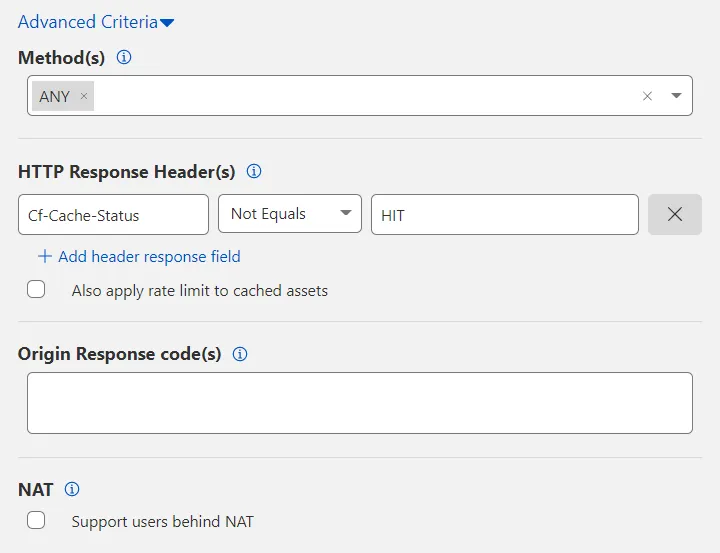
2. Select a value from **Method(s)**. The default value is _ANY_, which matches all HTTP methods.
3. Filter by **HTTP Response Header(s)**. Select **Add header response field** to include headers returned by your origin web server.
The `CF-Cache-Status` header appears by default so that Cloudflare serves cached resources rather than rate limit those resources. To also rate limit cached resources, remove this header by selecting **X** or enable **Also apply rate limit to cached assets**.
If you have more than one header under **HTTP Response Header(s)**, an _AND_ boolean logic applies. To exclude a header, use the _Not Equals_ option. Each header is case insensitive.
4. Under **Origin Response code(s)**, enter the numerical value of each HTTP response code to match. Separate two or more HTTP codes with a comma (for example: `401, 403`).
5. (Optional) Configure additional rate limiting features, based on your plan.
6. Select **Save and Deploy**.
---
## Task 3: Configure Advanced Response (only Business and Enterprise plans)
The **Advanced Response** option configures the information format returned by Cloudflare when a rule's threshold is exceeded. Use **Advanced Response** when you wish to return static plain text or JSON content.
To configure a plain text or JSON response:
1. Expand **Advanced Response**.
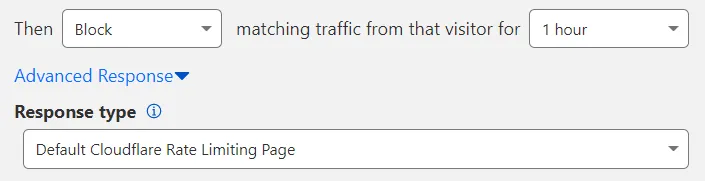
2. Select a **Response type** format other than the default: _Custom JSON_ or _Custom TEXT_.
3. Enter the plain text or JSON response you wish to return. The maximum response size is 32 KB.
4. (Optional) Configure additional rate limiting features, based on your plan.
5. Select **Save and Deploy**.
### Using a custom HTML page or a redirect
If you wish to display a custom HTML page, configure an custom page for `HTTP 429` errors (`Too many requests`) in the dashboard. Cloudflare will display this page when you select _Default Cloudflare Rate Limiting Page_ in **Response type** (the default value for the field).
You can use the following method to redirect a rate-limited client to a specific URL:
1. Create an HTML page on your server that will redirect to the final URL of the page you wish to display. Include a [meta refresh ↗](https://www.w3.org/TR/WCAG20-TECHS/H76.html) tag in the page content, like in the following example:
```
Custom RL page
```
Take note of the public URL of the page you created.
2. In the Cloudflare dashboard, go to the **Settings** page.
[ Go to **Configurations** ](https://dash.cloudflare.com/?to=/:account/configurations)
3. Go to **Error Pages**.
4. Next to **Rate limiting block**, select the three dots > **Edit**.
5. Select **Custom page**.
6. In **Custom page address**, enter the URL of the page you created on your server — the page containing the meta `refresh` tag.
7. Select **Save**.
Follow the same approach if you wish to return plain text or JSON content but the response is larger than 32 KB. In this case, the redirect URL would be the URL of the plain text or JSON resource you would like to display.
Notes
* Your rate limiting rule must not match the redirect URL you included in the custom HTML page for `429` errors.
* To protect from denial-of-service (DoS) attacks, the page for the redirect should only include resources cached by Cloudflare.
---
## Task 4: Configure the Bypass option (Enterprise plans only)
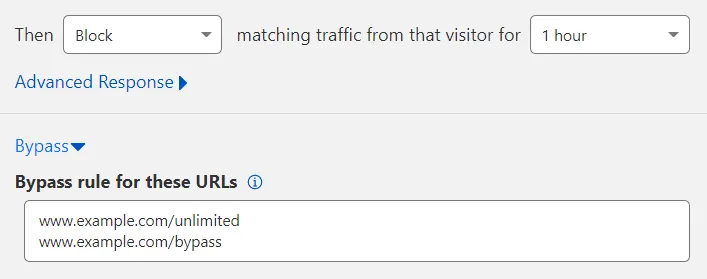
**Bypass** creates an allowlist or exception so that no actions apply to a specific set of URLs even if the rate limit is matched.
To configure **Bypass**:
1. Expand **Bypass**.
2. In **Bypass rule for these URLs**, enter the URL(s) to exempt from the rate limiting rule. Enter each URL on its own line. An HTTP or HTTPS specified in the URL is automatically removed when the rule is saved and instead applies to both HTTP and HTTPS.
3. (Optional) Configure additional rate limiting features, based on your plan.
4. Select **Save and Deploy**.
---
## Analytics
View rate limiting analytics for your zone in **Analytics & logs** \> **Security**. Rate Limiting analytics uses solid lines to represent traffic that matches simulated requests and dotted lines to portray actual blocked requests. Logs generated by a rate limiting rule are only visible to Enterprise customers via [Cloudflare Logs](https://developers.cloudflare.com/logs/).
Cloudflare returns an `HTTP 429` error for blocked requests. Details on blocked requests per location are provided to Enterprise customers under **Status codes** in the analytics dashboard available at **Analytics** \> **Traffic**.
Note
`HTTP 429` responses sent to website visitors will include any `HTTP 429` responses returned from the origin if the origin server also applies its own rate limiting.
---
## Order of rule execution
Rate limiting rules are evaluated from the most recently created rule to the oldest rule.
For example, if a request matches the following two rules:
* Rule #1: Matching with `test.example.com` (created on 2024-03-01)
* Rule #2: Matching with `*.example.com*` (created on 2024-03-12)
Then rule #2 will trigger first because it was created last.
Additionally, when there is a match and the WAF applies a _Log_ action, it continues evaluating other rate limiting rules, since _Log_ is a non-terminating action. If the WAF applies any other action, no other rules will be evaluated.
---
## Limitations
Rate Limiting is designed to limit surges in traffic that exceed a user-defined rate. The system is not designed to allow a precise number of requests to reach the origin server. There might be cases where a delay is introduced between detecting the request and updating the internal counter. Because of this delay, which can be up to a few seconds, excess requests could still reach the origin before an action such as blocking or challenging is enforced.
---
## Related resources
* [Troubleshooting Rate Limiting (previous version)](https://developers.cloudflare.com/waf/reference/legacy/old-rate-limiting/troubleshooting/)
* [Configure Rate Limiting via the Cloudflare API](https://developers.cloudflare.com/api/resources/rate%5Flimits/methods/create/)
```json
{"@context":"https://schema.org","@type":"BreadcrumbList","itemListElement":[{"@type":"ListItem","position":1,"item":{"@id":"/directory/","name":"Directory"}},{"@type":"ListItem","position":2,"item":{"@id":"/waf/","name":"WAF"}},{"@type":"ListItem","position":3,"item":{"@id":"/waf/reference/","name":"Reference"}},{"@type":"ListItem","position":4,"item":{"@id":"/waf/reference/legacy/","name":"Legacy features"}},{"@type":"ListItem","position":5,"item":{"@id":"/waf/reference/legacy/old-rate-limiting/","name":"Rate Limiting (previous version)"}}]}
```