---
title: Send Emails With Resend
description: This tutorial explains how to send emails from Cloudflare Workers using Resend.
image: https://developers.cloudflare.com/dev-products-preview.png
---
> Documentation Index
> Fetch the complete documentation index at: https://developers.cloudflare.com/workers/llms.txt
> Use this file to discover all available pages before exploring further.
[Skip to content](#%5Ftop)
### Tags
[ JavaScript ](https://developers.cloudflare.com/search/?tags=JavaScript)
# Send Emails With Resend
**Last reviewed:** about 2 years ago
In this tutorial, you will learn how to send transactional emails from Workers using [Resend ↗](https://resend.com/). At the end of this tutorial, you’ll be able to:
* Create a Worker to send emails.
* Sign up and add a Cloudflare domain to Resend.
* Send emails from your Worker using Resend.
* Store API keys securely with secrets.
## Prerequisites
To continue with this tutorial, you’ll need:
* A [Cloudflare account ↗](https://dash.cloudflare.com/sign-up/workers-and-pages), if you don’t already have one.
* A [registered](https://developers.cloudflare.com/registrar/get-started/register-domain/) domain.
* Installed [npm ↗](https://docs.npmjs.com/getting-started).
* A [Resend account ↗](https://resend.com/signup).
## Create a Worker project
Start by using [C3](https://developers.cloudflare.com/pages/get-started/c3/) to create a Worker project in the command line, then, answer the prompts:
Terminal window
```
npm create cloudflare@latest
```
Alternatively, you can use CLI arguments to speed things up:
Terminal window
```
npm create cloudflare@latest email-with-resend -- --type=hello-world --ts=false --git=true --deploy=false
```
This creates a simple hello-world Worker having the following content:
JavaScript
```
export default {
async fetch(request, env, ctx) {
return new Response("Hello World!");
},
};
```
## Add your domain to Resend
If you don’t already have a Resend account, you can sign up for a [free account here ↗](https://resend.com/signup). After signing up, go to `Domains` using the side menu, and click the button to add a new domain. On the modal, enter the domain you want to add and then select a region.
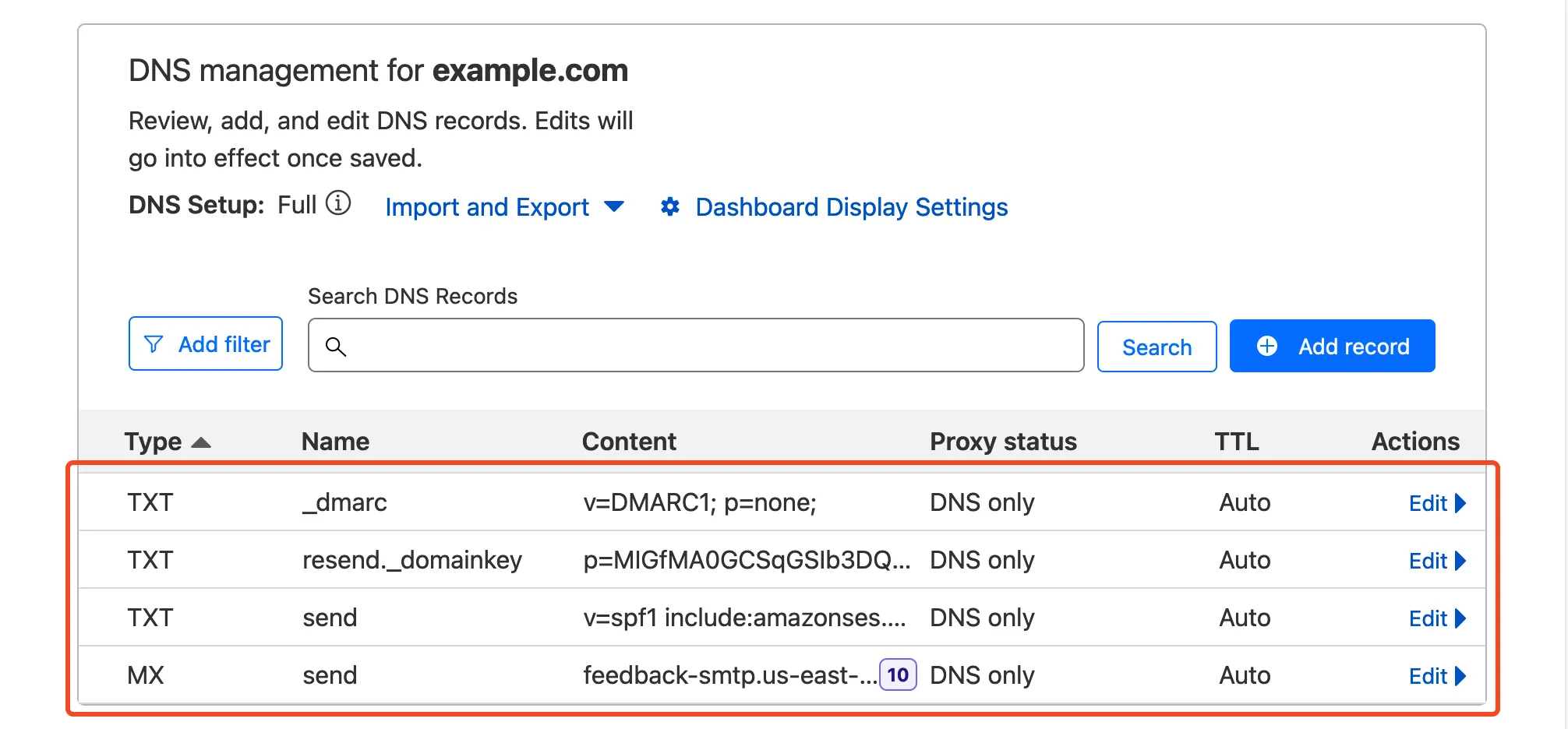
Next, you’re presented with a list of DNS records to add to your Cloudflare domain. On your Cloudflare dashboard, select the domain you entered earlier and navigate to `DNS` \> `Records`. Copy/paste the DNS records (DKIM, SPF, and DMARC records) from Resend to your Cloudflare domain.
Note
If you need more help adding DNS records in Cloudflare, refer to [Manage DNS records](https://developers.cloudflare.com/dns/manage-dns-records/how-to/create-dns-records/).
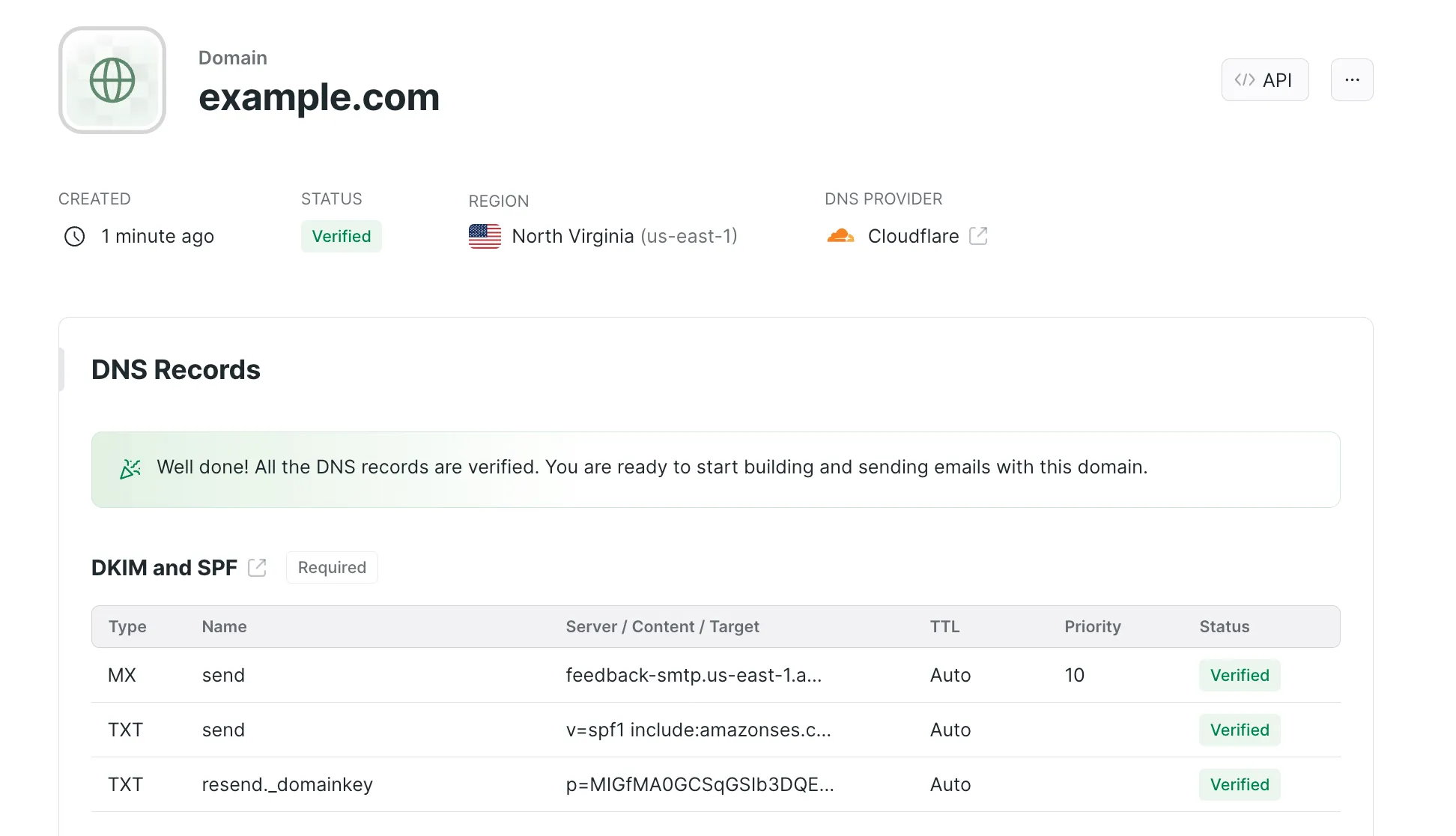
When that’s done, head back to Resend and click on the `Verify DNS Records` button. If all records are properly configured, your domain status should be updated to `Verified`.
Lastly, navigate to `API Keys` with the side menu, to create an API key. Give your key a descriptive name and the appropriate permissions. Click the button to add your key and then copy your API key to a safe location.
## Send emails from your Worker
The final step is putting it all together in a Worker. Open up a terminal in the directory of the Worker you created earlier. Then, install the Resend SDK:
Terminal window
```
npm i resend
```
In your Worker, import and use the Resend library like so:
```
import { Resend } from "resend";
export default {
async fetch(request, env, ctx) {
const resend = new Resend("your_resend_api_key");
const { data, error } = await resend.emails.send({
from: "hello@example.com",
to: "someone@example.com",
subject: "Hello World",
html: "Hello from Workers
",
});
return Response.json({ data, error });
},
};
```
To test your code locally, run the following command and navigate to [http://localhost:8787/ ↗](http://localhost:8787/) in a browser:
Terminal window
```
npm start
```
Deploy your Worker with `npm run deploy`.
## Move API keys to Secrets
Sensitive information such as API keys and token should always be stored in secrets. All secrets are encrypted to add an extra layer of protection. That said, it’s a good idea to move your API key to a secret and access it from the environment of your Worker.
To add secrets for local development, create a `.dev.vars` file which works exactly like a `.env` file:
```
RESEND_API_KEY=your_resend_api_key
```
Also ensure the secret is added to your deployed worker by running:
Add secret to deployed Worker
```
npx wrangler secret put RESEND_API_KEY
```
The added secret can be accessed on via the `env` parameter passed to your Worker’s fetch event handler:
```
import { Resend } from "resend";
export default {
async fetch(request, env, ctx) {
const resend = new Resend(env.RESEND_API_KEY);
const { data, error } = await resend.emails.send({
from: "hello@example.com",
to: "someone@example.com",
subject: "Hello World",
html: "Hello from Workers
",
});
return Response.json({ data, error });
},
};
```
And finally, deploy this update with `npm run deploy`.
## Related resources
* [Storing API keys and tokens with Secrets](https://developers.cloudflare.com/workers/configuration/secrets/).
* [Transferring your domain to Cloudflare](https://developers.cloudflare.com/registrar/get-started/transfer-domain-to-cloudflare/).
* [Send emails from Workers](https://developers.cloudflare.com/email-routing/email-workers/send-email-workers/)
```json
{"@context":"https://schema.org","@type":"BreadcrumbList","itemListElement":[{"@type":"ListItem","position":1,"item":{"@id":"/directory/","name":"Directory"}},{"@type":"ListItem","position":2,"item":{"@id":"/workers/","name":"Workers"}},{"@type":"ListItem","position":3,"item":{"@id":"/workers/tutorials/","name":"Tutorials"}},{"@type":"ListItem","position":4,"item":{"@id":"/workers/tutorials/send-emails-with-resend/","name":"Send Emails With Resend"}}]}
```