

Account administrators can now assign the AI Crawl Control Read Only role to provide read-only access to AI Crawl Control at the domain level.
Users with this role can view the Overview, Crawlers, Metrics, Robots.txt, and Settings tabs but cannot modify crawler actions or settings.
This role is specific for AI Crawl Control. You still require correct permissions to access other areas / features of the dashboard.
To assign, go to Manage Account > Members and add a policy with the AI Crawl Control Read Only role scoped to the desired domain.
Agents SDK v0.3.0, workers-ai-provider v3.0.0, and ai-gateway-provider v3.0.0 with AI SDK v6 support
We've shipped a new release for the Agents SDK ↗ v0.3.0 bringing full compatibility with AI SDK v6 ↗ and introducing the unified tool pattern, dynamic tool approval, and enhanced React hooks with improved tool handling.
This release includes improved streaming and tool support, dynamic tool approval (for "human in the loop" systems), enhanced React hooks with
onToolCallcallback, improved error handling for streaming responses, and seamless migration from v5 patterns.This makes it ideal for building production AI chat interfaces with Cloudflare Workers AI models, agent workflows, human-in-the-loop systems, or any application requiring reliable tool execution and approval workflows.
Additionally, we've updated workers-ai-provider v3.0.0, the official provider for Cloudflare Workers AI models, and ai-gateway-provider v3.0.0, the provider for Cloudflare AI Gateway, to be compatible with AI SDK v6.
AI SDK v6 introduces a unified tool pattern where all tools are defined on the server using the
tool()function. This replaces the previous client-sideAIToolpattern.TypeScript import { tool } from "ai";import { z } from "zod";// Server: Define ALL tools on the serverconst tools = {// Server-executed toolgetWeather: tool({description: "Get weather for a city",inputSchema: z.object({ city: z.string() }),execute: async ({ city }) => fetchWeather(city)}),// Client-executed tool (no execute = client handles via onToolCall)getLocation: tool({description: "Get user location from browser",inputSchema: z.object({})// No execute function}),// Tool requiring approval (dynamic based on input)processPayment: tool({description: "Process a payment",inputSchema: z.object({ amount: z.number() }),needsApproval: async ({ amount }) => amount > 100,execute: async ({ amount }) => charge(amount)})};TypeScript // Client: Handle client-side tools via onToolCall callbackimport { useAgentChat } from "agents/ai-react";const { messages, sendMessage, addToolOutput } = useAgentChat({agent,onToolCall: async ({ toolCall, addToolOutput }) => {if (toolCall.toolName === "getLocation") {const position = await new Promise((resolve, reject) => {navigator.geolocation.getCurrentPosition(resolve, reject);});addToolOutput({toolCallId: toolCall.toolCallId,output: {lat: position.coords.latitude,lng: position.coords.longitude}});}}});Key benefits of the unified tool pattern:
- Server-defined tools: All tools are defined in one place on the server
- Dynamic approval: Use
needsApprovalto conditionally require user confirmation - Cleaner client code: Use
onToolCallcallback instead of managing tool configs - Type safety: Full TypeScript support with proper tool typing
Creates a new chat interface with enhanced v6 capabilities.
TypeScript // Basic chat setup with onToolCallconst { messages, sendMessage, addToolOutput } = useAgentChat({agent,onToolCall: async ({ toolCall, addToolOutput }) => {// Handle client-side tool executionawait addToolOutput({toolCallId: toolCall.toolCallId,output: { result: "success" }});}});Use
needsApprovalon server tools to conditionally require user confirmation:TypeScript const paymentTool = tool({description: "Process a payment",inputSchema: z.object({amount: z.number(),recipient: z.string()}),needsApproval: async ({ amount }) => amount > 1000,execute: async ({ amount, recipient }) => {return await processPayment(amount, recipient);}});The
isToolUIPartandgetToolNamefunctions now check both static and dynamic tool parts:TypeScript import { isToolUIPart, getToolName } from "ai";const pendingToolCallConfirmation = messages.some((m) =>m.parts?.some((part) => isToolUIPart(part) && part.state === "input-available",),);// Handle tool confirmationif (pendingToolCallConfirmation) {await addToolOutput({toolCallId: part.toolCallId,output: "User approved the action"});}If you need the v5 behavior (static-only checks), use the new functions:
TypeScript import { isStaticToolUIPart, getStaticToolName } from "ai";The
convertToModelMessages()function is now asynchronous. Update all calls to await the result:TypeScript import { convertToModelMessages } from "ai";const result = streamText({messages: await convertToModelMessages(this.messages),model: openai("gpt-4o")});The
CoreMessagetype has been removed. UseModelMessageinstead:TypeScript import { convertToModelMessages, type ModelMessage } from "ai";const modelMessages: ModelMessage[] = await convertToModelMessages(messages);The
modeoption forgenerateObjecthas been removed:TypeScript // Before (v5)const result = await generateObject({mode: "json",model,schema,prompt});// After (v6)const result = await generateObject({model,schema,prompt});While
generateObjectandstreamObjectare still functional, the recommended approach is to usegenerateText/streamTextwith theOutput.object()helper:TypeScript import { generateText, Output, stepCountIs } from "ai";const { output } = await generateText({model: openai("gpt-4"),output: Output.object({schema: z.object({ name: z.string() })}),stopWhen: stepCountIs(2),prompt: "Generate a name"});Note: When using structured output with
generateText, you must configure multiple steps withstopWhenbecause generating the structured output is itself a step.Seamless integration with Cloudflare Workers AI models through the updated workers-ai-provider v3.0.0 with AI SDK v6 support.
Use Cloudflare Workers AI models directly in your agent workflows:
TypeScript import { createWorkersAI } from "workers-ai-provider";import { useAgentChat } from "agents/ai-react";// Create Workers AI model (v3.0.0 - enhanced v6 internals)const model = createWorkersAI({binding: env.AI,})("@cf/meta/llama-3.2-3b-instruct");Workers AI models now support v6 file handling with automatic conversion:
TypeScript // Send images and files to Workers AI modelssendMessage({role: "user",parts: [{ type: "text", text: "Analyze this image:" },{type: "file",data: imageBuffer,mediaType: "image/jpeg",},],});// Workers AI provider automatically converts to proper formatEnhanced streaming support with automatic warning detection:
TypeScript // Streaming with Workers AI modelsconst result = await streamText({model: createWorkersAI({ binding: env.AI })("@cf/meta/llama-3.2-3b-instruct"),messages: await convertToModelMessages(messages),onChunk: (chunk) => {// Enhanced streaming with warning handlingconsole.log(chunk);},});The ai-gateway-provider v3.0.0 now supports AI SDK v6, enabling you to use Cloudflare AI Gateway with multiple AI providers including Anthropic, Azure, AWS Bedrock, Google Vertex, and Perplexity.
Use Cloudflare AI Gateway to add analytics, caching, and rate limiting to your AI applications:
TypeScript import { createAIGateway } from "ai-gateway-provider";// Create AI Gateway provider (v3.0.0 - enhanced v6 internals)const model = createAIGateway({gatewayUrl: "https://gateway.ai.cloudflare.com/v1/your-account-id/gateway",headers: {"Authorization": `Bearer ${env.AI_GATEWAY_TOKEN}`}})({provider: "openai",model: "gpt-4o"});The following APIs are deprecated in favor of the unified tool pattern:
Deprecated Replacement AITooltypeUse AI SDK's tool()function on serverextractClientToolSchemas()Define tools on server, no client schemas needed createToolsFromClientSchemas()Define tools on server with tool()toolsRequiringConfirmationoptionUse needsApprovalon server toolsexperimental_automaticToolResolutionUse onToolCallcallbacktoolsoption inuseAgentChatUse onToolCallfor client-side executionaddToolResult()Use addToolOutput()- Unified Tool Pattern: All tools must be defined on the server using
tool() convertToModelMessages()is async: Addawaitto all callsCoreMessageremoved: UseModelMessageinsteadgenerateObjectmode removed: RemovemodeoptionisToolUIPartbehavior changed: Now checks both static and dynamic tool parts
Update your dependencies to use the latest versions:
Terminal window npm install agents@^0.3.0 workers-ai-provider@^3.0.0 ai-gateway-provider@^3.0.0 ai@^6.0.0 @ai-sdk/react@^3.0.0 @ai-sdk/openai@^3.0.0- Migration Guide ↗ - Comprehensive migration documentation from v5 to v6
- AI SDK v6 Documentation ↗ - Official AI SDK migration guide
- AI SDK v6 Announcement ↗ - Learn about new features in v6
- AI SDK Documentation ↗ - Complete AI SDK reference
- GitHub Issues ↗ - Report bugs or request features
We'd love your feedback! We're particularly interested in feedback on:
- Migration experience - How smooth was the upgrade from v5 to v6?
- Unified tool pattern - How does the new server-defined tool pattern work for you?
- Dynamic tool approval - Does the
needsApprovalfeature meet your needs? - AI Gateway integration - How well does the new provider work with your setup?
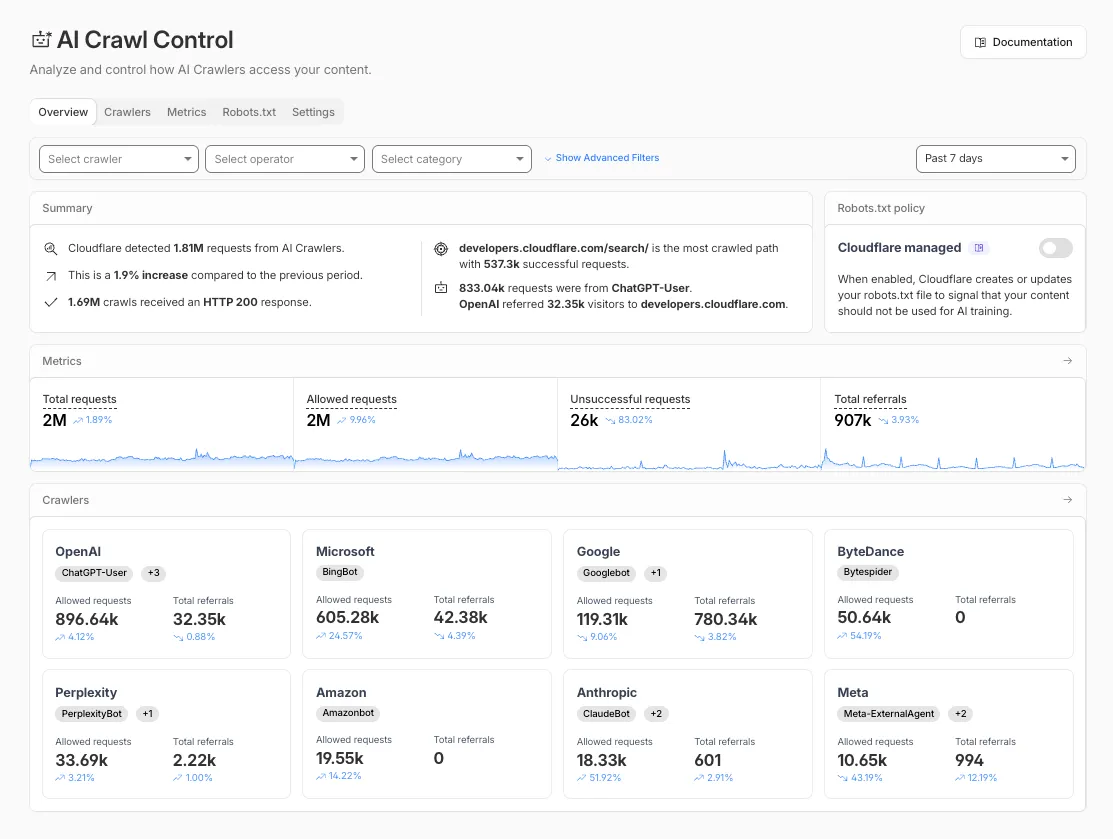
The Overview tab is now the default view in AI Crawl Control. The previous default view with controls for individual AI crawlers is available in the Crawlers tab.
- Executive summary — Monitor total requests, volume change, most common status code, most popular path, and high-volume activity
- Operator grouping — Track crawlers by their operating companies (OpenAI, Microsoft, Google, ByteDance, Anthropic, Meta)
- Customizable filters — Filter your snapshot by date range, crawler, operator, hostname, or path
- Log in to the Cloudflare dashboard and select your account and domain.
- Go to AI Crawl Control, where the Overview tab opens by default with your activity snapshot.
- Use filters to customize your view by date range, crawler, operator, hostname, or path.
- Navigate to the Crawlers tab to manage controls for individual crawlers.
Learn more about analyzing AI traffic and managing AI crawlers.
Pay Per Crawl is introducing enhancements for both AI crawler operators and site owners, focusing on programmatic discovery, flexible pricing models, and granular configuration control.
A new authenticated API endpoint allows verified crawlers to programmatically discover domains participating in Pay Per Crawl. Crawlers can use this to build optimized crawl queues, cache domain lists, and identify new participating sites. This eliminates the need to discover payable content through trial requests.
The API endpoint is
GET https://crawlers-api.ai-audit.cfdata.org/charged_zonesand requires Web Bot Auth authentication. Refer to Discover payable content for authentication steps, request parameters, and response schema.Payment headers (
crawler-exact-priceorcrawler-max-price) must now be included in the Web Bot Authsignature-inputheader components. This security enhancement prevents payment header tampering, ensures authenticated payment intent, validates crawler identity with payment commitment, and protects against replay attacks with modified pricing. Crawlers must add their payment header to the list of signed components when constructing the signature-input header.Pay Per Crawl error responses now include a new
crawler-errorheader with 11 specific error codes for programmatic handling. Error response bodies remain unchanged for compatibility. These codes enable robust error handling, automated retry logic, and accurate spending tracking.Site owners can now offer free access to specific pages like homepages, navigation, or discovery pages while charging for other content. Create a Configuration Rule in Rules > Configuration Rules, set your URI pattern using wildcard, exact, or prefix matching on the URI Full field, and enable the Disable Pay Per Crawl setting. When disabled for a URI pattern, crawler requests pass through without blocking or charging.
Some paths are always free to crawl. These paths are:
/robots.txt,/sitemap.xml,/security.txt,/.well-known/security.txt,/crawlers.json.AI crawler operators: Discover payable content | Crawl pages
Site owners: Advanced configuration
The latest release of @cloudflare/agents ↗ brings resumable streaming, significant MCP client improvements, and critical fixes for schedules and Durable Object lifecycle management.
AIChatAgentnow supports resumable streaming, allowing clients to reconnect and continue receiving streamed responses without losing data. This is useful for:- Long-running AI responses
- Users on unreliable networks
- Users switching between devices mid-conversation
- Background tasks where users navigate away and return
- Real-time collaboration where multiple clients need to stay in sync
Streams are maintained across page refreshes, broken connections, and syncing across open tabs and devices.
- Default JSON schema validator added to MCP client
- Schedules ↗ can now safely destroy the agent
The
MCPClientManagerAPI has been redesigned for better clarity and control:- New
registerServer()method: Register MCP servers without immediately connecting - New
connectToServer()method: Establish connections to registered servers - Improved reconnect logic:
restoreConnectionsFromStorage()now properly handles failed connections
TypeScript // Register a server to Agentconst { id } = await this.mcp.registerServer({name: "my-server",url: "https://my-mcp-server.example.com",});// Connect when readyawait this.mcp.connectToServer(id);// Discover tools, prompts and resourcesawait this.mcp.discoverIfConnected(id);The SDK now includes a formalized
MCPConnectionStateenum with states:idle,connecting,authenticating,connected,discovering, andready.MCP discovery fetches the available tools, prompts, and resources from an MCP server so your agent knows what capabilities are available. The
MCPClientConnectionclass now includes a dedicateddiscover()method with improved reliability:- Supports cancellation via AbortController
- Configurable timeout (default 15s)
- Discovery failures now throw errors immediately instead of silently continuing
- Fixed a bug where schedules ↗ meant to fire immediately with this.schedule(0, ...) or
this.schedule(new Date(), ...)would not fire - Fixed an issue where schedules that took longer than 30 seconds would occasionally time out
- Fixed SSE transport now properly forwards session IDs and request headers
- Fixed AI SDK stream events convertion to UIMessageStreamPart
To update to the latest version:
Terminal window npm i agents@latest
We've partnered with Black Forest Labs (BFL) to bring their latest FLUX.2 [dev] model to Workers AI! This model excels in generating high-fidelity images with physical world grounding, multi-language support, and digital asset creation. You can also create specific super images with granular controls like JSON prompting.
Read the BFL blog ↗ to learn more about the model itself. Read our Cloudflare blog ↗ to see the model in action, or try it out yourself on our multi modal playground ↗.
Pricing documentation is available on the model page or pricing page. Note, we expect to drop pricing in the next few days after iterating on the model performance.
The model hosted on Workers AI is able to support up to 4 image inputs (512x512 per input image). Note, this image model is one of the most powerful in the catalog and is expected to be slower than the other image models we currently support. One catch to look out for is that this model takes multipart form data inputs, even if you just have a prompt.
With the REST API, the multipart form data input looks like this:
Terminal window curl --request POST \--url 'https://api.cloudflare.com/client/v4/accounts/{ACCOUNT}/ai/run/@cf/black-forest-labs/flux-2-dev' \--header 'Authorization: Bearer {TOKEN}' \--header 'Content-Type: multipart/form-data' \--form 'prompt=a sunset at the alps' \--form steps=25--form width=1024--form height=1024With the Workers AI binding, you can use it as such:
JavaScript const form = new FormData();form.append('prompt', 'a sunset with a dog');form.append('width', '1024');form.append('height', '1024');//this dummy request is temporary hack//we're pushing a change to address this soonconst formRequest = new Request('http://dummy', {method: 'POST',body: form});const formStream = formRequest.body;const formContentType = formRequest.headers.get('content-type') || 'multipart/form-data';const resp = await env.AI.run("@cf/black-forest-labs/flux-2-dev", {multipart: {body: formStream,contentType: formContentType}});The parameters you can send to the model are detailed here:
JSON Schema for Model
Required Parametersprompt(string) - Text description of the image to generate
Optional Parameters
input_image_0(string) - Binary imageinput_image_1(string) - Binary imageinput_image_2(string) - Binary imageinput_image_3(string) - Binary imagesteps(integer) - Number of inference steps. Higher values may improve quality but increase generation timeguidance(float) - Guidance scale for generation. Higher values follow the prompt more closelywidth(integer) - Width of the image, default1024Range: 256-1920height(integer) - Height of the image, default768Range: 256-1920seed(integer) - Seed for reproducibility
## Multi-Reference ImagesThe FLUX.2 model is great at generating images based on reference images. You can use this feature to apply the style of one image to another, add a new character to an image, or iterate on past generate images. You would use it with the same multipart form data structure, with the input images in binary.For the prompt, you can reference the images based on the index, like `take the subject of image 1 and style it like image 0` or even use natural language like `place the dog beside the woman`.Note: you have to name the input parameter as `input_image_0`, `input_image_1`, `input_image_2` for it to work correctly. All input images must be smaller than 512x512.```bashcurl --request POST \--url 'https://api.cloudflare.com/client/v4/accounts/{ACCOUNT}/ai/run/@cf/black-forest-labs/flux-2-dev' \--header 'Authorization: Bearer {TOKEN}' \--header 'Content-Type: multipart/form-data' \--form 'prompt=take the subject of image 1 and style it like image 0' \--form input_image_0=@/Users/johndoe/Desktop/icedoutkeanu.png \--form input_image_1=@/Users/johndoe/Desktop/me.png \--form steps=25--form width=1024--form height=1024Through Workers AI Binding:
JavaScript //helper function to convert ReadableStream to Blobasync function streamToBlob(stream: ReadableStream, contentType: string): Promise<Blob> {const reader = stream.getReader();const chunks = [];while (true) {const { done, value } = await reader.read();if (done) break;chunks.push(value);}return new Blob(chunks, { type: contentType });}const image0 = await fetch("http://image-url");const image1 = await fetch("http://image-url");const form = new FormData();const image_blob0 = await streamToBlob(image0.body, "image/png");const image_blob1 = await streamToBlob(image1.body, "image/png");form.append('input_image_0', image_blob0)form.append('input_image_1', image_blob1)form.append('prompt', 'take the subject of image 1and style it like image 0')//this dummy request is temporary hack//we're pushing a change to address this soonconst formRequest = new Request('http://dummy', {method: 'POST',body: form});const formStream = formRequest.body;const formContentType = formRequest.headers.get('content-type') || 'multipart/form-data';const resp = await env.AI.run("@cf/black-forest-labs/flux-2-dev", {multipart: {body: form,contentType: "multipart/form-data"}})The model supports prompting in JSON to get more granular control over images. You would pass the JSON as the value of the 'prompt' field in the multipart form data. See the JSON schema below on the base parameters you can pass to the model.
JSON Prompting Schema
{"type": "object","properties": {"scene": {"type": "string","description": "Overall scene setting or location"},"subjects": {"type": "array","items": {"type": "object","properties": {"type": {"type": "string","description": "Type of subject (e.g., desert nomad, blacksmith, DJ, falcon)"},"description": {"type": "string","description": "Physical attributes, clothing, accessories"},"pose": {"type": "string","description": "Action or stance"},"position": {"type": "string","enum": ["foreground", "midground", "background"],"description": "Depth placement in scene"}},"required": ["type", "description", "pose", "position"]}},"style": {"type": "string","description": "Artistic rendering style (e.g., digital painting, photorealistic, pixel art, noir sci-fi, lifestyle photo, wabi-sabi photo)"},"color_palette": {"type": "array","items": { "type": "string" },"minItems": 3,"maxItems": 3,"description": "Exactly 3 main colors for the scene (e.g., ['navy', 'neon yellow', 'magenta'])"},"lighting": {"type": "string","description": "Lighting condition and direction (e.g., fog-filtered sun, moonlight with star glints, dappled sunlight)"},"mood": {"type": "string","description": "Emotional atmosphere (e.g., harsh and determined, playful and modern, peaceful and dreamy)"},"background": {"type": "string","description": "Background environment details"},"composition": {"type": "string","enum": ["rule of thirds","circular arrangement","framed by foreground","minimalist negative space","S-curve","vanishing point center","dynamic off-center","leading leads","golden spiral","diagonal energy","strong verticals","triangular arrangement"],"description": "Compositional technique"},"camera": {"type": "object","properties": {"angle": {"type": "string","enum": ["eye level", "low angle", "slightly low", "bird's-eye", "worm's-eye", "over-the-shoulder", "isometric"],"description": "Camera perspective"},"distance": {"type": "string","enum": ["close-up", "medium close-up", "medium shot", "medium wide", "wide shot", "extreme wide"],"description": "Framing distance"},"focus": {"type": "string","enum": ["deep focus", "macro focus", "selective focus", "sharp on subject", "soft background"],"description": "Focus type"},"lens": {"type": "string","enum": ["14mm", "24mm", "35mm", "50mm", "70mm", "85mm"],"description": "Focal length (wide to telephoto)"},"f-number": {"type": "string","description": "Aperture (e.g., f/2.8, the smaller the number the more blurry the background)"},"ISO": {"type": "number","description": "Light sensitivity value (comfortable range between 100 & 6400, lower = less sensitivity)"}}},"effects": {"type": "array","items": { "type": "string" },"description": "Post-processing effects (e.g., 'lens flare small', 'subtle film grain', 'soft bloom', 'god rays', 'chromatic aberration mild')"}},"required": ["scene", "subjects"]}- The model also supports the most common latin and non-latin character languages
- You can prompt the model with specific hex codes like
#2ECC71 - Try creating digital assets like landing pages, comic strips, infographics too!
AI Search now supports custom HTTP headers for website crawling, solving a common problem where valuable content behind authentication or access controls could not be indexed.
Previously, AI Search could only crawl publicly accessible pages, leaving knowledge bases, documentation, and other protected content out of your search results. With custom headers support, you can now include authentication credentials that allow the crawler to access this protected content.
This is particularly useful for indexing content like:
- Internal documentation behind corporate login systems
- Premium content that requires users to provide access to unlock
- Sites protected by Cloudflare Access using service tokens
To add custom headers when creating an AI Search instance, select Parse options. In the Extra headers section, you can add up to five custom headers per Website data source.
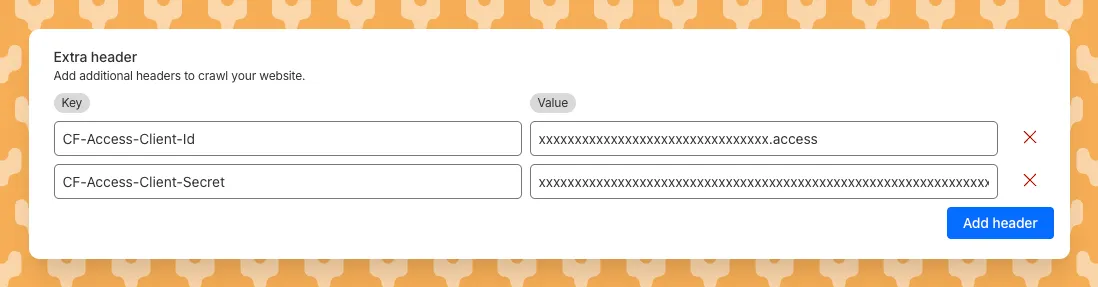
For example, to crawl a site protected by Cloudflare Access, you can add service token credentials as custom headers:
CF-Access-Client-Id: your-token-id.accessCF-Access-Client-Secret: your-token-secretThe crawler will automatically include these headers in all requests, allowing it to access protected pages that would otherwise be blocked.
Learn more about configuring custom headers for website crawling in AI Search.
AI Crawl Control now supports per-crawler drilldowns with an extended actions menu and status code analytics. Drill down into Metrics, Cloudflare Radar, and Security Analytics, or export crawler data for use in WAF custom rules, Redirect Rules, and robots.txt files.
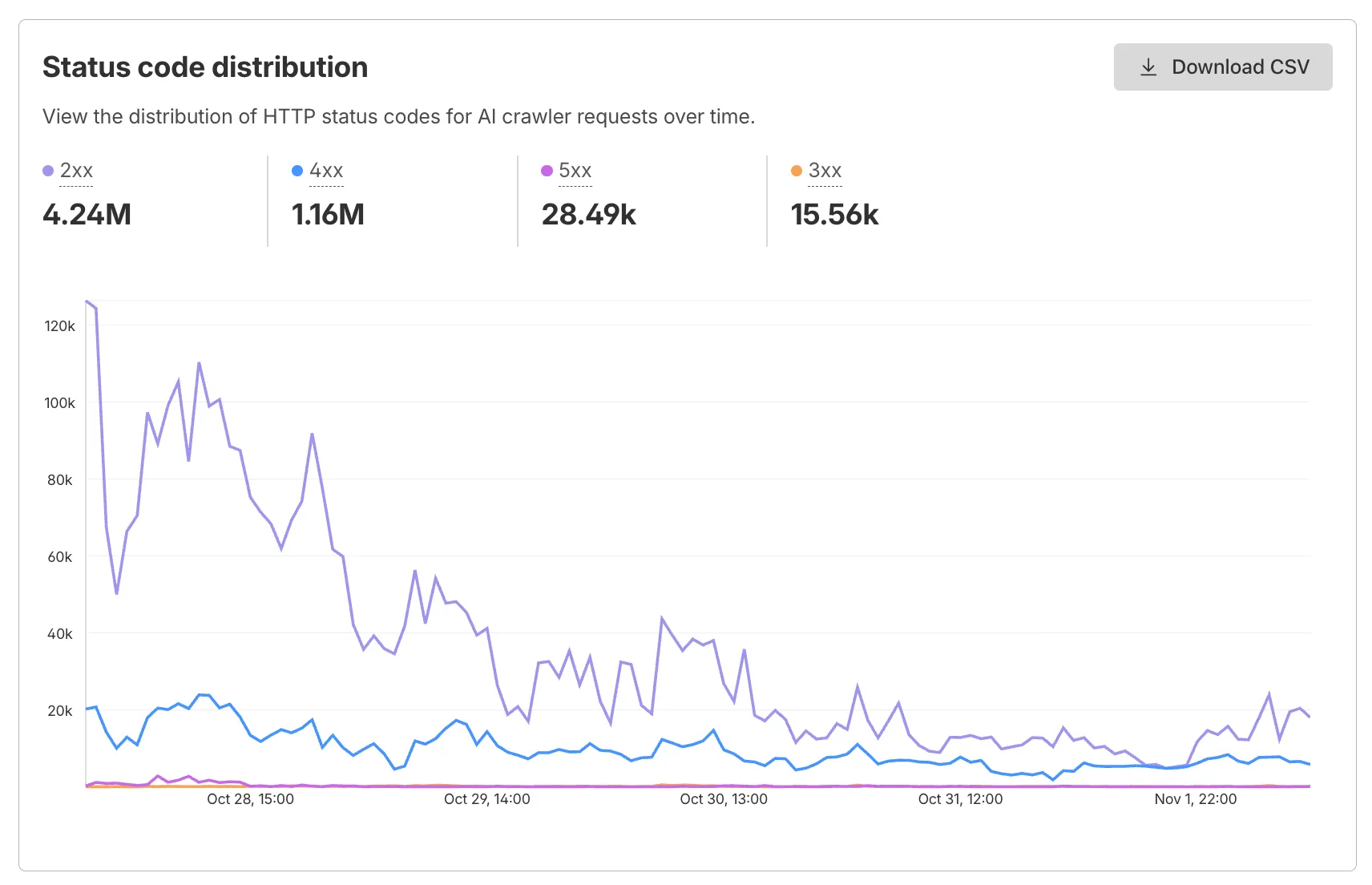
The Metrics tab includes a status code distribution chart showing HTTP response codes (2xx, 3xx, 4xx, 5xx) over time. Filter by individual crawler, category, operator, or time range to analyze how specific crawlers interact with your site.
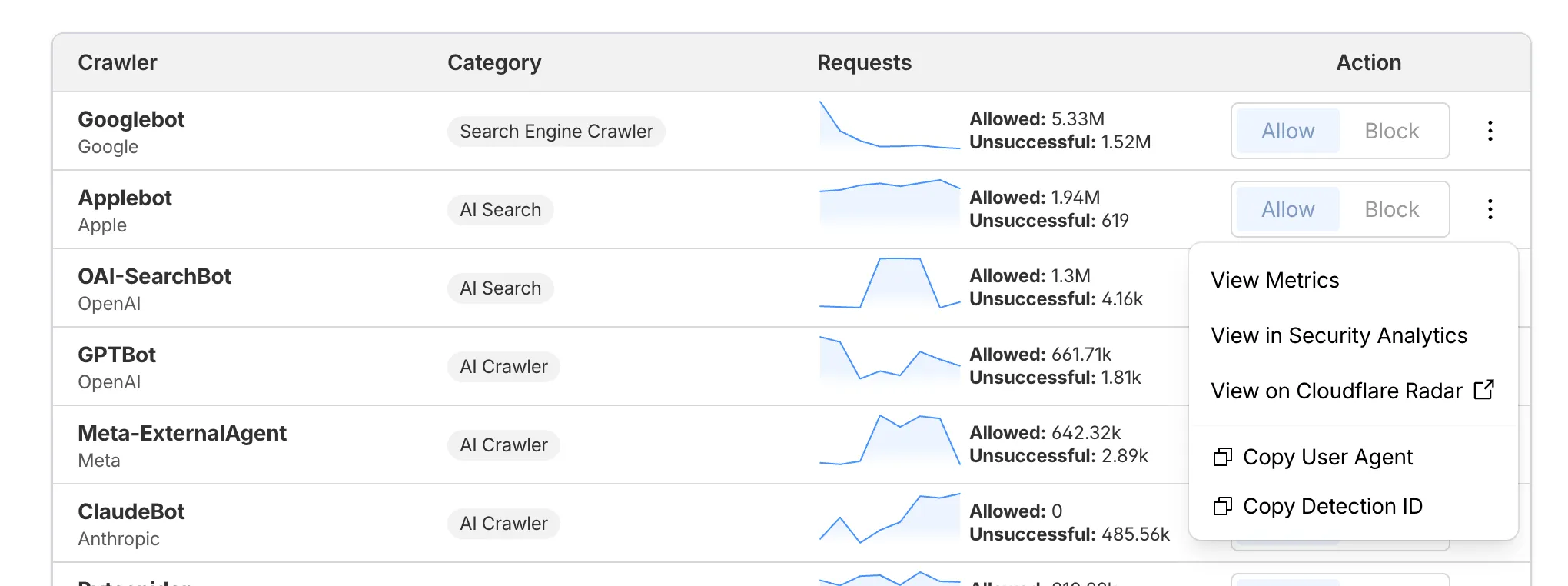
Each crawler row includes a three-dot menu with per-crawler actions:
- View Metrics — Filter the AI Crawl Control Metrics page to the selected crawler.
- View on Cloudflare Radar — Access verified crawler details on Cloudflare Radar.
- Copy User Agent — Copy user agent strings for use in WAF custom rules, Redirect Rules, or robots.txt files.
- View in Security Analytics — Filter Security Analytics by detection IDs (Bot Management customers).
- Copy Detection ID — Copy detection IDs for use in WAF custom rules (Bot Management customers).
- Log in to the Cloudflare dashboard, and select your account and domain.
- Go to AI Crawl Control > Metrics to access the status code distribution chart.
- Go to AI Crawl Control > Crawlers and select the three-dot menu for any crawler to access per-crawler actions.
- Select multiple crawlers to use bulk copy buttons for user agents or detection IDs.
Learn more about AI Crawl Control.
Workers, including those using Durable Objects and Browser Rendering, may now process WebSocket messages up to 32 MiB in size. Previously, this limit was 1 MiB.
This change allows Workers to handle use cases requiring large message sizes, such as processing Chrome Devtools Protocol messages.
For more information, please see the Durable Objects startup limits.
AI Search now supports reranking for improved retrieval quality and allows you to set the system prompt directly in your API requests.
You can now enable reranking to reorder retrieved documents based on their semantic relevance to the user’s query. Reranking helps improve accuracy, especially for large or noisy datasets where vector similarity alone may not produce the optimal ordering.
You can enable and configure reranking in the dashboard or directly in your API requests:
JavaScript const answer = await env.AI.autorag("my-autorag").aiSearch({query: "How do I train a llama to deliver coffee?",model: "@cf/meta/llama-3.3-70b-instruct-fp8-fast",reranking: {enabled: true,model: "@cf/baai/bge-reranker-base"}});Previously, system prompts could only be configured in the dashboard. You can now define them directly in your API requests, giving you per-query control over behavior. For example:
JavaScript // Dynamically set query and system prompt in AI Searchasync function getAnswer(query, tone) {const systemPrompt = `You are a ${tone} assistant.`;const response = await env.AI.autorag("my-autorag").aiSearch({query: query,system_prompt: systemPrompt});return response;}// Example usageconst query = "What is Cloudflare?";const tone = "friendly";const answer = await getAnswer(query, tone);console.log(answer);Learn more about Reranking and System Prompt in AI Search.
Developers can now programmatically retrieve a list of all file formats supported by the Markdown Conversion utility in Workers AI.
You can use the
env.AIbinding:TypeScript await env.AI.toMarkdown().supported()Or call the REST API:
Terminal window curl https://api.cloudflare.com/client/v4/accounts/{ACCOUNT_ID}/ai/tomarkdown/supported \-H 'Authorization: Bearer {API_TOKEN}'Both return a list of file formats that users can convert into Markdown:
[{"extension": ".pdf","mimeType": "application/pdf",},{"extension": ".jpeg","mimeType": "image/jpeg",},...]Learn more about our Markdown Conversion utility.
AI Crawl Control now includes a Robots.txt tab that provides insights into how AI crawlers interact with your
robots.txtfiles.The Robots.txt tab allows you to:
- Monitor the health status of
robots.txtfiles across all your hostnames, including HTTP status codes, and identify hostnames that need arobots.txtfile. - Track the total number of requests to each
robots.txtfile, with breakdowns of successful versus unsuccessful requests. - Check whether your
robots.txtfiles contain Content Signals ↗ directives for AI training, search, and AI input. - Identify crawlers that request paths explicitly disallowed by your
robots.txtdirectives, including the crawler name, operator, violated path, specific directive, and violation count. - Filter
robots.txtrequest data by crawler, operator, category, and custom time ranges.
When you identify non-compliant crawlers, you can:
- Block the crawler in the Crawlers tab
- Create custom WAF rules for path-specific security
- Use Redirect Rules to guide crawlers to appropriate areas of your site
To get started, go to AI Crawl Control > Robots.txt in the Cloudflare dashboard. Learn more in the Track robots.txt documentation.
- Monitor the health status of
AI Crawl Control now provides enhanced metrics and CSV data exports to help you better understand AI crawler activity across your sites.
Visualize crawler activity patterns over time, and group data by different dimensions:
- By Crawler — Track activity from individual AI crawlers (GPTBot, ClaudeBot, Bytespider)
- By Category — Analyze crawler purpose or type
- By Operator — Discover which companies (OpenAI, Anthropic, ByteDance) are crawling your site
- By Host — Break down activity across multiple subdomains
- By Status Code — Monitor HTTP response codes to crawlers (200s, 300s, 400s, 500s)
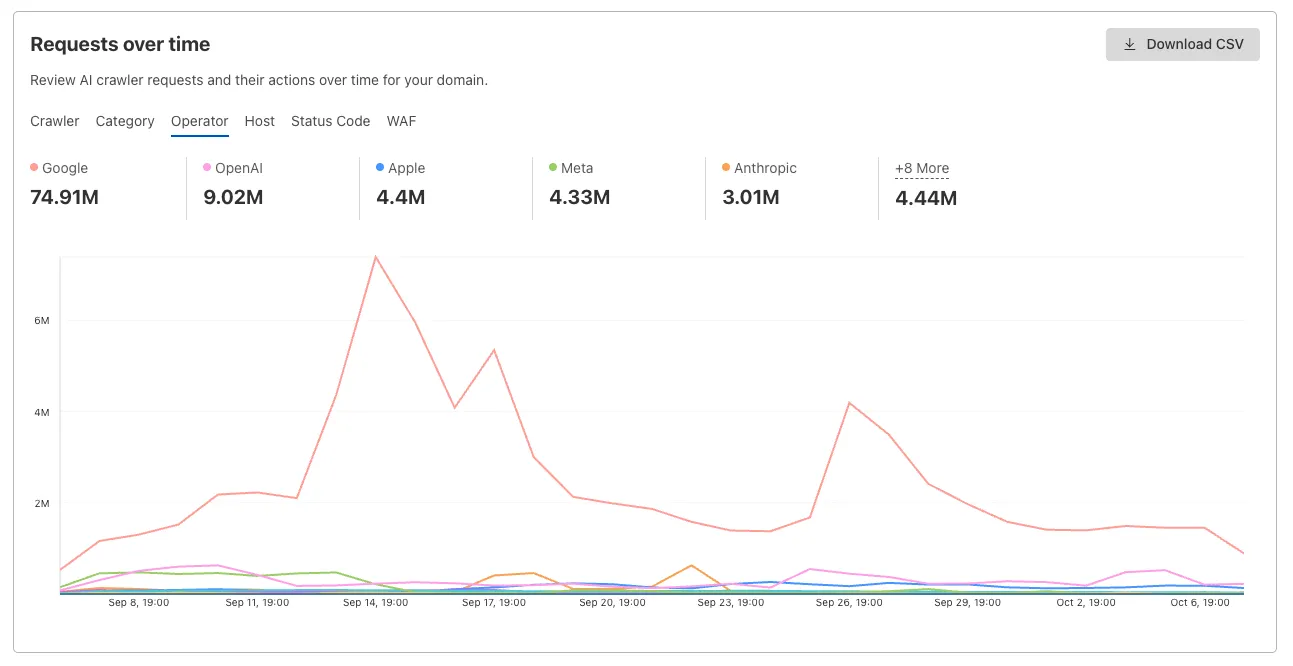
Interactive chart showing crawler requests over time with filterable dimensions Identify traffic sources with referrer analytics:
- View top referrers driving traffic to your site
- Understand discovery patterns and content popularity from AI operators
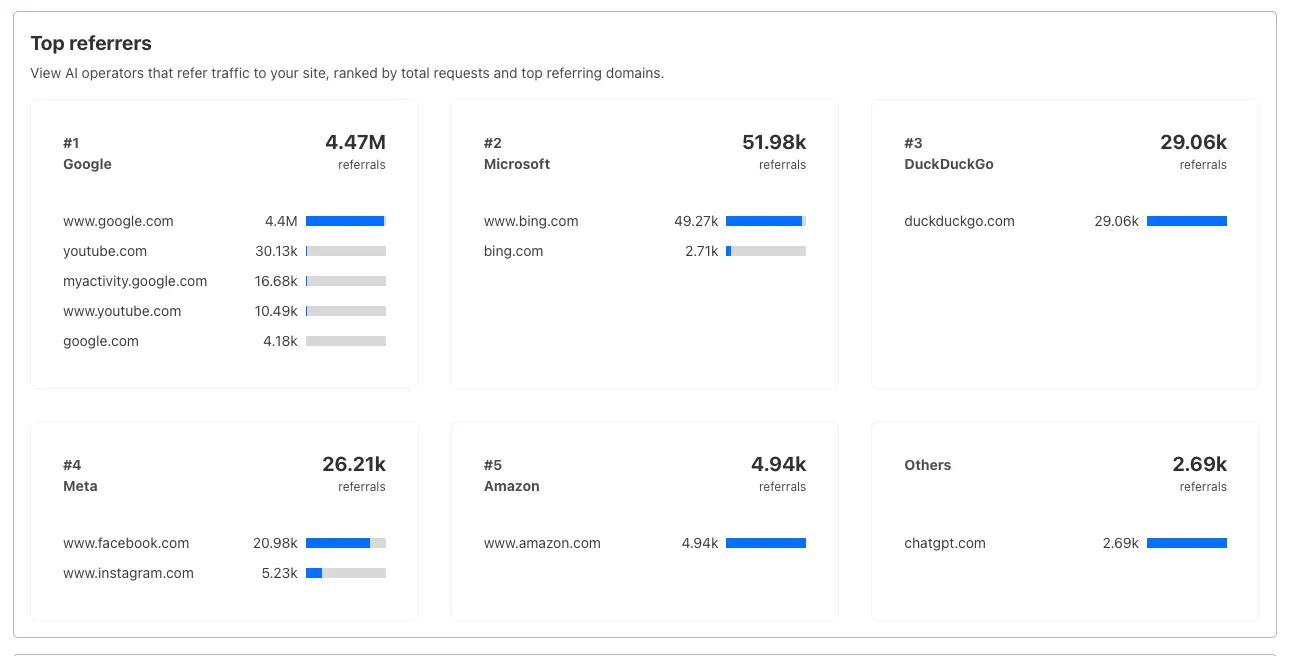
Bar chart showing top referrers and their respective traffic volumes Download your filtered view as a CSV:
- Includes all applied filters and groupings
- Useful for custom reporting and deeper analysis
- Log in to the Cloudflare dashboard, and select your account and domain.
- Go to AI Crawl Control > Metrics.
- Use the grouping tabs to explore different views of your data.
- Apply filters to focus on specific crawlers, time ranges, or response codes.
- Select Download CSV to export your filtered data for further analysis.
Learn more about AI Crawl Control.
Deepgram's newest Flux model
@cf/deepgram/fluxis now available on Workers AI, hosted directly on Cloudflare's infrastructure. We're excited to be a launch partner with Deepgram and offer their new Speech Recognition model built specifically for enabling voice agents. Check out Deepgram's blog ↗ for more details on the release.The Flux model can be used in conjunction with Deepgram's speech-to-text model
@cf/deepgram/nova-3and text-to-speech model@cf/deepgram/aura-1to build end-to-end voice agents. Having Deepgram on Workers AI takes advantage of our edge GPU infrastructure, for ultra low latency voice AI applications.For the month of October 2025, Deepgram's Flux model will be free to use on Workers AI. Official pricing will be announced soon and charged after the promotional pricing period ends on October 31, 2025. Check out the model page for pricing details in the future.
The new Flux model is WebSocket only as it requires live bi-directional streaming in order to recognize speech activity.
- Create a worker that establishes a websocket connection with
@cf/deepgram/flux
JavaScript export default {async fetch(request, env, ctx): Promise<Response> {const resp = await env.AI.run("@cf/deepgram/flux", {encoding: "linear16",sample_rate: "16000"}, {websocket: true});return resp;},} satisfies ExportedHandler<Env>;- Deploy your worker
Terminal window npx wrangler deploy- Write a client script to connect to your worker and start sending random audio bytes to it
JavaScript const ws = new WebSocket('wss://<your-worker-url.com>');ws.onopen = () => {console.log('Connected to WebSocket');// Generate and send random audio bytes// You can replace this part with a function// that reads from your mic or other audio sourceconst audioData = generateRandomAudio();ws.send(audioData);console.log('Audio data sent');};ws.onmessage = (event) => {// Transcription will be received here// Add your custom logic to parse the dataconsole.log('Received:', event.data);};ws.onerror = (error) => {console.error('WebSocket error:', error);};ws.onclose = () => {console.log('WebSocket closed');};// Generate random audio data (1 second of noise at 44.1kHz, mono)function generateRandomAudio() {const sampleRate = 44100;const duration = 1;const numSamples = sampleRate * duration;const buffer = new ArrayBuffer(numSamples * 2);const view = new Int16Array(buffer);for (let i = 0; i < numSamples; i++) {view[i] = Math.floor(Math.random() * 65536 - 32768);}return buffer;}- Create a worker that establishes a websocket connection with
We’re shipping three updates to Browser Rendering:
- Playwright support is now Generally Available and synced with Playwright v1.55 ↗, giving you a stable foundation for critical automation and AI-agent workflows.
- We’re also adding Stagehand support (Beta) so you can combine code with natural language instructions to build more resilient automations.
- Finally, we’ve tripled limits for paid plans across both the REST API and Workers Bindings to help you scale.
To get started with Stagehand, refer to the Stagehand example that uses Stagehand and Workers AI to search for a movie on this example movie directory ↗, extract its details using natural language (title, year, rating, duration, and genre), and return the information along with a screenshot of the webpage.
Stagehand example const stagehand = new Stagehand({env: "LOCAL",localBrowserLaunchOptions: { cdpUrl: endpointURLString(env.BROWSER) },llmClient: new WorkersAIClient(env.AI),verbose: 1,});await stagehand.init();const page = stagehand.page;await page.goto('https://demo.playwright.dev/movies');// if search is a multi-step action, stagehand will return an array of actions it needs to act onconst actions = await page.observe('Search for "Furiosa"');for (const action of actions)await page.act(action);await page.act('Click the search result');// normal playwright functions work as expectedawait page.waitForSelector('.info-wrapper .cast');let movieInfo = await page.extract({instruction: 'Extract movie information',schema: z.object({title: z.string(),year: z.number(),rating: z.number(),genres: z.array(z.string()),duration: z.number().describe("Duration in minutes"),}),});await stagehand.close();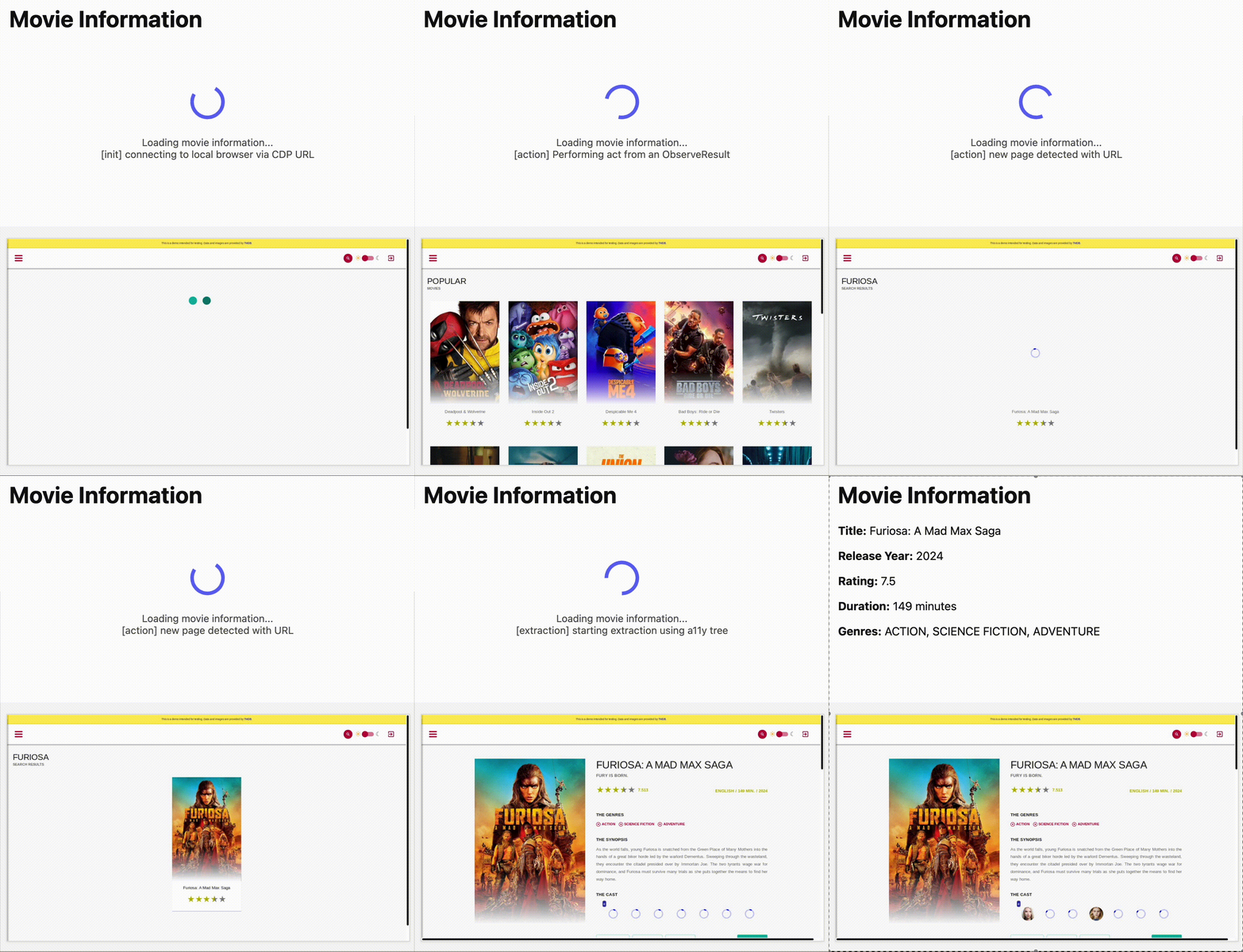
AutoRAG is now AI Search! The new name marks a new and bigger mission: to make world-class search infrastructure available to every developer and business.
With AI Search you can now use models from different providers like OpenAI and Anthropic. By attaching your provider keys to the AI Gateway linked to your AI Search instance, you can use many more models for both embedding and inference.
To use AI Search with other model providers:
- Add provider keys to AI Gateway
- Go to AI > AI Gateway in the dashboard.
- Select or create an AI gateway.
- In Provider Keys, choose your provider, click Add, and enter the key.
- Connect a gateway to AI Search: When creating a new AI Search, select the AI Gateway with your provider keys. For an existing AI Search, go to Settings and switch to a gateway that has your keys under Resources.
- Select models: Embedding models are only available to be changed when creating a new AI Search. Generation model can be selected when creating a new AI Search and can be changed at any time in Settings.
Once configured, your AI Search instance will be able to reference models available through your AI Gateway when making a
/ai-searchrequest:JavaScript export default {async fetch(request, env) {// Query your AI Search instance with a natural language question to an OpenAI modelconst result = await env.AI.autorag("my-ai-search").aiSearch({query: "What's new for Cloudflare Birthday Week?",model: "openai/gpt-5"});// Return only the generated answer as plain textreturn new Response(result.response, {headers: { "Content-Type": "text/plain" },});},};In the coming weeks we will also roll out updates to align the APIs with the new name. The existing APIs will continue to be supported for the time being. Stay tuned to the AI Search Changelog and Discord ↗ for more updates!
- Add provider keys to AI Gateway
AutoRAG now includes a Metrics tab that shows how your data is indexed and searched. Get a clear view of the health of your indexing pipeline, compare usage between
ai-searchandsearch, and see which files are retrieved most often.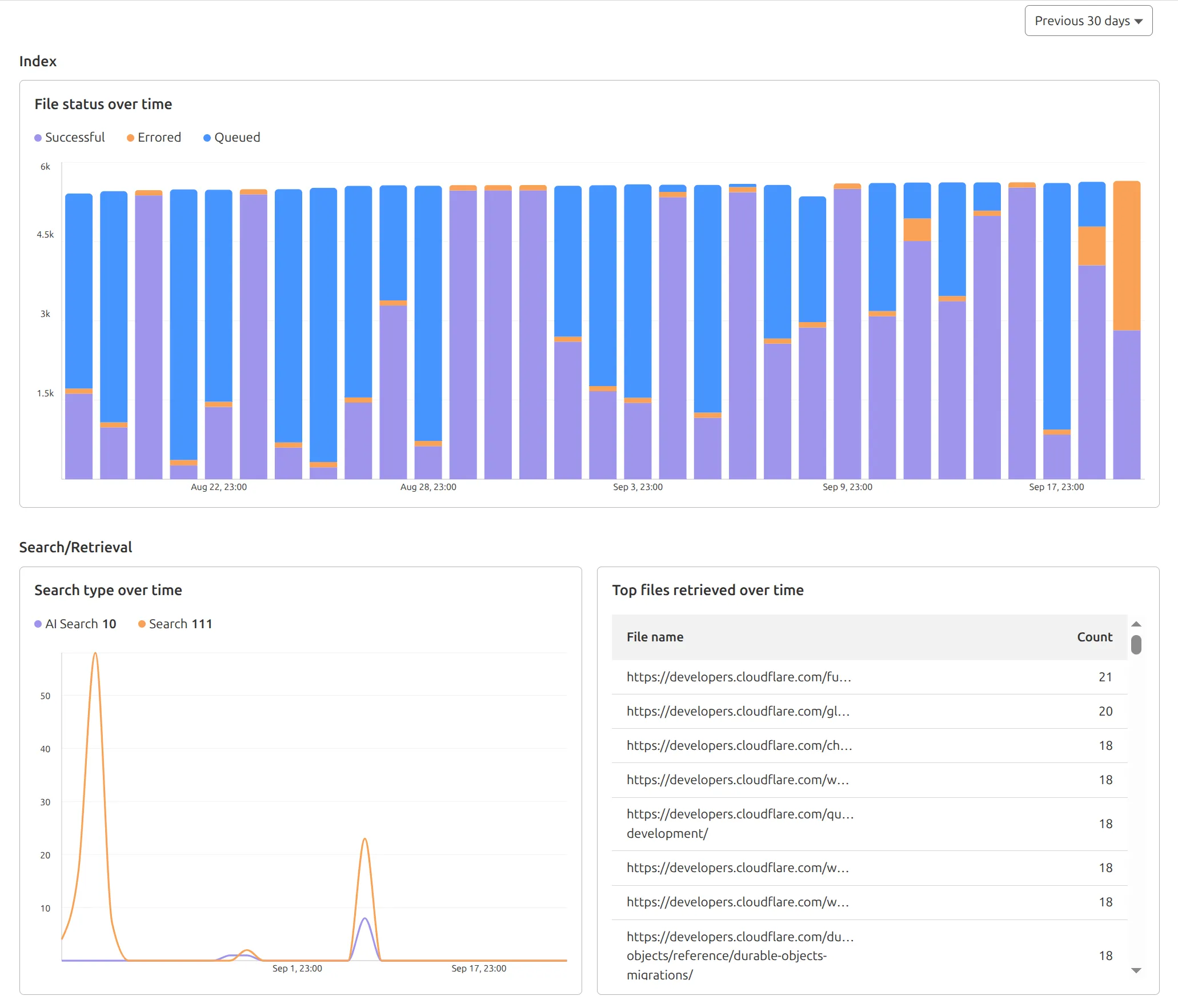
You can find these metrics within each AutoRAG instance:
- Indexing: Track how files are ingested and see status changes over time.
- Search breakdown: Compare usage between
ai-searchandsearchendpoints. - Top file retrievals: Identify which files are most frequently retrieved in a given period.
Try it today in AutoRAG.
We've shipped a new release for the Agents SDK ↗ bringing full compatibility with AI SDK v5 ↗ and introducing automatic message migration that handles all legacy formats transparently.
This release includes improved streaming and tool support, tool confirmation detection (for "human in the loop" systems), enhanced React hooks with automatic tool resolution, improved error handling for streaming responses, and seamless migration utilities that work behind the scenes.
This makes it ideal for building production AI chat interfaces with Cloudflare Workers AI models, agent workflows, human-in-the-loop systems, or any application requiring reliable message handling across SDK versions — all while maintaining backward compatibility.
Additionally, we've updated workers-ai-provider v2.0.0, the official provider for Cloudflare Workers AI models, to be compatible with AI SDK v5.
Creates a new chat interface with enhanced v5 capabilities.
TypeScript // Basic chat setupconst { messages, sendMessage, addToolResult } = useAgentChat({agent,experimental_automaticToolResolution: true,tools,});// With custom tool confirmationconst chat = useAgentChat({agent,experimental_automaticToolResolution: true,toolsRequiringConfirmation: ["dangerousOperation"],});Tools are automatically categorized based on their configuration:
TypeScript const tools = {// Auto-executes (has execute function)getLocalTime: {description: "Get current local time",inputSchema: z.object({}),execute: async () => new Date().toLocaleString(),},// Requires confirmation (no execute function)deleteFile: {description: "Delete a file from the system",inputSchema: z.object({filename: z.string(),}),},// Server-executed (no client confirmation)analyzeData: {description: "Analyze dataset on server",inputSchema: z.object({ data: z.array(z.number()) }),serverExecuted: true,},} satisfies Record<string, AITool>;Send messages using the new v5 format with parts array:
TypeScript // Text messagesendMessage({role: "user",parts: [{ type: "text", text: "Hello, assistant!" }],});// Multi-part message with filesendMessage({role: "user",parts: [{ type: "text", text: "Analyze this image:" },{ type: "image", image: imageData },],});Simplified logic for detecting pending tool confirmations:
TypeScript const pendingToolCallConfirmation = messages.some((m) =>m.parts?.some((part) => isToolUIPart(part) && part.state === "input-available",),);// Handle tool confirmationif (pendingToolCallConfirmation) {await addToolResult({toolCallId: part.toolCallId,tool: getToolName(part),output: "User approved the action",});}Seamlessly handle legacy message formats without code changes.
TypeScript // All these formats are automatically converted:// Legacy v4 string contentconst legacyMessage = {role: "user",content: "Hello world",};// Legacy v4 with tool callsconst legacyWithTools = {role: "assistant",content: "",toolInvocations: [{toolCallId: "123",toolName: "weather",args: { city: "SF" },state: "result",result: "Sunny, 72°F",},],};// Automatically becomes v5 format:// {// role: "assistant",// parts: [{// type: "tool-call",// toolCallId: "123",// toolName: "weather",// args: { city: "SF" },// state: "result",// result: "Sunny, 72°F"// }]// }Migrate tool definitions to use the new
inputSchemaproperty.TypeScript // Before (AI SDK v4)const tools = {weather: {description: "Get weather information",parameters: z.object({city: z.string(),}),execute: async (args) => {return await getWeather(args.city);},},};// After (AI SDK v5)const tools = {weather: {description: "Get weather information",inputSchema: z.object({city: z.string(),}),execute: async (args) => {return await getWeather(args.city);},},};Seamless integration with Cloudflare Workers AI models through the updated workers-ai-provider v2.0.0.
Use Cloudflare Workers AI models directly in your agent workflows:
TypeScript import { createWorkersAI } from "workers-ai-provider";import { useAgentChat } from "agents/ai-react";// Create Workers AI model (v2.0.0 - same API, enhanced v5 internals)const model = createWorkersAI({binding: env.AI,})("@cf/meta/llama-3.2-3b-instruct");Workers AI models now support v5 file handling with automatic conversion:
TypeScript // Send images and files to Workers AI modelssendMessage({role: "user",parts: [{ type: "text", text: "Analyze this image:" },{type: "file",data: imageBuffer,mediaType: "image/jpeg",},],});// Workers AI provider automatically converts to proper formatEnhanced streaming support with automatic warning detection:
TypeScript // Streaming with Workers AI modelsconst result = await streamText({model: createWorkersAI({ binding: env.AI })("@cf/meta/llama-3.2-3b-instruct"),messages,onChunk: (chunk) => {// Enhanced streaming with warning handlingconsole.log(chunk);},});Update your imports to use the new v5 types:
TypeScript // Before (AI SDK v4)import type { Message } from "ai";import { useChat } from "ai/react";// After (AI SDK v5)import type { UIMessage } from "ai";// or alias for compatibilityimport type { UIMessage as Message } from "ai";import { useChat } from "@ai-sdk/react";- Migration Guide ↗ - Comprehensive migration documentation
- AI SDK v5 Documentation ↗ - Official AI SDK migration guide
- An Example PR showing the migration from AI SDK v4 to v5 ↗
- GitHub Issues ↗ - Report bugs or request features
We'd love your feedback! We're particularly interested in feedback on:
- Migration experience - How smooth was the upgrade process?
- Tool confirmation workflow - Does the new automatic detection work as expected?
- Message format handling - Any edge cases with legacy message conversion?
We're excited to be a launch partner alongside Google ↗ to bring their newest embedding model, EmbeddingGemma, to Workers AI that delivers best-in-class performance for its size, enabling RAG and semantic search use cases.
@cf/google/embeddinggemma-300mis a 300M parameter embedding model from Google, built from Gemma 3 and the same research used to create Gemini models. This multilingual model supports 100+ languages, making it ideal for RAG systems, semantic search, content classification, and clustering tasks.Using EmbeddingGemma in AI Search: Now you can leverage EmbeddingGemma directly through AI Search for your RAG pipelines. EmbeddingGemma's multilingual capabilities make it perfect for global applications that need to understand and retrieve content across different languages with exceptional accuracy.
To use EmbeddingGemma for your AI Search projects:
- Go to Create in the AI Search dashboard ↗
- Follow the setup flow for your new RAG instance
- In the Generate Index step, open up More embedding models and select
@cf/google/embeddinggemma-300mas your embedding model - Complete the setup to create an AI Search
Try it out and let us know what you think!
We improved AI crawler management with detailed analytics and introduced custom HTTP 402 responses for blocked crawlers. AI Audit has been renamed to AI Crawl Control and is now generally available.
Enhanced Crawlers tab:
- View total allowed and blocked requests for each AI crawler
- Trend charts show crawler activity over your selected time range per crawler
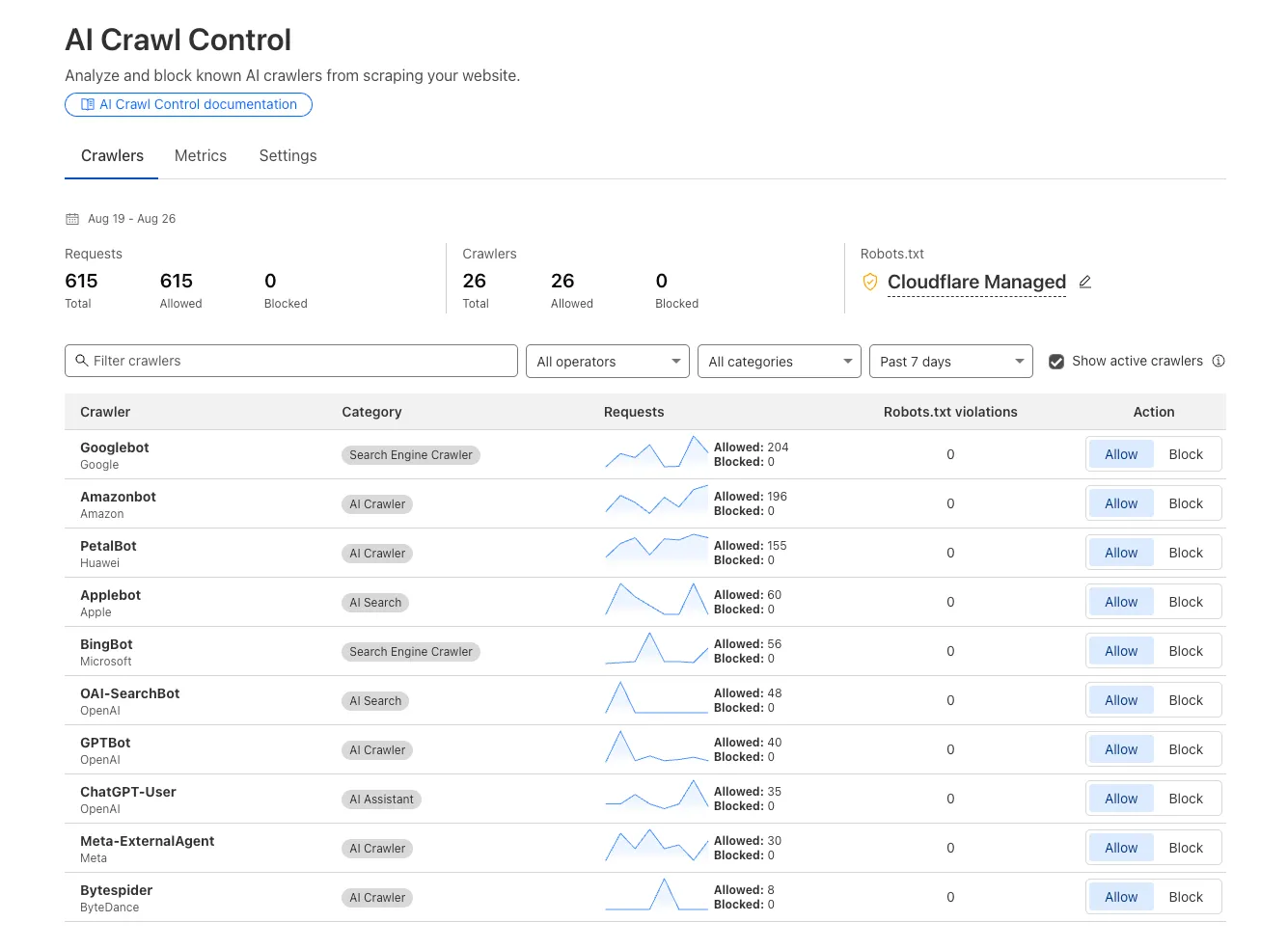
Custom block responses (paid plans): You can now return HTTP 402 "Payment Required" responses when blocking AI crawlers, enabling direct communication with crawler operators about licensing terms.
For users on paid plans, when blocking AI crawlers you can configure:
- Response code: Choose between 403 Forbidden or 402 Payment Required
- Response body: Add a custom message with your licensing contact information
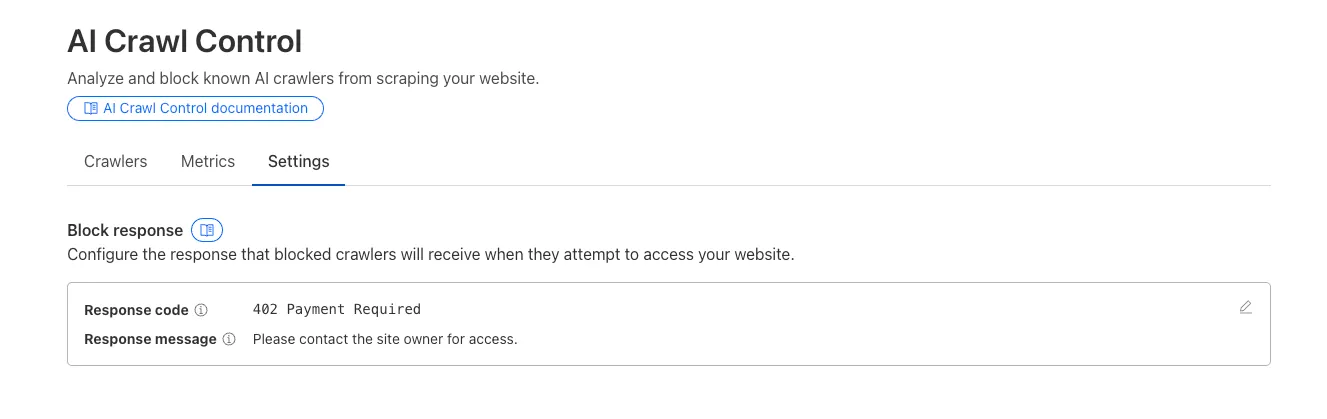
Example 402 response:
HTTP 402 Payment RequiredDate: Mon, 24 Aug 2025 12:56:49 GMTContent-type: application/jsonServer: cloudflareCf-Ray: 967e8da599d0c3fa-EWRCf-Team: 2902f6db750000c3fa1e2ef400000001{"message": "Please contact the site owner for access."}
New state-of-the-art models have landed on Workers AI! This time, we're introducing new partner models trained by our friends at Deepgram ↗ and Leonardo ↗, hosted on Workers AI infrastructure.
As well, we're introuding a new turn detection model that enables you to detect when someone is done speaking — useful for building voice agents!
Read the blog ↗ for more details and check out some of the new models on our platform:
@cf/deepgram/aura-1is a text-to-speech model that allows you to input text and have it come to life in a customizable voice@cf/deepgram/nova-3is speech-to-text model that transcribes multilingual audio at a blazingly fast speed@cf/pipecat-ai/smart-turn-v2helps you detect when someone is done speaking@cf/leonardo/lucid-originis a text-to-image model that generates images with sharp graphic design, stunning full-HD renders, or highly specific creative direction@cf/leonardo/phoenix-1.0is a text-to-image model with exceptional prompt adherence and coherent text
You can filter out new partner models with the
Partnercapability on our Models page.As well, we're introducing WebSocket support for some of our audio models, which you can filter though the
Realtimecapability on our Models page. WebSockets allows you to create a bi-directional connection to our inference server with low latency — perfect for those that are building voice agents.An example python snippet on how to use WebSockets with our new Aura model:
import jsonimport osimport asyncioimport websocketsuri = f"wss://api.cloudflare.com/client/v4/accounts/{ACCOUNT_ID}/ai/run/@cf/deepgram/aura-1"input = ["Line one, out of three lines that will be provided to the aura model.","Line two, out of three lines that will be provided to the aura model.","Line three, out of three lines that will be provided to the aura model. This is a last line.",]async def text_to_speech():async with websockets.connect(uri, additional_headers={"Authorization": os.getenv("CF_TOKEN")}) as websocket:print("connection established")for line in input:print(f"sending `{line}`")await websocket.send(json.dumps({"type": "Speak", "text": line}))print("line was sent, flushing")await websocket.send(json.dumps({"type": "Flush"}))print("flushed, recving")resp = await websocket.recv()print(f"response received {resp}")if __name__ == "__main__":asyncio.run(text_to_speech())
You can now list all vector identifiers in a Vectorize index using the new
list-vectorsoperation. This enables bulk operations, auditing, and data migration workflows through paginated requests that maintain snapshot consistency.The operation is available via Wrangler CLI and REST API. Refer to the list-vectors best practices guide for detailed usage guidance.
Cloudflare Secrets Store is now integrated with AI Gateway, allowing you to store, manage, and deploy your AI provider keys in a secure and seamless configuration through Bring Your Own Key ↗. Instead of passing your AI provider keys directly in every request header, you can centrally manage each key with Secrets Store and deploy in your gateway configuration using only a reference, rather than passing the value in plain text.
You can now create a secret directly from your AI Gateway in the dashboard ↗ by navigating into your gateway -> Provider Keys -> Add.
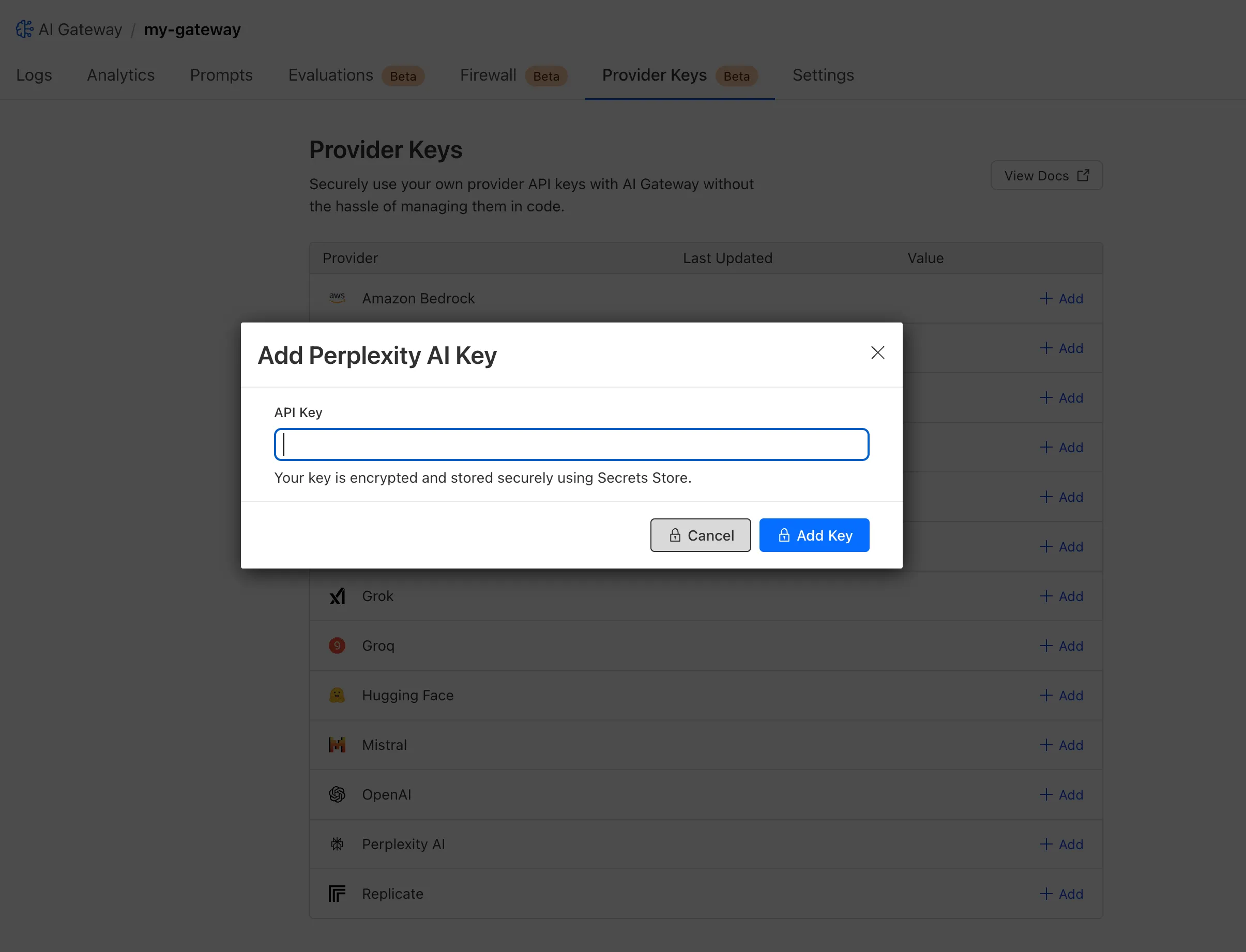
You can also create your secret with the newly available ai_gateway scope via wrangler ↗, the Secrets Store dashboard ↗, or the API ↗.
Then, pass the key in the request header using its Secrets Store reference:
curl -X POST https://gateway.ai.cloudflare.com/v1/<ACCOUNT_ID>/my-gateway/anthropic/v1/messages \--header 'cf-aig-authorization: ANTHROPIC_KEY_1 \--header 'anthropic-version: 2023-06-01' \--header 'Content-Type: application/json' \--data '{"model": "claude-3-opus-20240229", "messages": [{"role": "user", "content": "What is Cloudflare?"}]}'Or, using Javascript:
import Anthropic from '@anthropic-ai/sdk';const anthropic = new Anthropic({apiKey: "ANTHROPIC_KEY_1",baseURL: "https://gateway.ai.cloudflare.com/v1/<ACCOUNT_ID>/my-gateway/anthropic",});const message = await anthropic.messages.create({model: 'claude-3-opus-20240229',messages: [{role: "user", content: "What is Cloudflare?"}],max_tokens: 1024});For more information, check out the blog ↗!
The latest releases of @cloudflare/agents ↗ brings major improvements to MCP transport protocols support and agents connectivity. Key updates include:
MCP servers can now request user input during tool execution, enabling interactive workflows like confirmations, forms, and multi-step processes. This feature uses durable storage to preserve elicitation state even during agent hibernation, ensuring seamless user interactions across agent lifecycle events.
TypeScript // Request user confirmation via elicitationconst confirmation = await this.elicitInput({message: `Are you sure you want to increment the counter by ${amount}?`,requestedSchema: {type: "object",properties: {confirmed: {type: "boolean",title: "Confirm increment",description: "Check to confirm the increment",},},required: ["confirmed"],},});Check out our demo ↗ to see elicitation in action.
MCP now supports HTTP streamable transport which is recommended over SSE. This transport type offers:
- Better performance: More efficient data streaming and reduced overhead
- Improved reliability: Enhanced connection stability and error recover- Automatic fallback: If streamable transport is not available, it gracefully falls back to SSE
TypeScript export default MyMCP.serve("/mcp", {binding: "MyMCP",});The SDK automatically selects the best available transport method, gracefully falling back from streamable-http to SSE when needed.
Significant improvements to MCP server connections and transport reliability:
- Auto transport selection: Automatically determines the best transport method, falling back from streamable-http to SSE as needed
- Improved error handling: Better connection state management and error reporting for MCP servers
- Reliable prop updates: Centralized agent property updates ensure consistency across different contexts
You can use
.queue()to enqueue background work — ideal for tasks like processing user messages, sending notifications etc.TypeScript class MyAgent extends Agent {doSomethingExpensive(payload) {// a long running process that you want to run in the background}queueSomething() {await this.queue("doSomethingExpensive", somePayload); // this will NOT block further execution, and runs in the backgroundawait this.queue("doSomethingExpensive", someOtherPayload); // the callback will NOT run until the previous callback is complete// ... call as many times as you want}}Want to try it yourself? Just define a method like processMessage in your agent, and you’re ready to scale.
Want to build an AI agent that can receive and respond to emails automatically? With the new email adapter and onEmail lifecycle method, now you can.
TypeScript export class EmailAgent extends Agent {async onEmail(email: AgentEmail) {const raw = await email.getRaw();const parsed = await PostalMime.parse(raw);// create a response based on the email contents// and then send a replyawait this.replyToEmail(email, {fromName: "Email Agent",body: `Thanks for your email! You've sent us "${parsed.subject}". We'll process it shortly.`,});}}You route incoming mail like this:
TypeScript export default {async email(email, env) {await routeAgentEmail(email, env, {resolver: createAddressBasedEmailResolver("EmailAgent"),});},};You can find a full example here ↗.
Custom methods are now automatically wrapped with the agent's context, so calling
getCurrentAgent()should work regardless of where in an agent's lifecycle it's called. Previously this would not work on RPC calls, but now just works out of the box.TypeScript export class MyAgent extends Agent {async suggestReply(message) {// getCurrentAgent() now correctly works, even when called inside an RPC methodconst { agent } = getCurrentAgent()!;return generateText({prompt: `Suggest a reply to: "${message}" from "${agent.name}"`,tools: [replyWithEmoji],});}}Try it out and tell us what you build!
We’ve shipped a major release for the @cloudflare/sandbox ↗ SDK, turning it into a full-featured, container-based execution platform that runs securely on Cloudflare Workers.
This update adds live streaming of output, persistent Python and JavaScript code interpreters with rich output support (charts, tables, HTML, JSON), file system access, Git operations, full background process control, and the ability to expose running services via public URLs.
This makes it ideal for building AI agents, CI runners, cloud REPLs, data analysis pipelines, or full developer tools — all without managing infrastructure.
Create persistent code contexts with support for rich visual + structured outputs.
Creates a new code execution context with persistent state.
TypeScript // Create a Python contextconst pythonCtx = await sandbox.createCodeContext({ language: "python" });// Create a JavaScript contextconst jsCtx = await sandbox.createCodeContext({ language: "javascript" });Options:
- language: Programming language ('python' | 'javascript' | 'typescript')
- cwd: Working directory (default: /workspace)
- envVars: Environment variables for the context
Executes code with optional streaming callbacks.
TypeScript // Simple executionconst execution = await sandbox.runCode('print("Hello World")', {context: pythonCtx,});// With streaming callbacksawait sandbox.runCode(`for i in range(5):print(f"Step {i}")time.sleep(1)`,{context: pythonCtx,onStdout: (output) => console.log("Real-time:", output.text),onResult: (result) => console.log("Result:", result),},);Options:
- language: Programming language ('python' | 'javascript' | 'typescript')
- cwd: Working directory (default: /workspace)
- envVars: Environment variables for the context
Returns a streaming response for real-time processing.
TypeScript const stream = await sandbox.runCodeStream("import time; [print(i) for i in range(10)]",);// Process the stream as neededInterpreter outputs are auto-formatted and returned in multiple formats:
- text
- html (e.g., Pandas tables)
- png, svg (e.g., Matplotlib charts)
- json (structured data)
- chart (parsed visualizations)
TypeScript const result = await sandbox.runCode(`import seaborn as snsimport matplotlib.pyplot as pltdata = sns.load_dataset("flights")pivot = data.pivot("month", "year", "passengers")sns.heatmap(pivot, annot=True, fmt="d")plt.title("Flight Passengers")plt.show()pivot.to_dict()`,{ context: pythonCtx },);if (result.png) {console.log("Chart output:", result.png);}Start background processes and expose them with live URLs.
TypeScript await sandbox.startProcess("python -m http.server 8000");const preview = await sandbox.exposePort(8000);console.log("Live preview at:", preview.url);Start, inspect, and terminate long-running background processes.
TypeScript const process = await sandbox.startProcess("node server.js");console.log(`Started process ${process.id} with PID ${process.pid}`);// Monitor the processconst logStream = await sandbox.streamProcessLogs(process.id);for await (const log of parseSSEStream<LogEvent>(logStream)) {console.log(`Server: ${log.data}`);}- listProcesses() - List all running processes
- getProcess(id) - Get detailed process status
- killProcess(id, signal) - Terminate specific processes
- killAllProcesses() - Kill all processes
- streamProcessLogs(id, options) - Stream logs from running processes
- getProcessLogs(id) - Get accumulated process output
Clone Git repositories directly into the sandbox.
TypeScript await sandbox.gitCheckout("https://github.com/user/repo", {branch: "main",targetDir: "my-project",});Sandboxes are still experimental. We're using them to explore how isolated, container-like workloads might scale on Cloudflare — and to help define the developer experience around them.